You just hit publish on a post that took six hours to write. Now the second job starts.
Open Facebook and write something friendly. Open X and cut it down to fit. Open LinkedIn and make it sound professional. Open Instagram and add line breaks and hashtags. Open Pinterest and make it keyword-rich. By the time you finish, you have written the same idea several different ways, using up the creative energy you already spent on the article itself.
Nobody budgets time for this part of publishing. So it gets rushed, or it gets skipped. And that is a real problem, because a post nobody sees may as well not exist.
There is a better way to handle it. With SchedulePress, you can generate social media captions with AI for 7+ platforms without ever leaving your WordPress dashboard. No extra tabs. No copy and paste. No rewriting the same sentence in five different tones.
In this guide, we will show you exactly how to generate social media captions with AI the moment your post is ready to go live.
Why One Caption for Every Platform Does Not Work
Before we get to the how, it helps to be clear about why this matters. A lot of bloggers write one caption and post it everywhere. It is fast, but it quietly costs you reach — which is exactly why an AI caption generator built for each network is worth the switch.
✂️ Character Limits Force Different Structures
X gives you a tight window. LinkedIn rewards a longer setup before the link. Instagram lets you breathe, but it buries anything below the “more” cutoff. A single caption built for one platform is always a compromise on the others, so a smart move is to generate social media captions with AI that respect each format.
🎯 Audience Intent Changes by Platform
Someone scrolling LinkedIn on a Tuesday morning wants professional insight. Someone on Pinterest is searching with intent and needs descriptive, keyword-rich text. Someone on Instagram wants personality. One article, three very different entry points — and three very different social media captions.
🚫 Platform Culture Punishes Copy and Paste
A caption that clearly came from somewhere else reads as low effort, and audiences are good at spotting it. The catch has always been time. Doing it properly takes more than you have. That is the gap AI closes, and closing it inside your editor — where your post content already lives — is what makes it practical.
What the AI Caption Generator in SchedulePress Does
SchedulePress is a WordPress editorial calendar and auto social sharing plugin. The AI caption generator sits inside the publishing flow you already use, and it does three things that matter.
i. It reads your actual post content. You are not pasting your article into a separate chatbot and pasting the result back. The AI pulls context directly from what you wrote.
ii. It generates per-platform captions in one pass. Select Facebook, LinkedIn, Instagram, Pinterest, X, Threads, or Google Business Profile, and you get a tailored AI-generated caption for each one.
iii. It hands off straight to scheduling. Captions land in your social share settings, ready to post when the article goes live — the same flow you use to manage your WordPress publishing workflow in one place.
The feature runs on your own OpenAI account, so you control the spend, and nothing sits behind an opaque credit system.
What You Need Before You Start
Three things:
- SchedulePress installed and activated on your WordPress site.
- An OpenAI API key from your OpenAI account.
- Your social profiles connected in SchedulePress, so the captions you generate with AI have somewhere to go.
That is it. Setup takes about five minutes, and you only do it once.
Step 1: Connect Your OpenAI Account
From your WordPress dashboard, go to SchedulePress > Settings and open the Write With AI tab.
Paste your OpenAI API key into the field, then click Test Connection. This confirms the key works before you rely on it. It is worth doing — a typo here shows up later as a silent failure, at the exact moment you are trying to publish. Once the test passes, hit Save Changes.
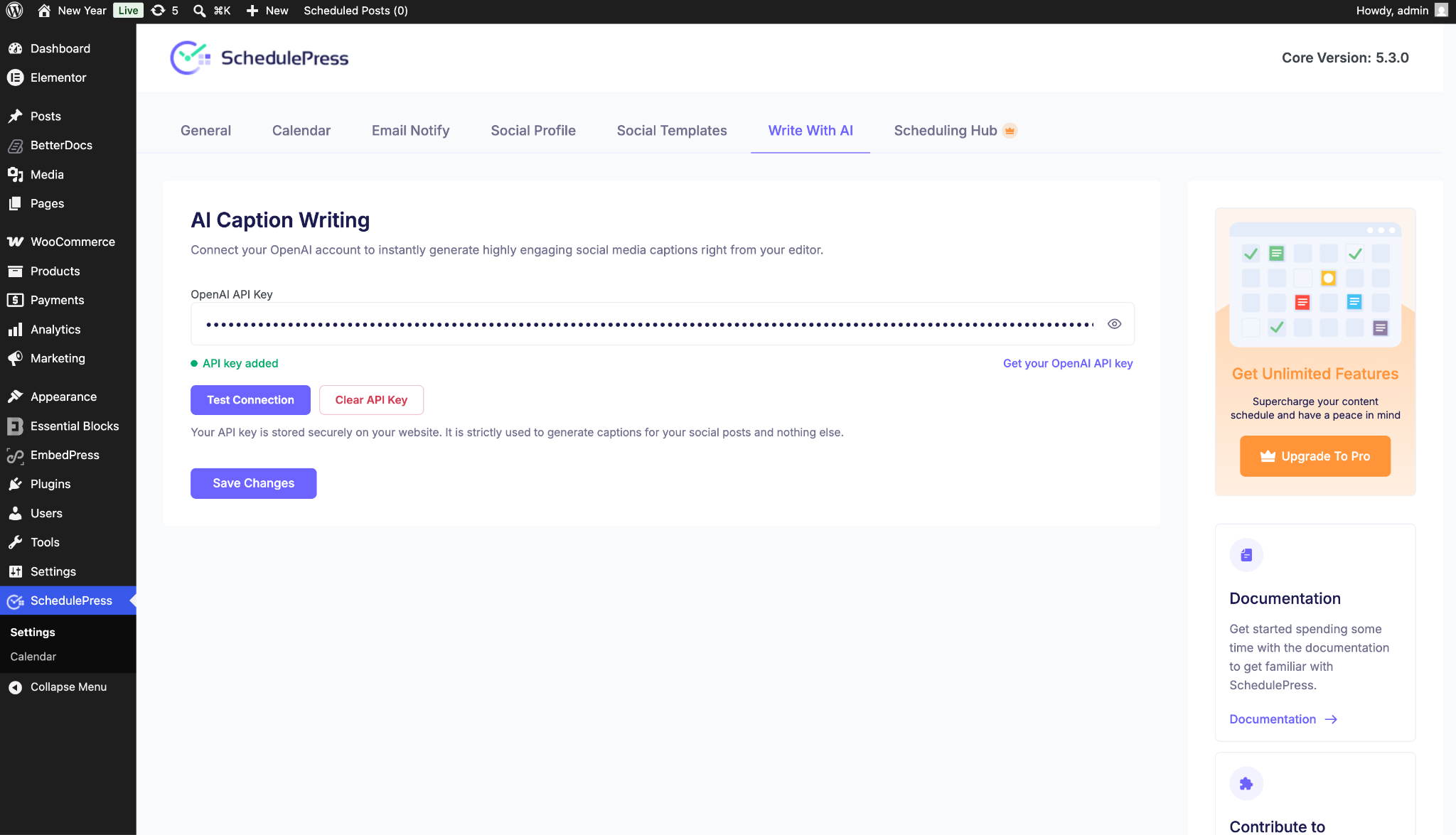
Your API key is saved on your own site, and every caption you generate with AI runs through your own OpenAI account.
Step 2: Open the Schedule and Share Hub
Now open any post, new or existing. In the right-hand sidebar of the editor, find the SchedulePress block and click Schedule And Share.
This opens your centralized publishing hub as a pop-up. Everything about how and when this post goes out lives here — the schedule, the connected platforms, and the captions.
Step 3: Launch Write Caption with AI
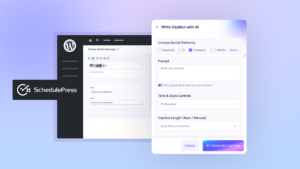
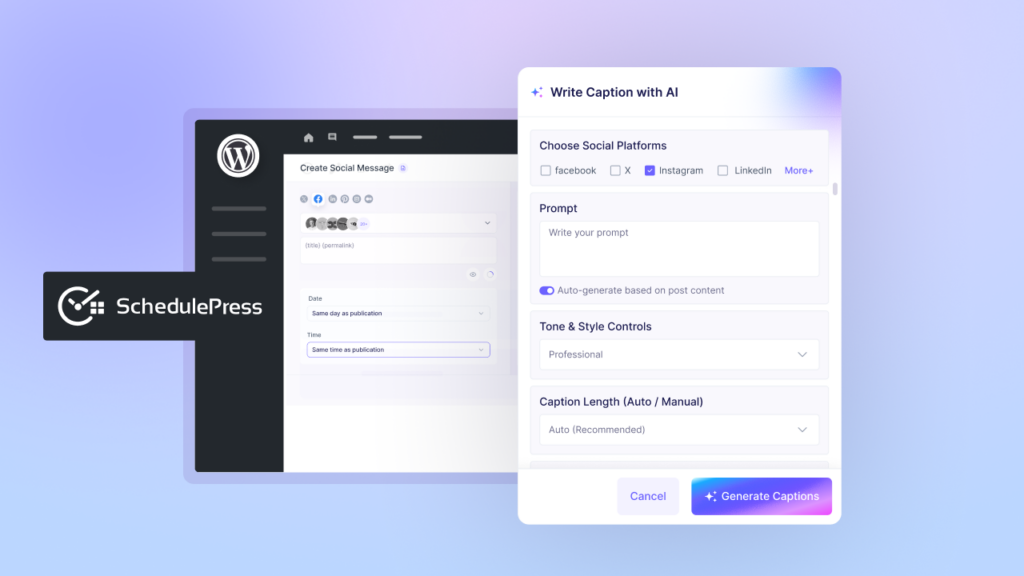
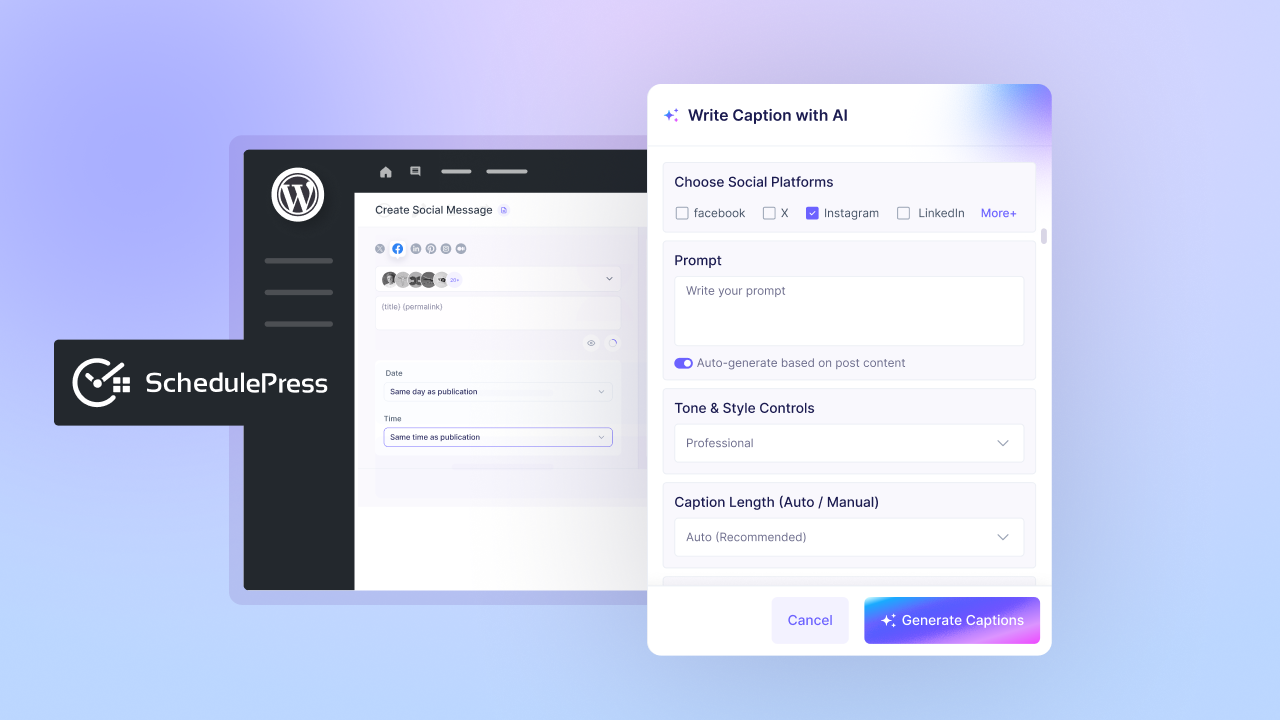
On the right side of the board, go to your Social Share Settings and click the button to craft your social messages. From there, select Write Caption with AI. This opens the generator panel where you will generate social media captions with AI for every platform you choose.
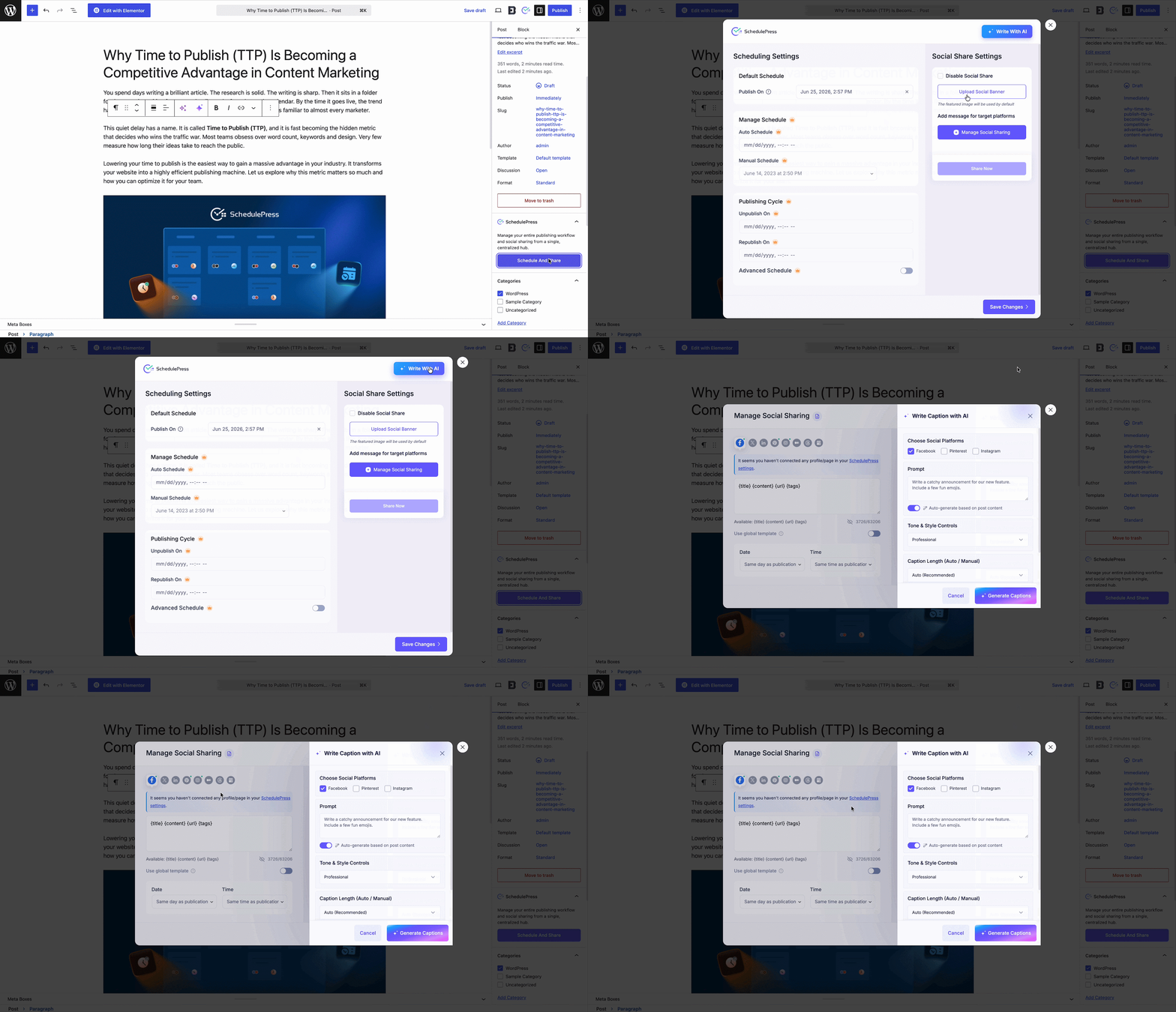
Step 4: Configure Your Captions
This is where you shape the output. The modal gives you three controls, and using all three is the difference between generic AI text and something that sounds like you.
✅ Choose Your Social Platforms
Check the boxes for the networks you want to target — Facebook, Pinterest, Instagram, and the rest. Only select what you will actually post to, because every extra platform is more output to review. If you are still setting these connections up, our guides on how to auto share posts on Instagram, auto post to Pinterest, and publish to LinkedIn walk you through each one.
✍️ Write a Prompt, or Auto Generate
You have two paths here. Toggle “Auto generate based on post content,” and the AI pulls context directly from your article. This is the fastest route and works well for straightforward posts. Or type a custom instruction when you want a specific angle — this helps when your article covers a lot of ground and you want the social push to lead with one hook.
🎨 Set Tone and Style
Pick a voice that matches your brand — professional, casual, or whatever fits the audience you write for. This is the highest-leverage setting in the modal. The same article can resonate with different audiences depending on whether you promote it in a professional or conversational tone.
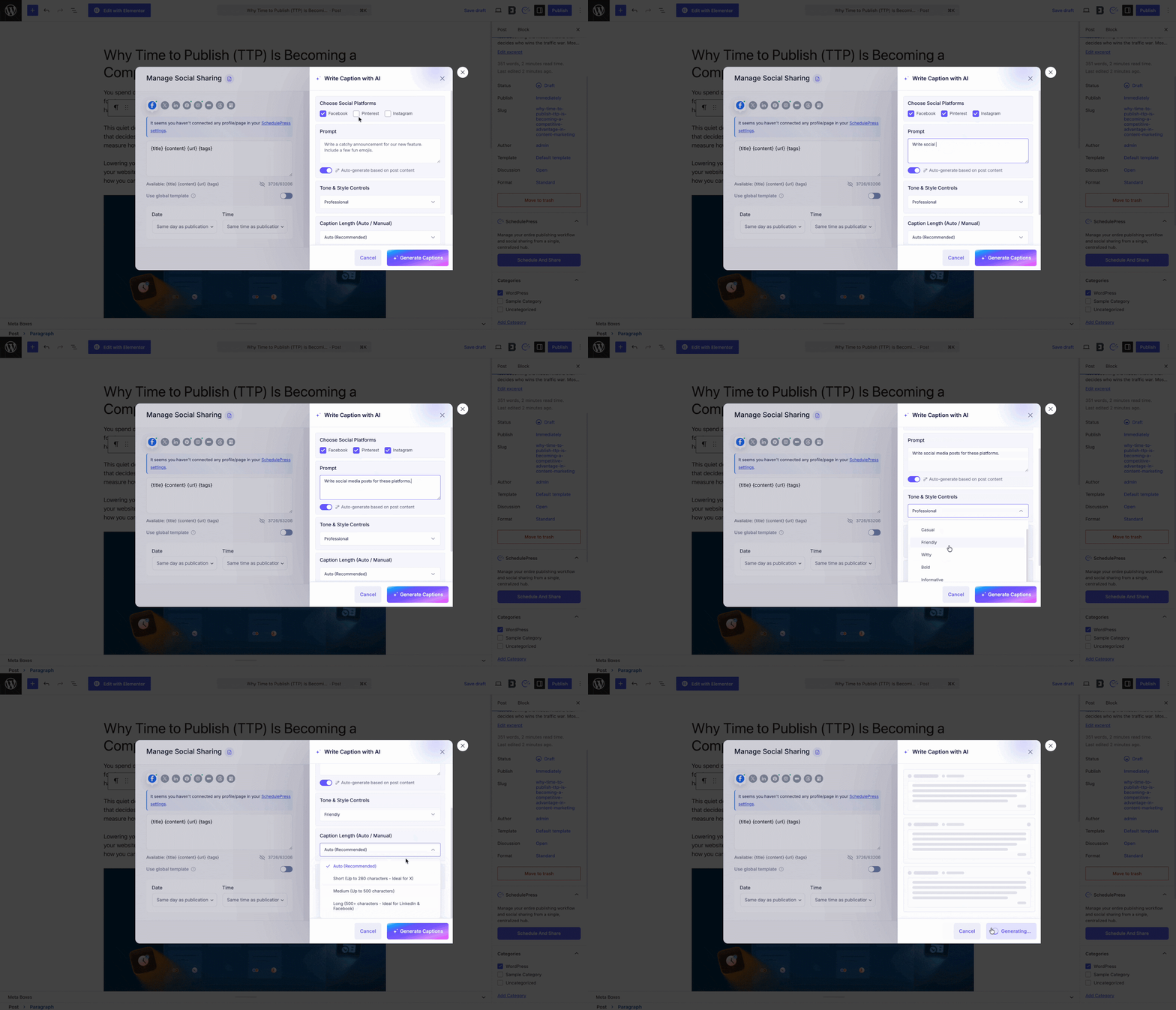
Generate, and you will have a social media caption for each selected platform.
Step 5: Review, Edit, Schedule
Read every caption before it goes out. Not because the output is bad, but because you know things the model does not — a phrase that fits your brand, a detail that is currently sensitive, a hook that worked last month.
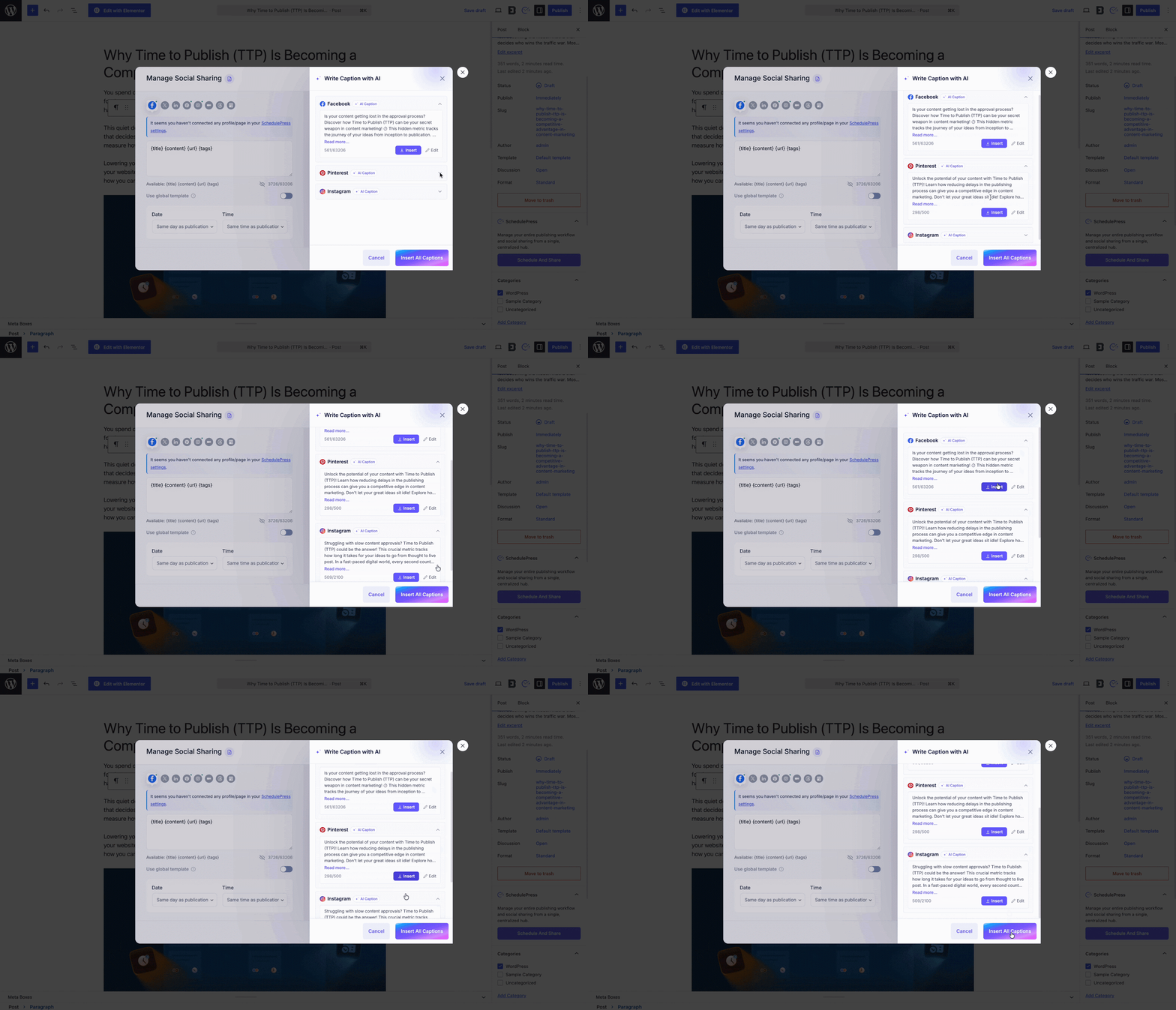
Edit anything that needs it, confirm your schedule, and you are done. When the post publishes, the captions go out with it. This is where the payoff of pairing an AI caption generator with an editorial calendar really shows.
Five Prompts That Produce Better Captions
The auto generate option is fine for most posts. But when you want a specific result, a good prompt is worth the ten seconds it takes to type. These work well when you generate social media captions with AI:
- Lead with the problem. “Open with the single most frustrating problem this article solves, then tease the solution without giving it away.”
- Pull a stat. “Find the most surprising number or claim in this post and build the caption around it.”
- Ask a question. “Write a caption that opens with a question my audience would answer yes to, then point to the article.”
- Write for one person. “Write this for a solo blogger who publishes twice a week and has no marketing team.”
- Take a contrarian angle. “Open by challenging a common assumption in this topic, then position the article as the correction.”
Save the ones that perform. Over time you will build a small library of prompts that match your voice.
How to Get the Most Out of AI Captions
AI can save you a significant amount of time, but the best results come from using it strategically rather than relying on it blindly. A few simple habits help you create AI-generated captions that feel authentic, stay consistent with your brand, and perform better over time.
🎙️ Keep Tone Consistent Across Posts
Switching between professional and playful week to week makes your feed feel unowned. Pick a default and stay with it.
🖐️ Always Edit by Hand
Treat the output as a strong first draft, not a finished one. A ten-second pass catches the phrasing that does not sound like you.
🗓️ Pair It with Your Editorial Calendar
The real time savings show up when caption generation is part of a workflow. Plan on your social calendar, draft, generate the caption, and auto share effortlessly.
It works far better as part of a full social media automation strategy than as a one-off task you remember on publish day.
📊 Watch What Performs
If casual captions consistently beat professional ones, that is a real signal about your audience. Adjust the tone setting to match.
🎯 Do Not Over-Select Platforms
Generating for seven networks when you are active on three creates review work with no upside.
Generate Social Media Captions with AI Using SchedulePress
The distance between a good article and an article people actually read is distribution. And distribution fails most often for one reason: it lands at the end of a long day, right when the energy runs out. It is not that bloggers fail to understand it.
Being able to generate social media captions with AI directly in your WordPress dashboard removes that friction. Your post content is already there. Your social profiles are already connected. Your schedule is already set. Adding platform-ready captions to that flow costs about a few seconds — a small habit that, much like shortening your overall time to publish, compounds into real reach over time.
Ready to spend less time writing social captions? Try SchedulePress and generate AI-powered captions directly from your WordPress dashboard.
Frequently Asked Questions
Do I need my own OpenAI API key?
Yes. The feature connects to your own OpenAI account, which means you control your usage and your costs directly.
Which platforms are supported?
7+ platforms, including Facebook, X (Twitter), LinkedIn, Instagram, Pinterest, Threads, and Google Business Profile.
Can I edit the captions the AI generates?
Yes, and you should. Every caption you generate with AI stays fully editable before it is scheduled or shared.
Does generating captions cost me OpenAI credits?
Yes. Usage is billed through your OpenAI account. Caption generation is a small workload, so the cost per post stays minimal.
Can I generate captions for a post I already published?
Yes. Open any existing post, launch Schedule And Share, and generate social media captions with AI from there.
Do I have to write a prompt every time?
No. The auto-generation option pulls context from your post content, so a prompt is optional.