Do you want to automatically share your WordPress blog on Pinterest? That will help you to share your schedule content on your WordPress site automatically on multiple accounts or boards? SchedulePress (previously known as WP Scheduled Posts) comes with this exact solution that will share your blog post on your multiple social media profiles, including Pinterest, in an automated process. Let us find out how auto-post sharing actually works and get engaged with the blog till the last!
Why You Might Have to Focus on Pinterest Sharing?
Increasing your website traffic and conversion is one of the most difficult tasks to accomplish in content marketing. You have to apply innovative tactics that would help you to drive your site engagement and conversion rates simultaneously. Pinterest marketing will do that for you without giving any extra effort.
For that, content marketers mostly focus on sharing their WordPress blog on Pinterest to get more site visitors and exposure on the spot. This is mostly because the audience feels attracted more to the interactive content, which represents content with amazing visual and text content. This makes it different from other social media sites in building huge social exposure and engagement more quickly than others.
Benefits of Sharing a WordPress Blog on Pinterest
Just think about the phase where you have to share your daily blogs manually for your separate Pinterest accounts, how would that be? It is time-consuming and kills productivity. You might have to go through a long schedule and maintain it accordingly before publishing your content on your social site.
For that reason, people feel the necessity of automation. It will help you to display your scheduled content at a time when your posts are being published on your website. You do not have to wait for any manual work, nor do you have to maintain any lists and other stuff. You just have to schedule your blog, and it will share your blogs automatically on your multiple social profiles on Pinterest. Is it not amazing?
SchedulePress Pro comes with this amazing auto-sharing feature not only for Pinterest, but you will also be able to share your content at the same time on multi-social profiles, groups or pages of Facebook, Twitter and LinkedIn. Let us get to know the details!
How to Share Your WordPress Blog on Pinterest with SchedulePress
To share your scheduled blogs automatically on your multiple Pinterest accounts, you have to integrate your Pinterest account first with SchedulePress. After that, the rest of the work will be done with automation. You can choose your preferred boards to pin your posts separately. Then it will auto-share your scheduled content on your selected boards.
Besides, after completing any blogs, you will be able to do instant sharing with this amazing plugin directly from your WordPress editor to your Pinterest multi-social profiles or boards.
Let Us Get Started with SchedulePress
By following the step-by-step guidelines, you will be able to auto-share your scheduled blogs for your multiple Pinterest accounts using SchedulePress. Let us check out the guide below:
Step 1: Create An App In Pinterest Developer
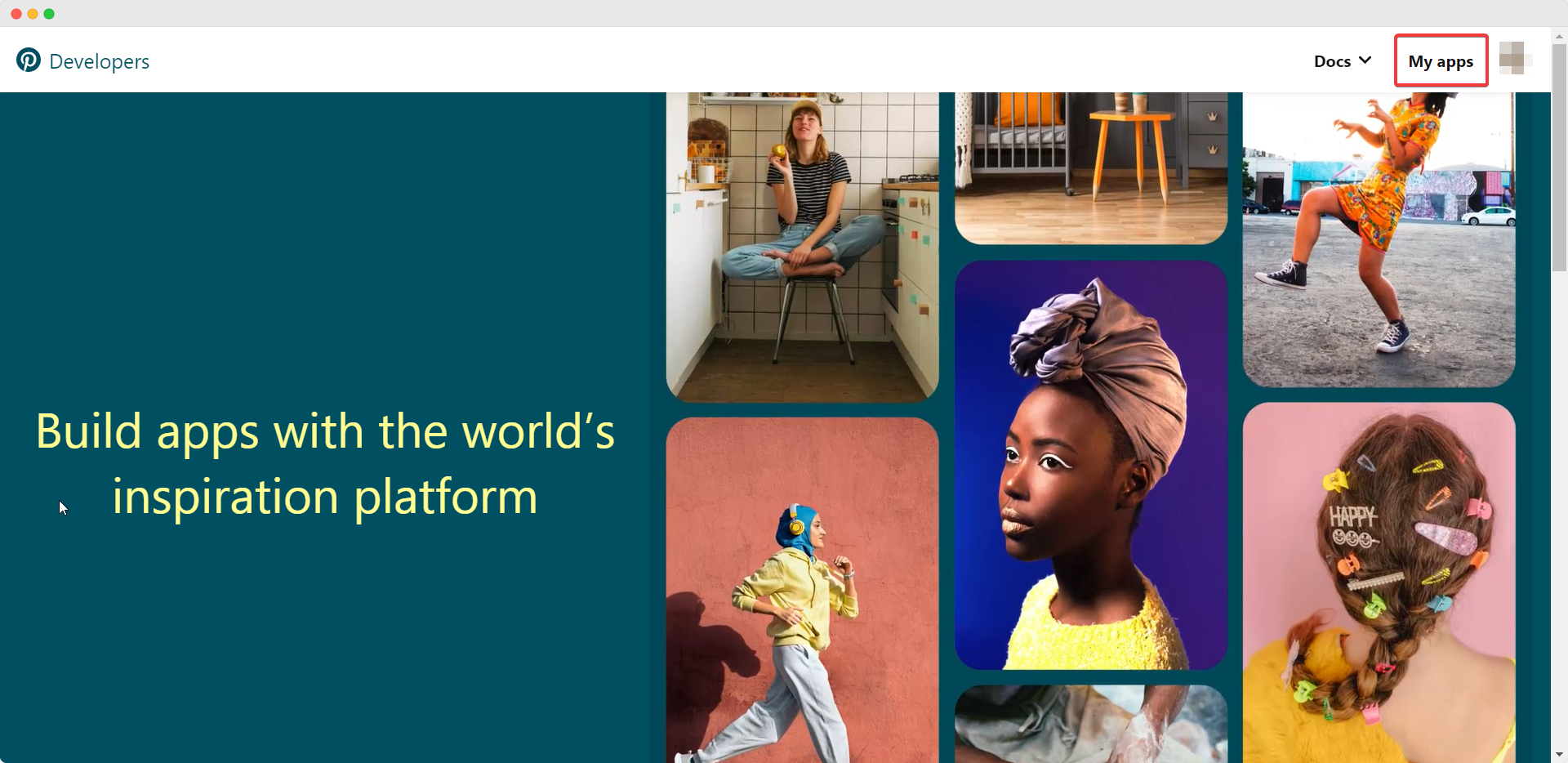
First, you need to create an app from your Pinterest Developer Account. If you already have an app, you can skip this step. After logging in to your Pinterest Developer Account, click on ‘My apps.’ You will be redirected to the ‘Apps’ page afterward.
Step 2: Enter All Required Information
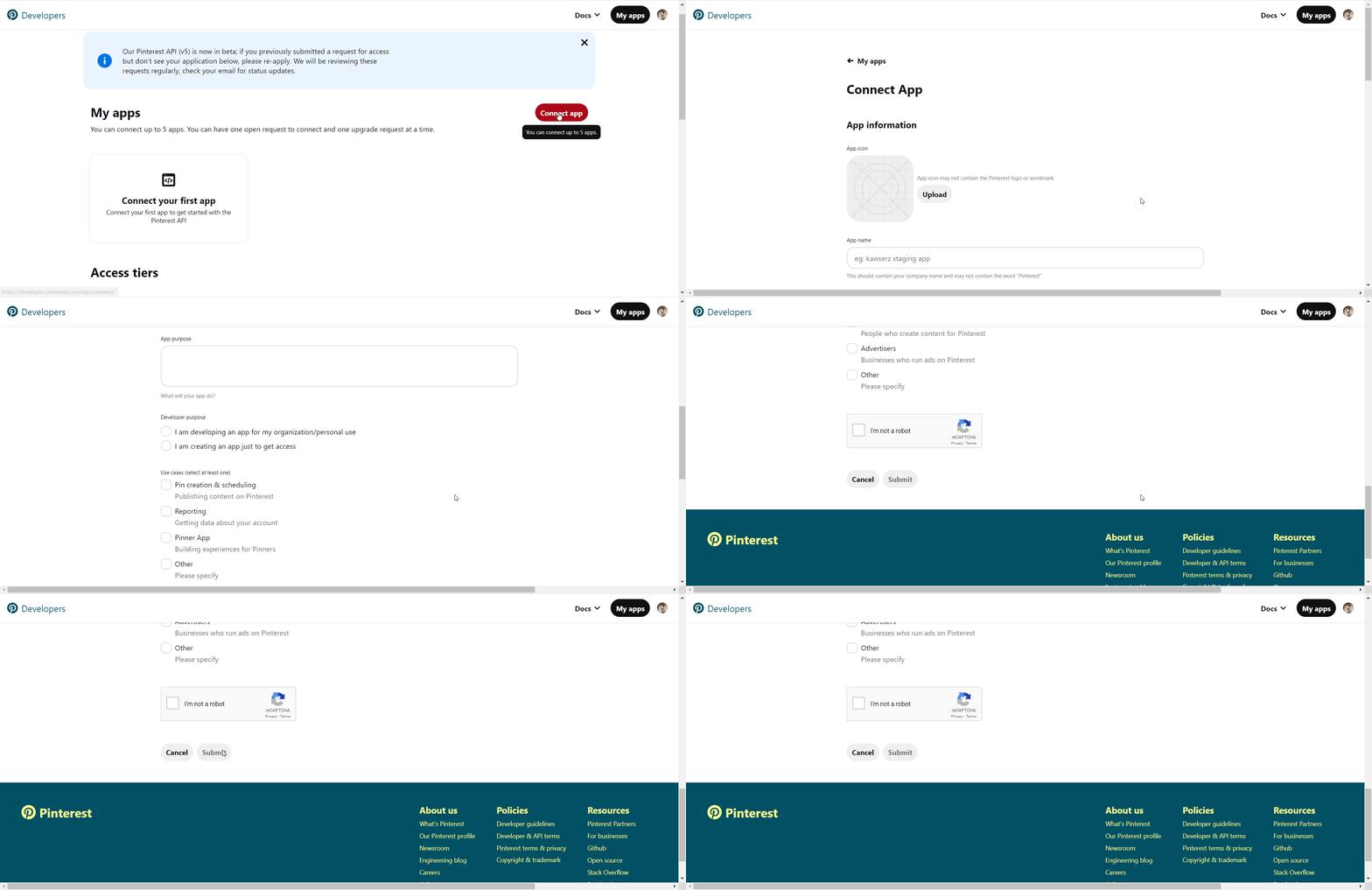
Now, click on the ‘Connect app’ button and you will be redirected to a new page where you have to enter some required information about the app you are creating. Simply go ahead and fill in the necessary information regarding your Application. Afterward, hit the ‘Submit’ button and your application will be successfully created.
Step 3: Retrieve Your Pinterest API Keys
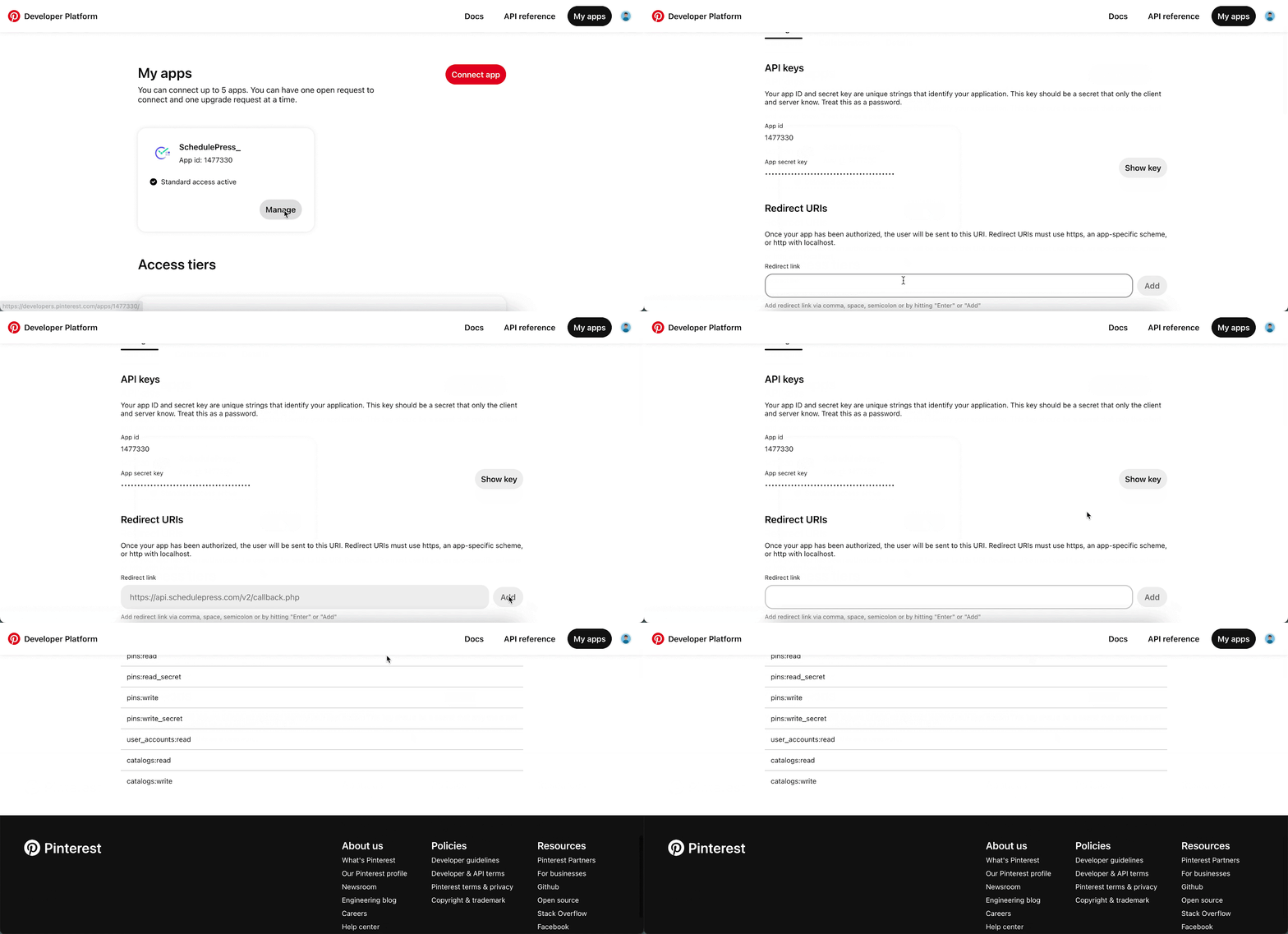
Now, navigate to SchedulePress → Settings → Social Profile → Pinterest → Add New Profile, and copy the Redirect URI from SchedulePress so that you can paste it in the Pinterest app’s Redirect URIs field as well.
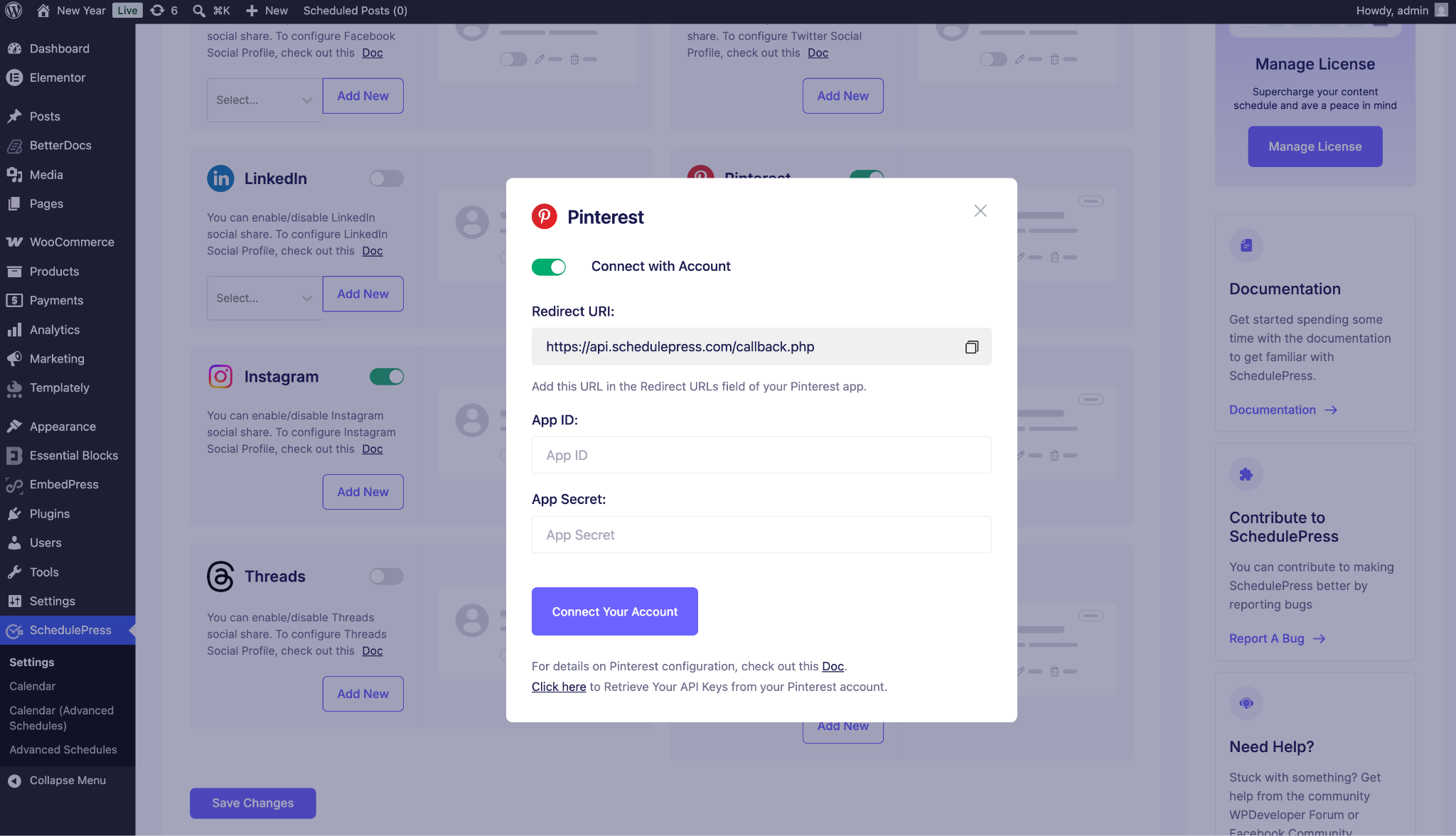
Your app will be pending review. Once your app has been approved, you can retrieve your Pinterest API keys. You will find the ‘App ID’ and ‘App Secret’ on your Apps page. You can copy them from here.
How to Automatically Share WordPress Posts on Pinterest?
After collecting your Pinterest API keys, you are ready to automatically share WordPress posts on Pinterest by following the steps below.
Step 1: Configure SchedulePress Social Profile
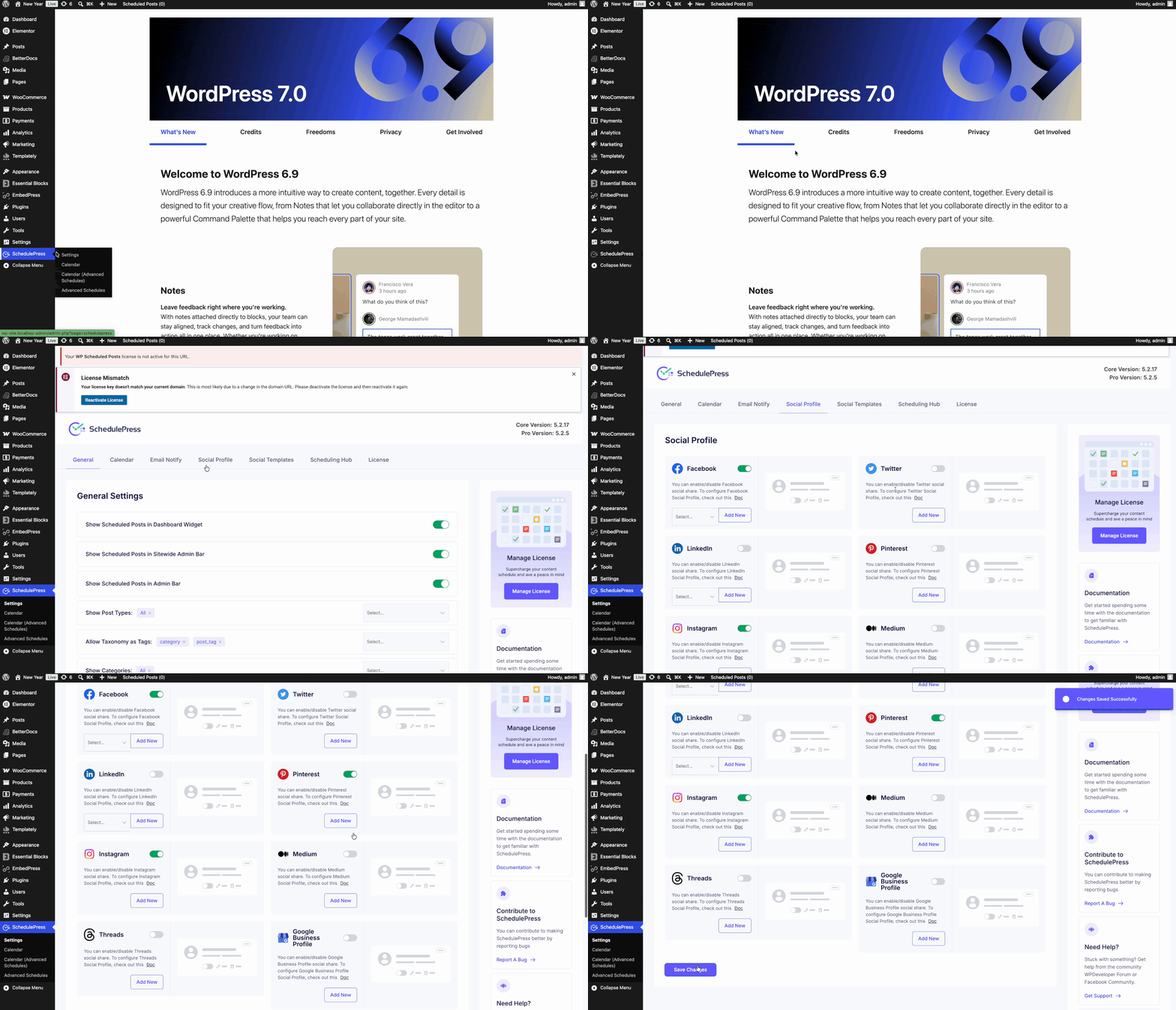
Navigate to SchedulePress→ Settings from your WordPress dashboard and click on the ‘Social Profile’ tab. Here, you can simply head over to the ‘Pinterest’ tab and toggle the option to enable auto-sharing on Pinterest.
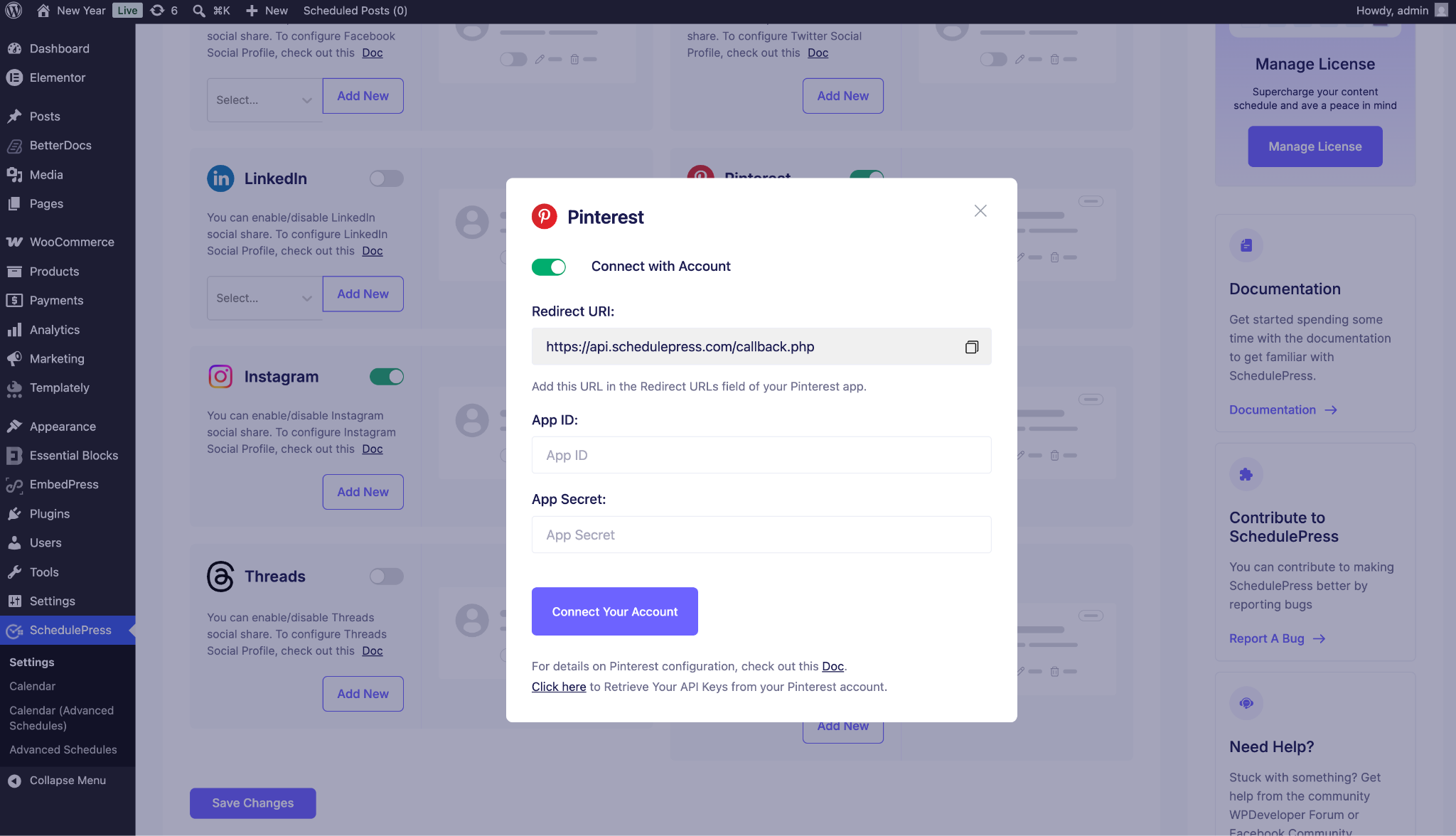
Afterward, click on the ‘Add New Profile’ button. A pop-up will appear where you can enter your Pinterest App ID and App Secret. Click on the ‘Connect your account’ button when you are done.
After you are done, click on the ‘Save Settings’ button. By simply following the previous steps, you can add a new profile and connect multiple user accounts with SchedulePress.
Step 2: Customize Your Social Template
Next, you should customize your social template. This option lets you choose how to display your content when you automatically share WordPress posts on Pinterest. Navigate to SchedulePress→ Settings and click on the ‘Social Templates’ tab. Scroll down to the ‘Pinterest Pin Settings’ section and change the options according to your preferences. Click on the ‘Save Settings’ button to update your changes.
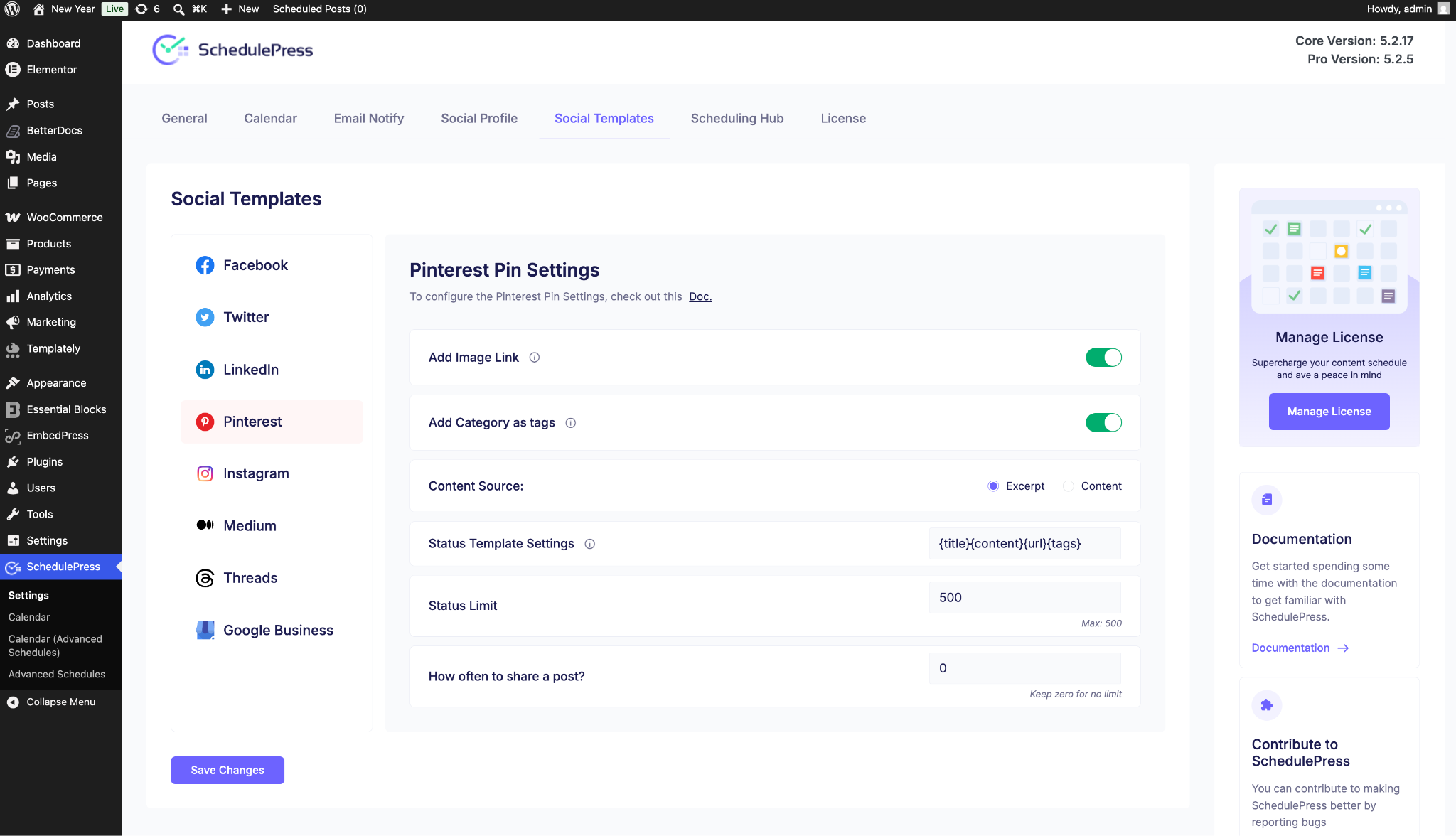
Step 3: Share Your WordPress Posts on Pinterest
If you schedule your WordPress post, it will automatically be shared on your Pinterest account if you schedule it. Besides, if you want, you can even instantly share your live post on Pinterest as well. Go to your post and navigate to ‘Social Share Settings’ and choose ‘Pinterest’ social share platform from the default templates. Simply hit the ‘Share Now’ button, and your post will instantly be shared on your Pinterest board.
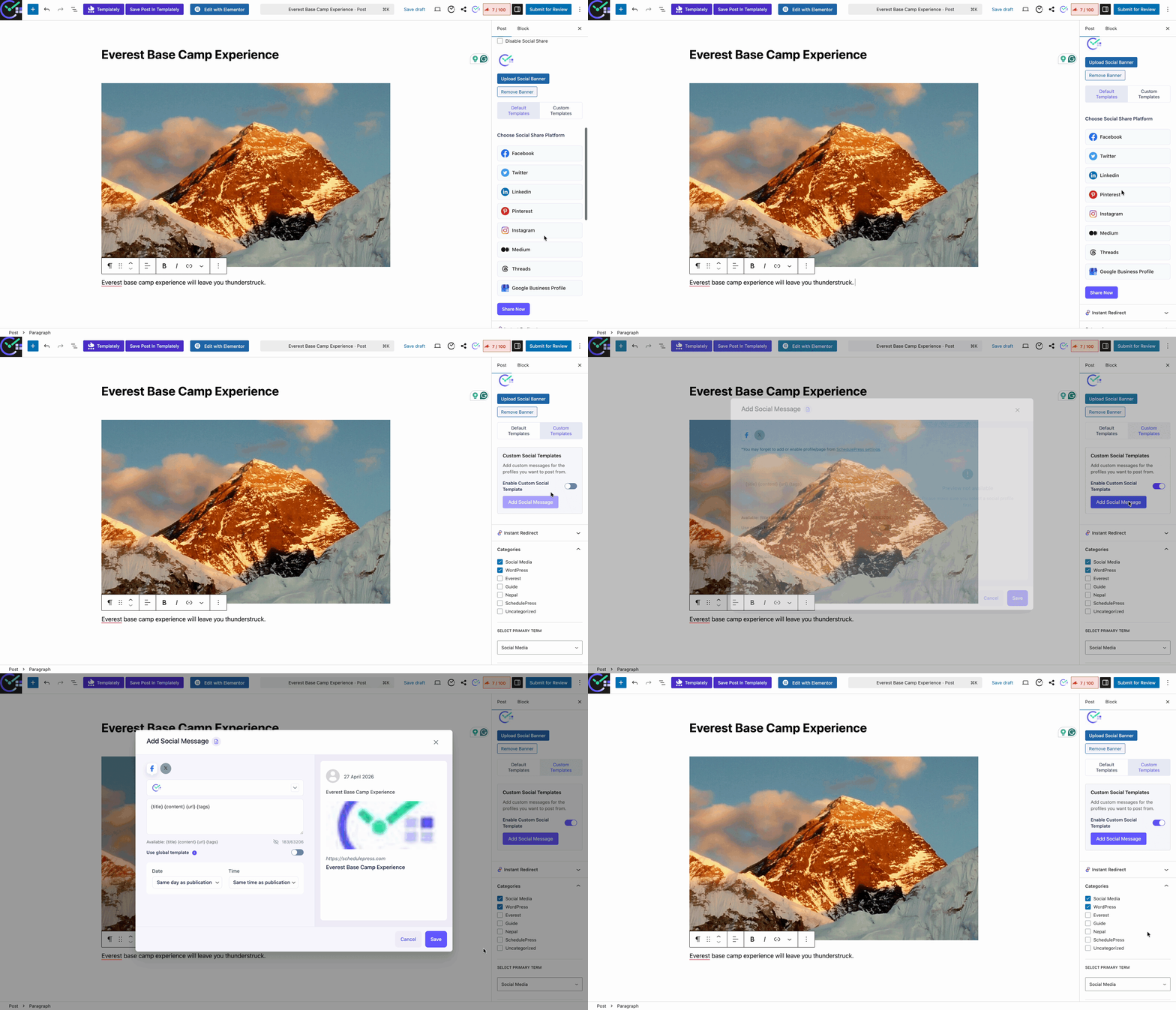
On the other hand, you can enable Custom Templates and add a social message of your own for Pinterest boards from there. If you want, you can even upload a custom ‘Social Share Banner’ for your Pinterest banner as well.
How It Will Look Once Shared
After all of these previous steps are finished, this is how the WordPress posts will appear on your Pinterest profile.

Final Thoughts
Automation makes work easier to do, even if it is huge. For content marketers who are running multiple blogs and social channels, this amazing automation process gives them the freedom. They do not have to worry about posting their content by the manual process or at a specific time. SchedulePress will automatically publish their scheduled WordPress blog on Pinterest, including other social media profiles, pages or groups, instantly when it goes live.
If you find this blog helpful, let us know by sharing your comment!