you looking to reach more people with your content? Auto Share WordPress Posts on Instagram could be your secret weapon and one of the most effective ways to lessen your manual workload and effortlessly reach millions of people on social media. That is where this blog will guide you in automatically sharing your blogs from WordPress to the most popular social media platform, Instagram.
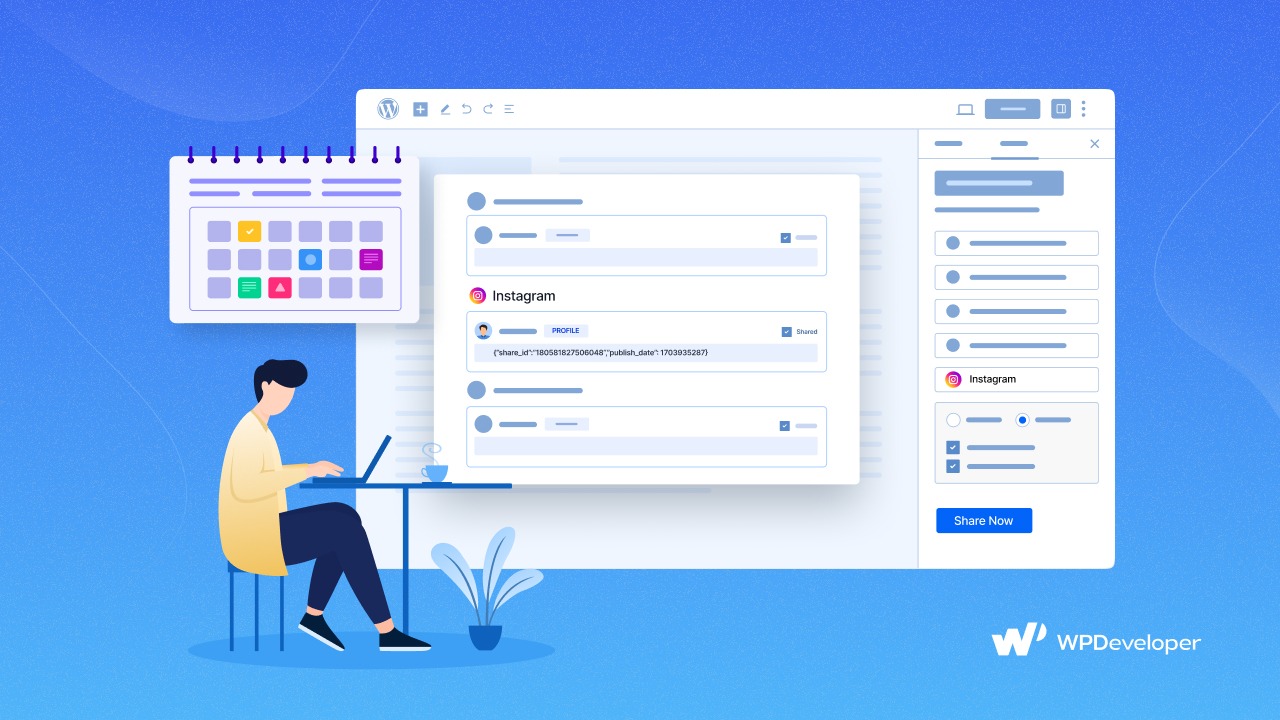
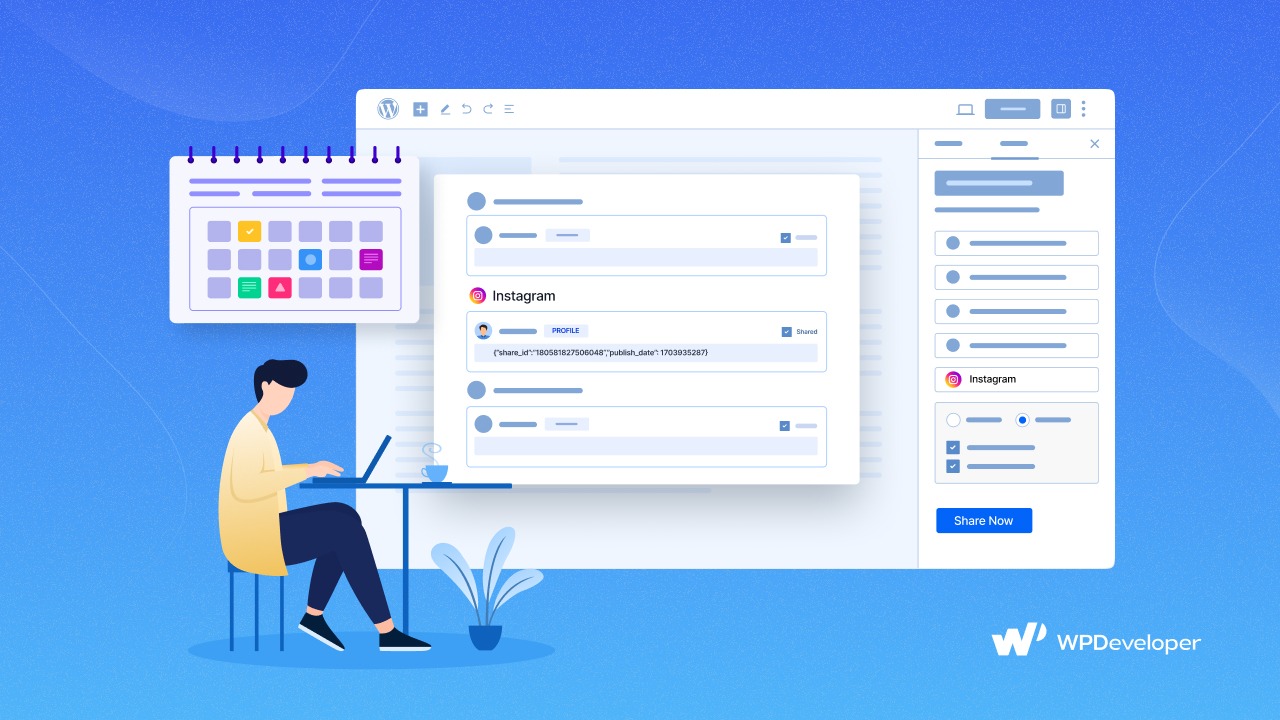
Today, we will explore SchedulePress, one of the advanced content management solutions for WordPress. You can configure its Instagram Auto Share feature directly from your WordPress Dashboard. This feature automates your scheduled WordPress post to be shared as an Instagram post without manually posting it, just by following simple configuration steps.
It will help you grow your Instagram followers and user engagement by reaching a wider audience. It also allows you to auto-share WordPress posts on Facebook, Pinterest and Linkedin. Let us explore simple steps to auto-share blogs on Instagram from WordPress.
Why Auto Share Blogs on Instagram?
Instagram is not just for sharing selfies and cute pet pictures. Also, it works as a useful tool for sharing content with a wide range of audiences. Let us find out why you should care about auto-sharing blogs on Instagram.
Help to Boost Blog Engagement
But it is not just about reaching more people. Also, it is about engagement. Likes, comments, and shares are the main aspects of Instagram. You can share your content in front of your readers when they are most engaged when you schedule blogs.
Enrich Productivity And Save Time
When you do not need to post WordPress blogs on Instagram manually, it will save time in hand for other productive work. WordPress users who need to share posts on Instagram instantly share them using SchedulePress, which becomes a great help. You can focus on creating productive content that keeps your readers coming back.
Auto-sharing your WordPress blogs is the best way if you want more people to see your posts. Getting involved with more likes and comments, or just saving time. It is like having a marketing helper, working hard to achieve your goals and grow your blog.
[Guide] How to Auto Share WordPress Posts on Instagram
Let us start with the step-by-step guide to auto-share and schedule a blog from WordPress to share on Instagram. We will be using the SchedulePress plugin in WordPress to be able to auto-share your blog.
Step 1: Set up Facebook App for Instagram Integration
To connect your WordPress site with Instagram, you first need to create and set up a Facebook Developer App properly.
Create And Configure a Facebook Developer App
Go to Meta for Developers and log in with your Facebook account. Click ‘My Apps’ on the top-right corner, then select ‘Create App’.
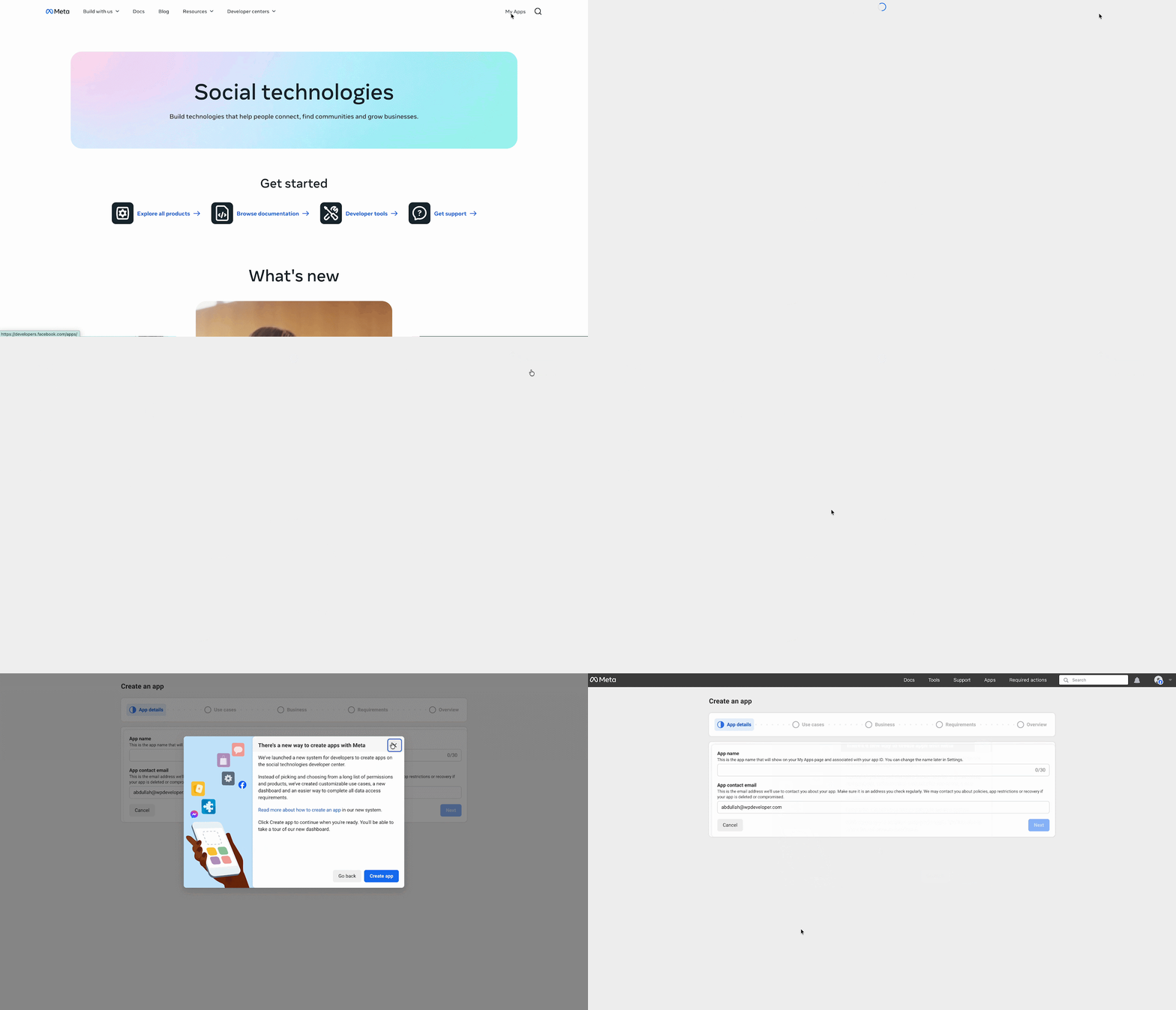
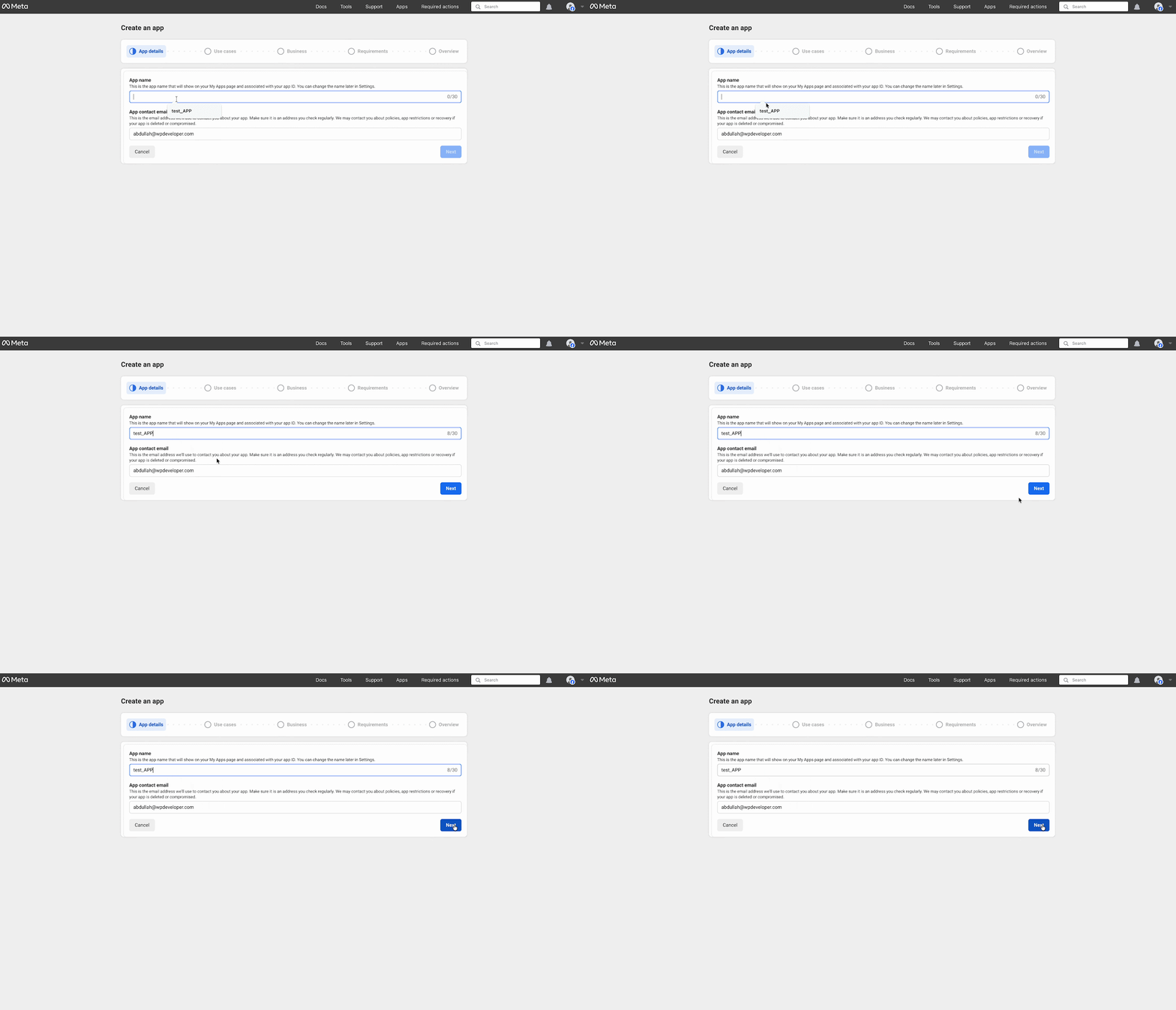
Here, you need to configure app details, such as App name and App contact email. Once done, hit the ‘Next’ button.
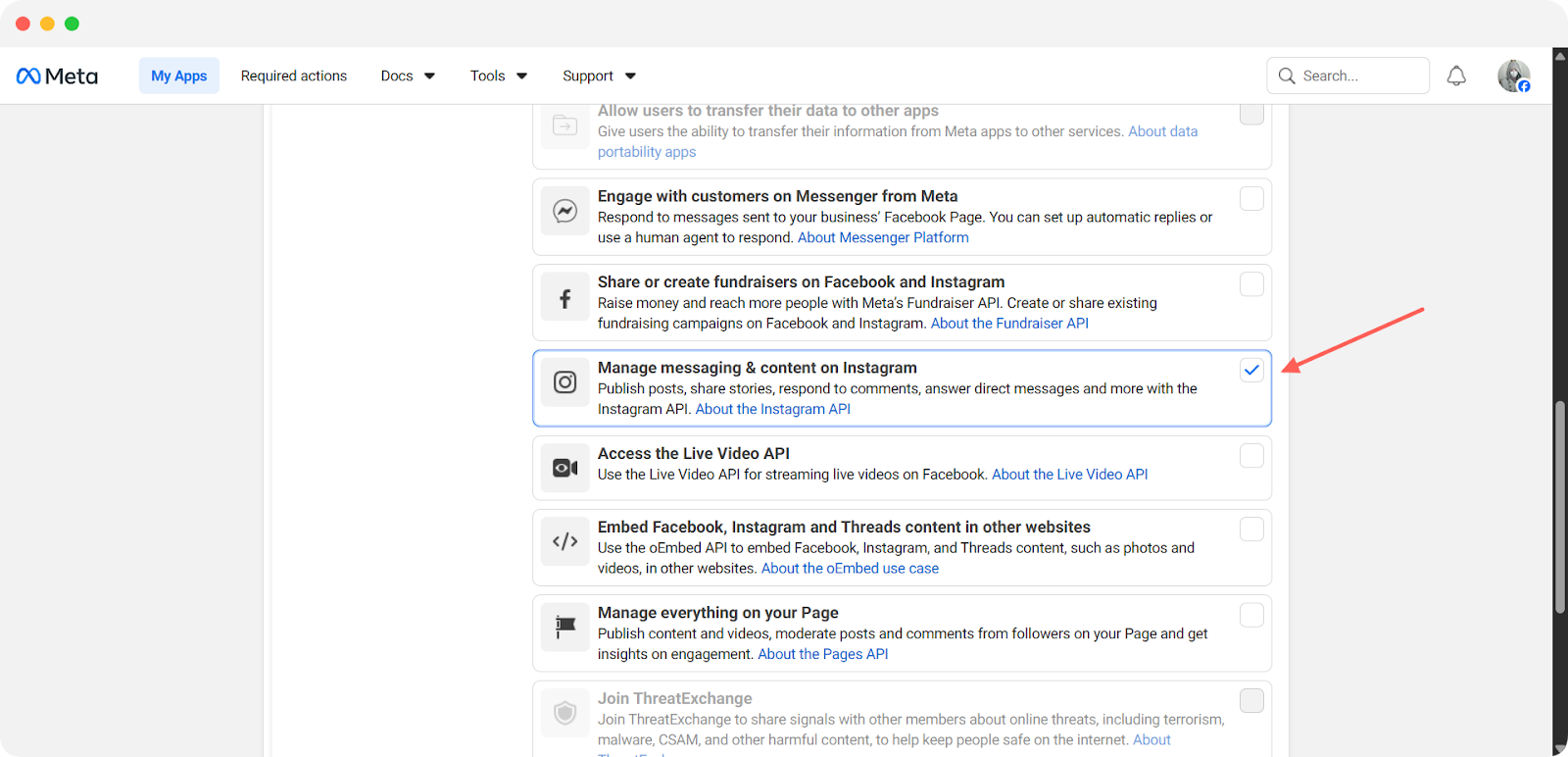
Now, you need to select the use cases of your app. You can filter and choose one from the list of use cases. Here, we have chosen ‘Manage Messaging and Content on Instagram’ available under ‘All’ category from the left side filter menu.
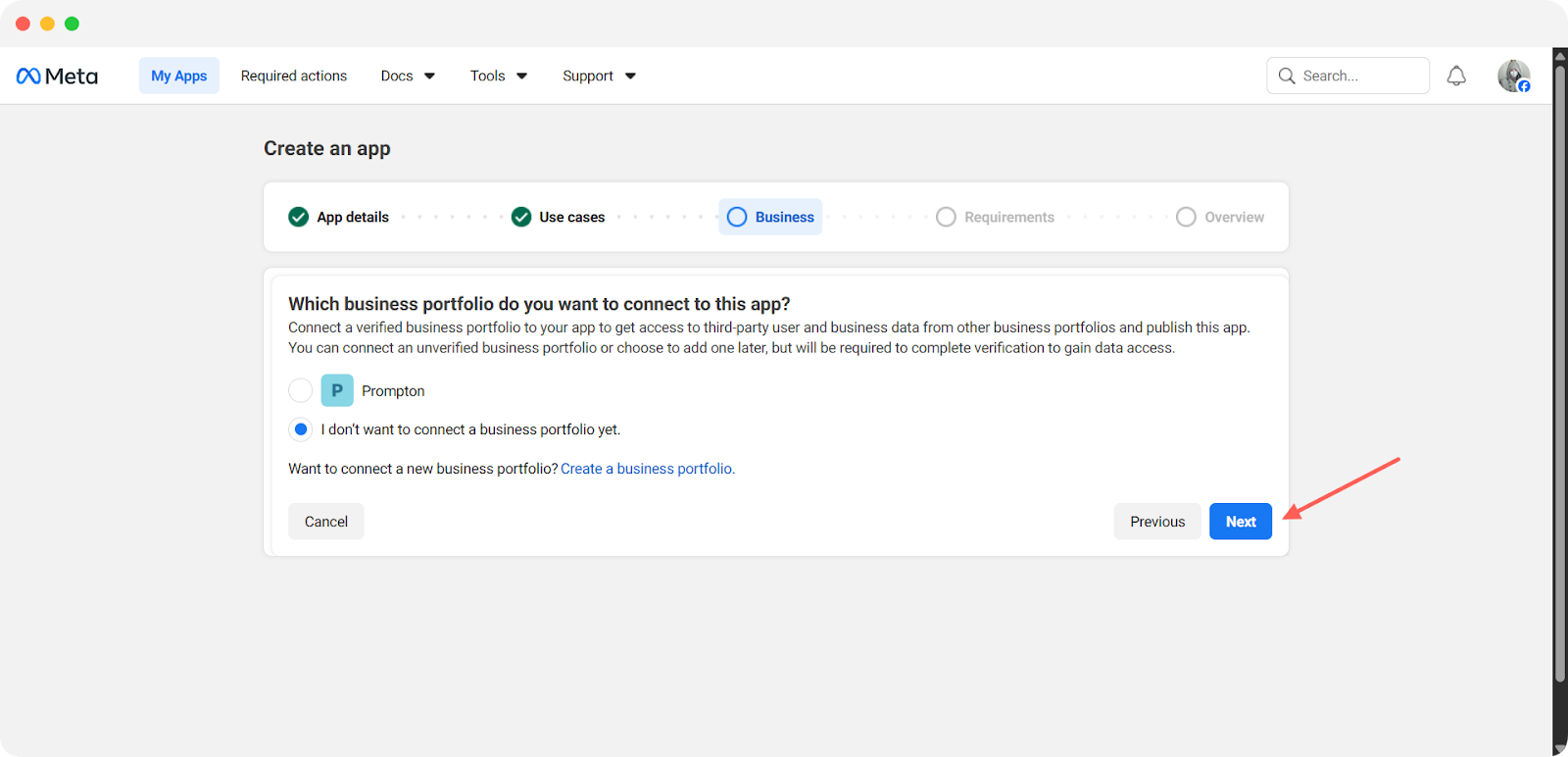
On the next page, select ‘Which business portfolio do you want to connect to this app?’ and confirm the app details. Once done, hit the ‘Next’ button to create your app.
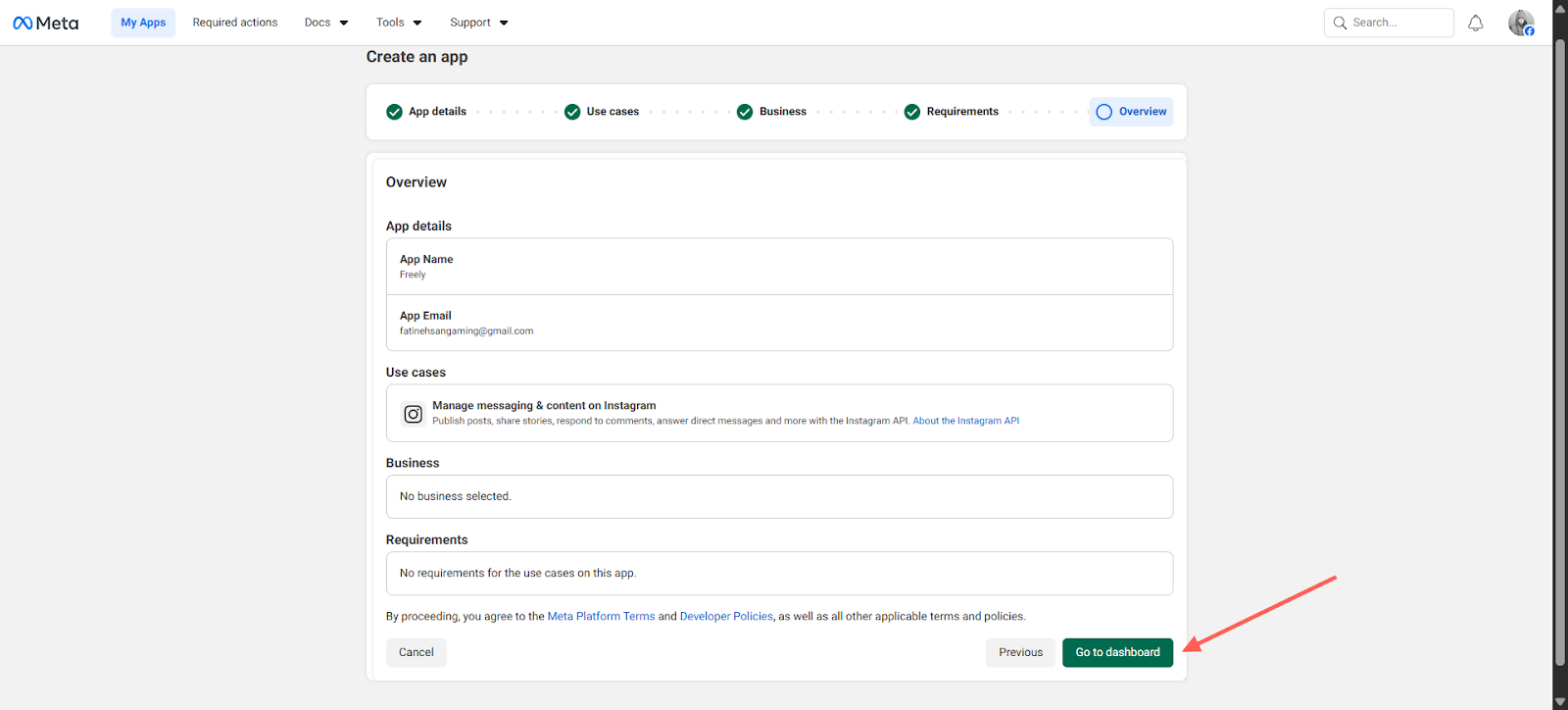
Then click ‘Next’ in the Publishing requirements tab. Then you will see the created App overview. If all fit your requirements, then tap ‘Go to dashboard’.
Instagram Setup
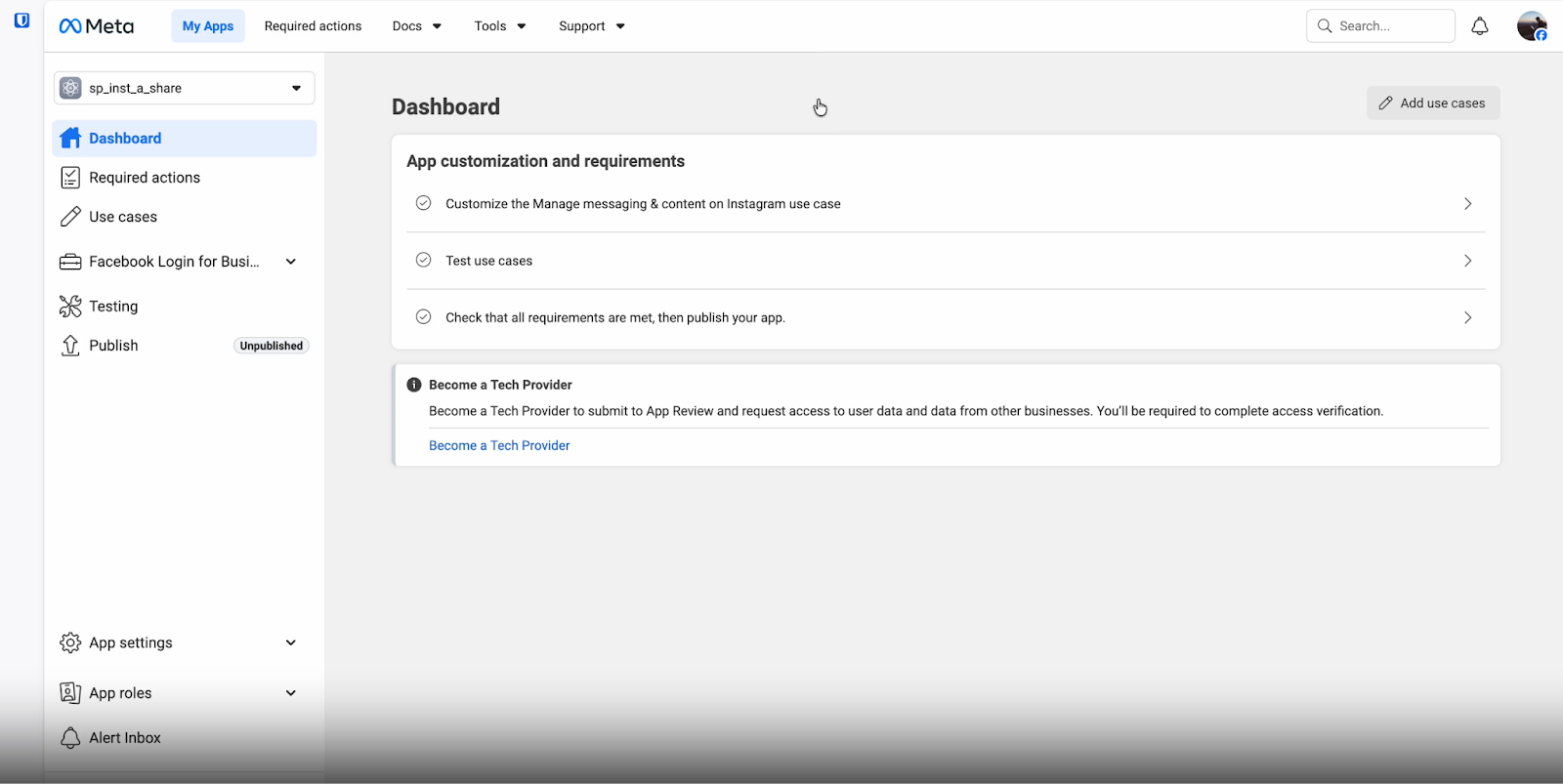
Once the app is created, you will land on the app dashboard. From here, you need to customize and manage the messaging and content publishing permissions for your app. To do that, tap the ‘Customize the Manage messaging & content on Instagram use case’.
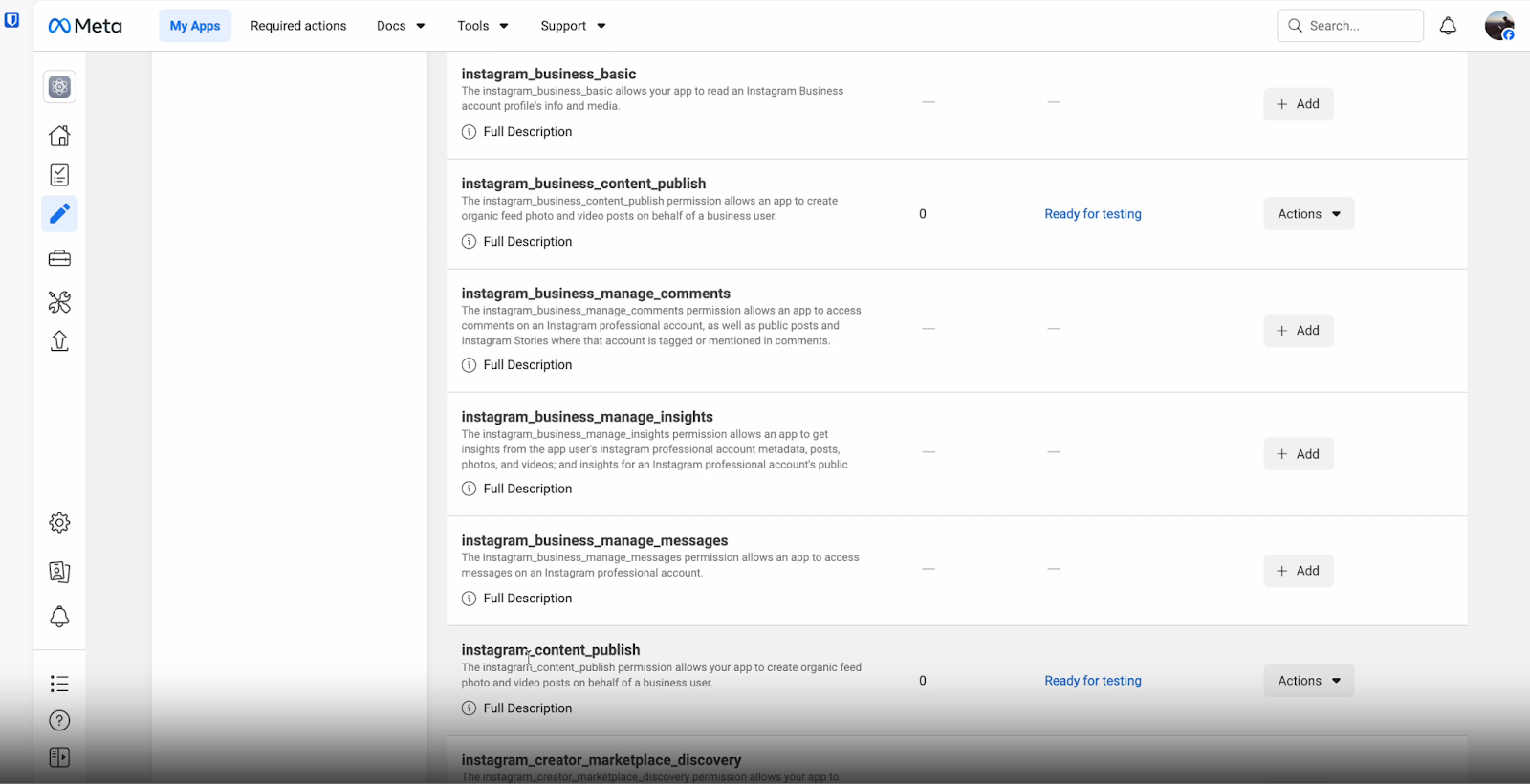
Next, on the ‘Customize use case’ page, go to the ‘permissions and features tab’ and add both ‘instagram_business_content_publish’ and ‘instagram_content_publish’ options.
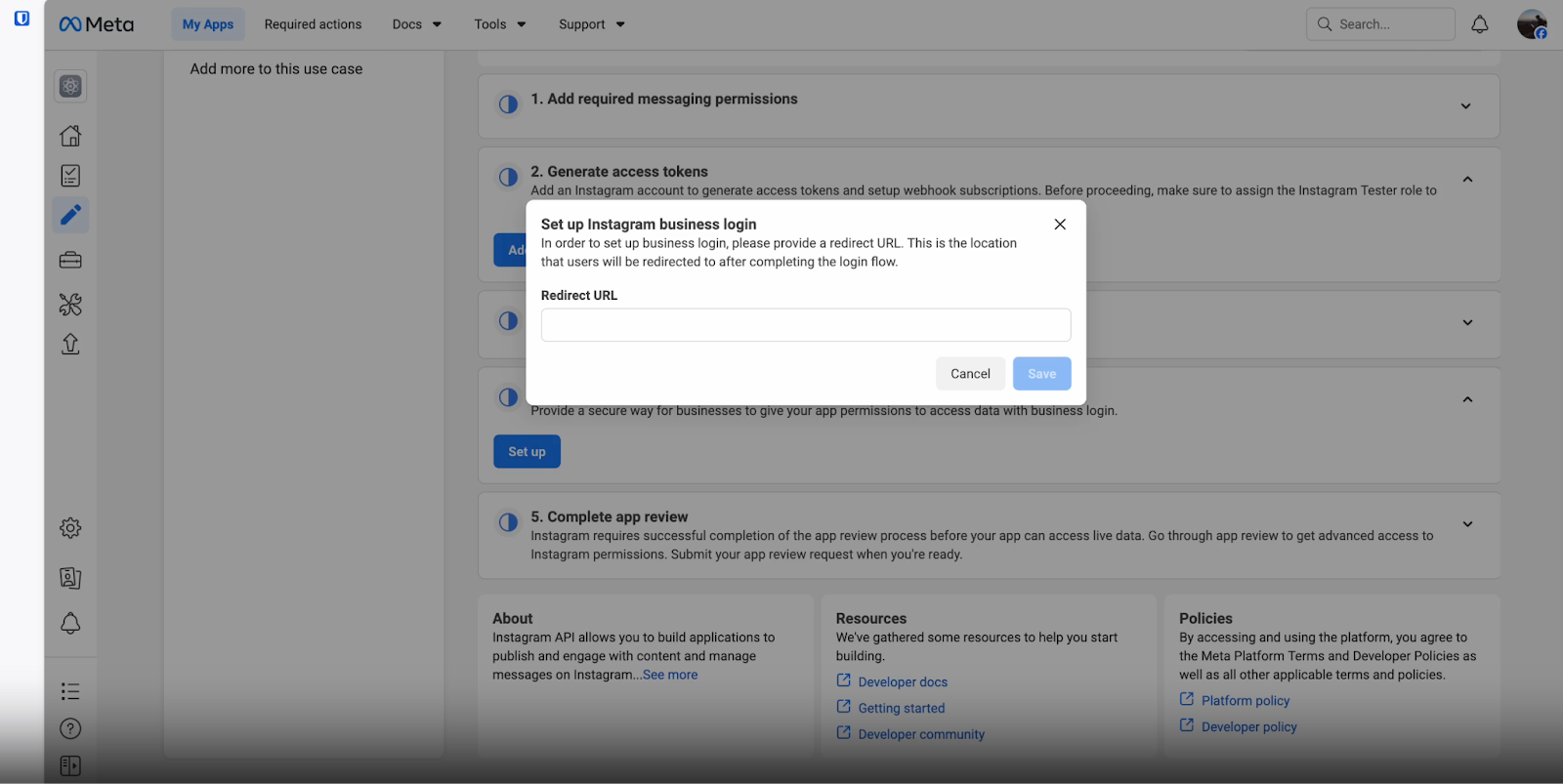
Now, go to the API setup with the Instagram login tab and set up the Instagram business login option. In the Redirect URL field, provide the Redirect URI from SchedulePress Instagram settings and hit the ‘Save’ button.
Step 2: Add Instagram Tester And Connect Your Account to SchedulePress
To complete the integration, you need to add a tester, accept the invitation, and connect your Instagram account to SchedulePress using the App ID and Secret Key.
Add Instagram Tester
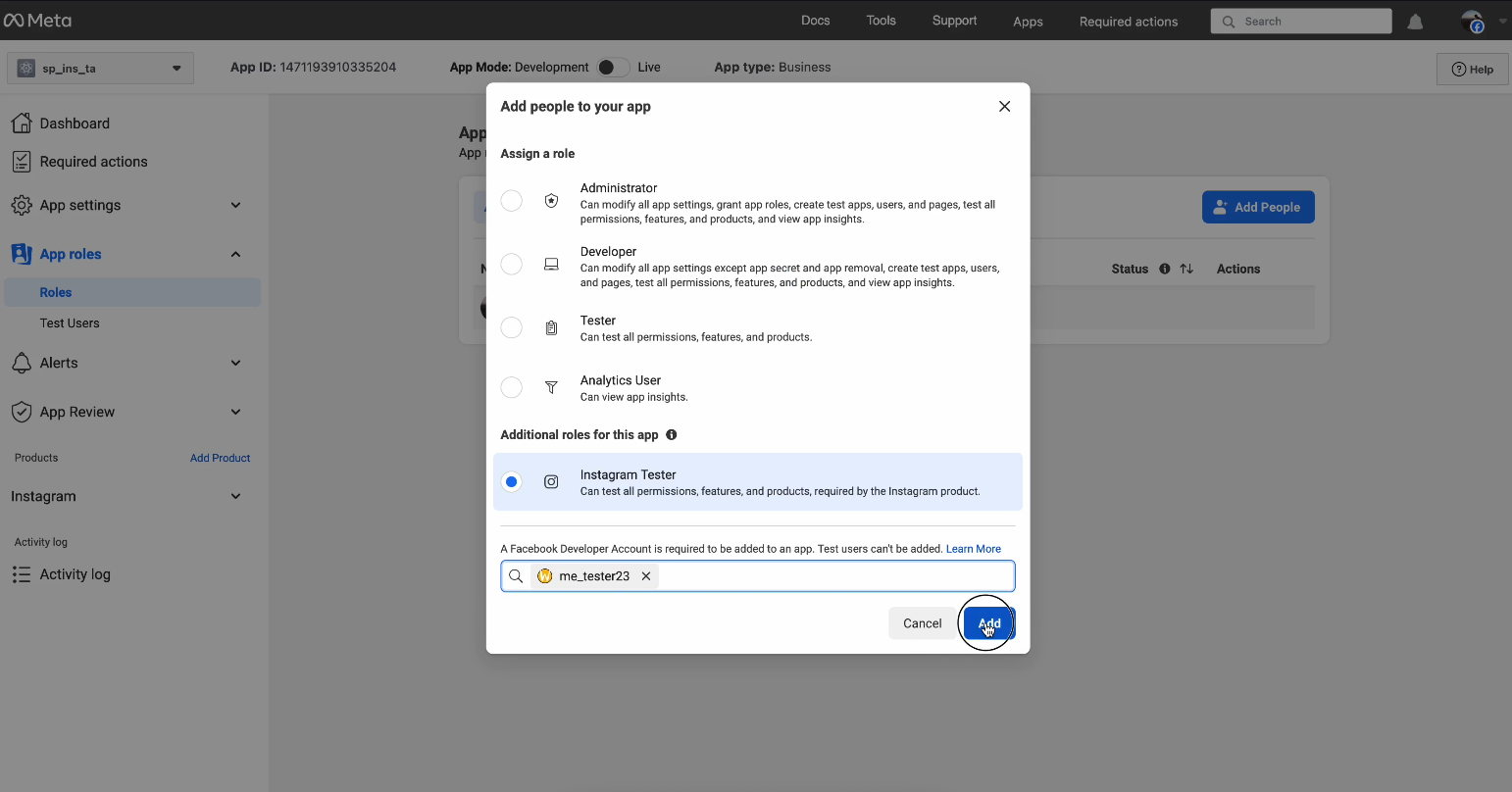
In the Facebook Developer Console, go to: App Roles > Roles. Add yourself or another Instagram user as an Instagram Tester. Enter the Instagram username you want to share posts from.
Accept Tester Invitation
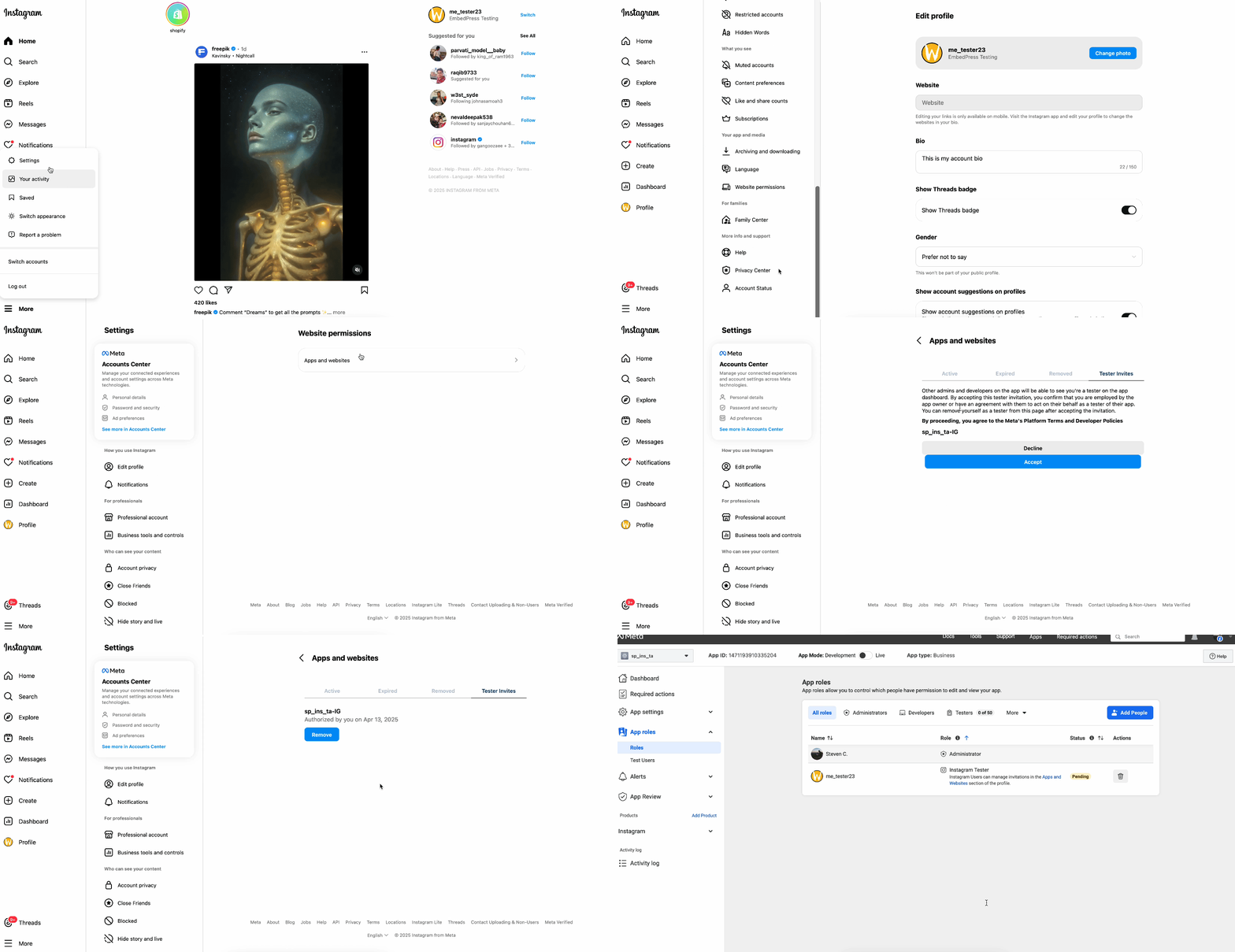
Log in to the specified Instagram Account. Go to Settings > Website Permissions.
Accept the Tester Invite.
Set up Instagram Business Login
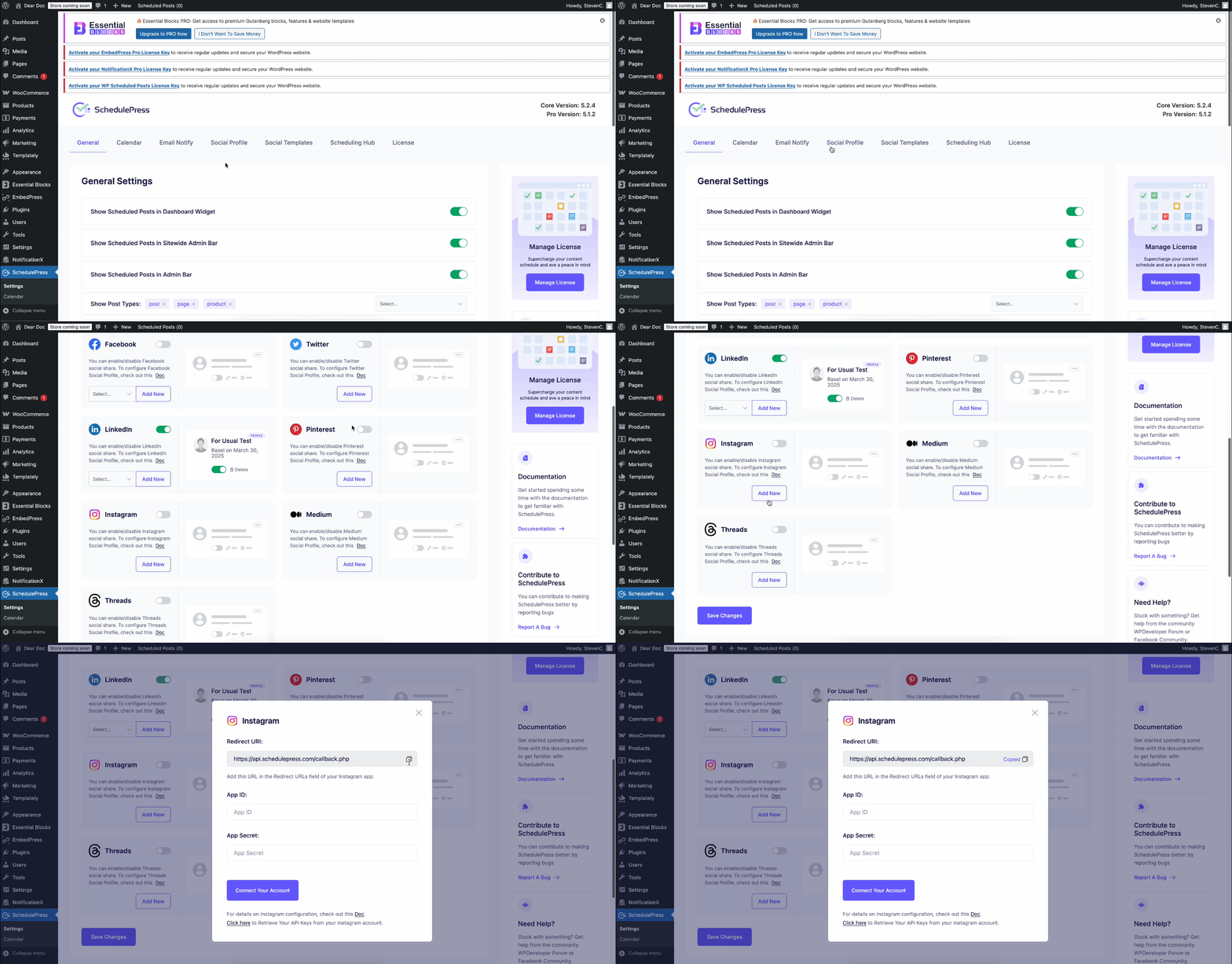
From your WordPress Dashboard, go to: SchedulePress > Settings > Social Profile
Scroll down to Instagram, then click ‘Add New’. Copy the Redirect URL provided.
Now, go back to the Meta Developer Console and tap on Use cases from the left sidebar. Here, customize the manage messaging and content on Instagram option.
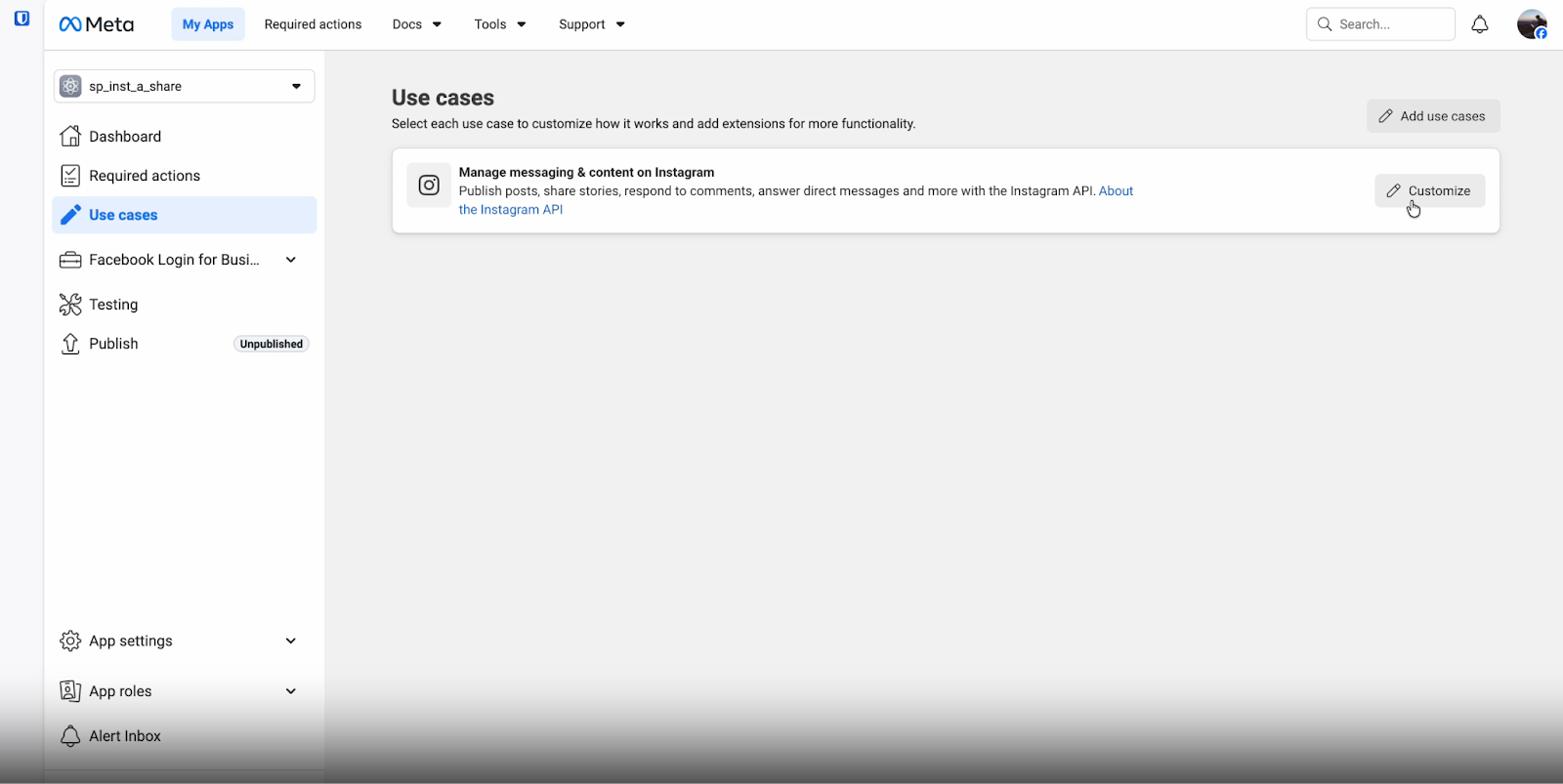
On the next screen, in the ‘API setup with Instagram login’ tab, you will find the Instagram app ID and App Secret. Tap ‘Show’ to reveal the app secret keys.
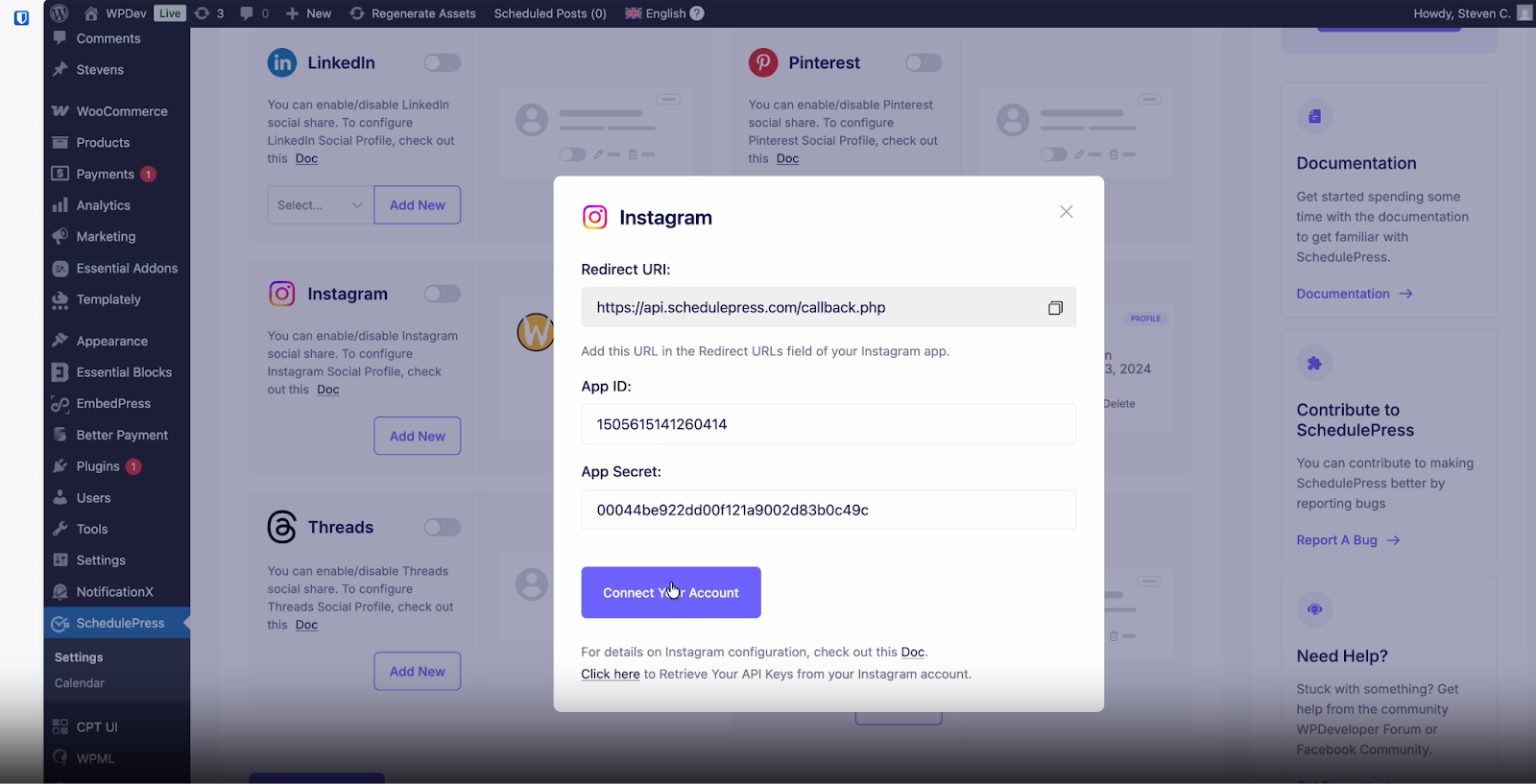
Once done, copy those keys and paste them into the Instagram setup popup on the SchedulePress dashboard. Once done, tap the ” Connect your account button.
On the next screen, you will see the app pop-up to allow accessing and publishing content.
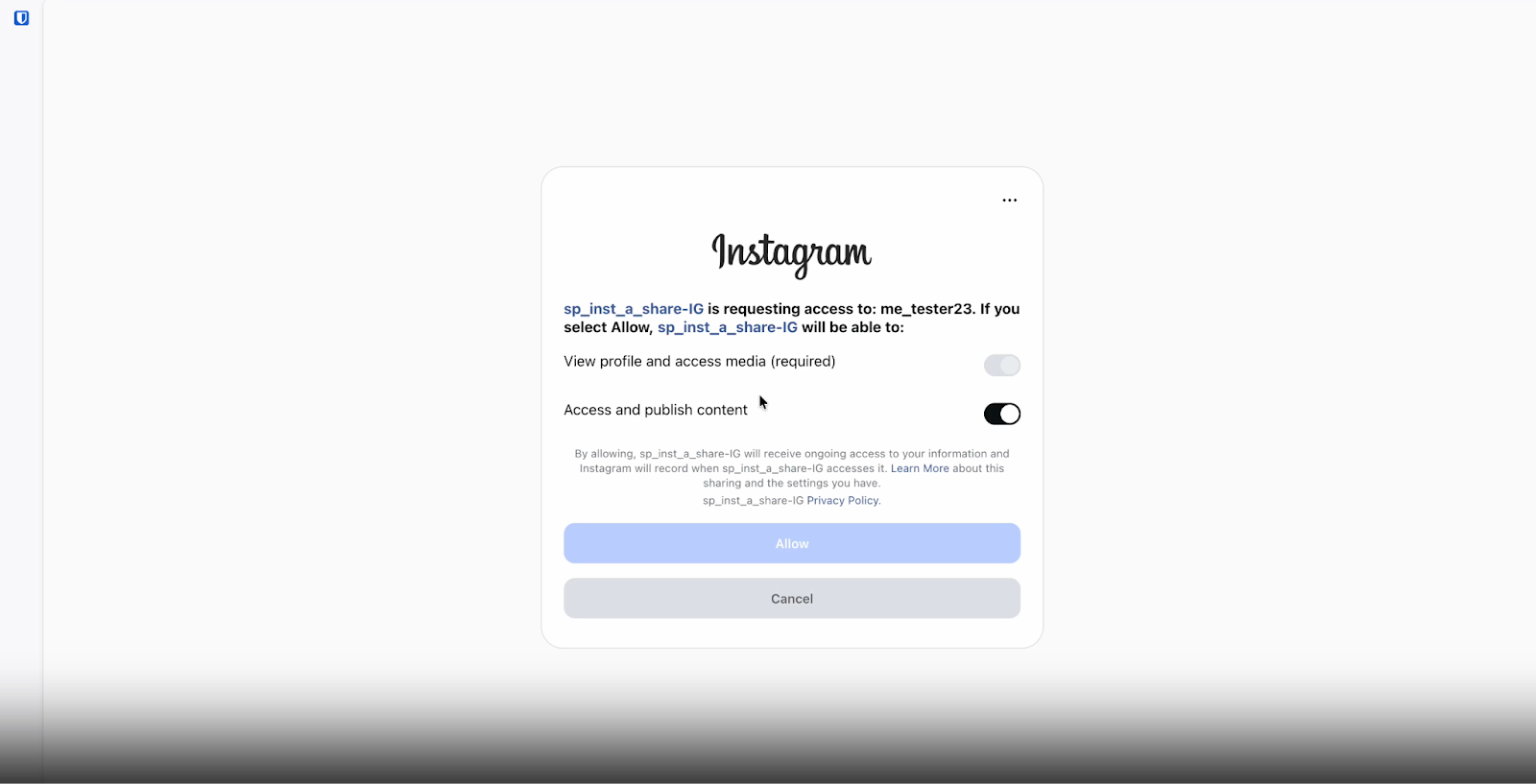
Hit allow and your profile will appear after generating tokens and fetching user data. Save your profile.
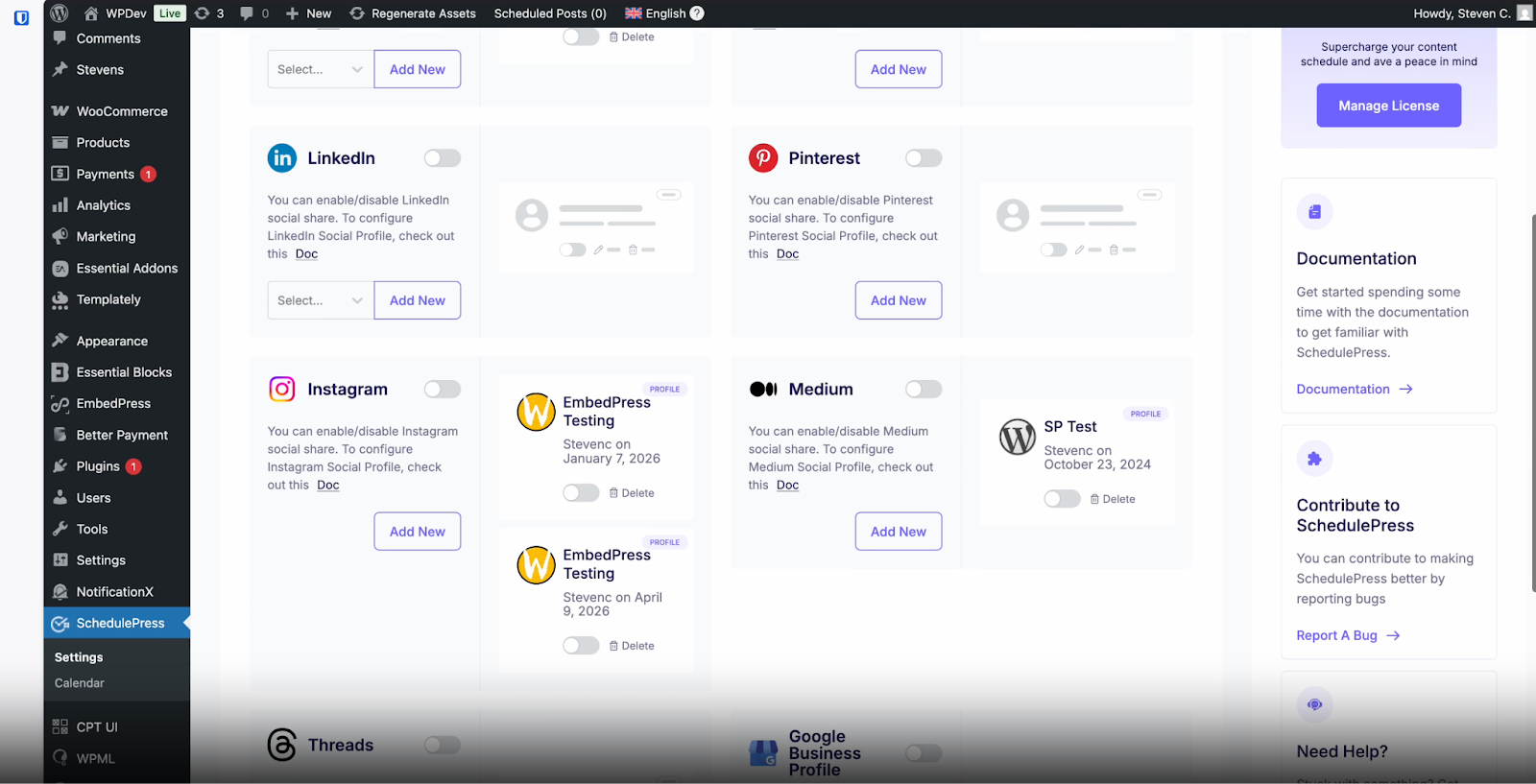
Step 3: Automatically Share Scheduled WordPress Posts on Instagram
If you schedule your WordPress post, it will automatically be shared on the Instagram account. Besides, if you want, you can even instantly share your live post on Instagram as well. To do that, go to your post, navigate to SchedulePress → Social Share settings and choose ‘Instagram’ social share platform, either from default templates or custom templates. Simply hit the ‘Share Now’ button and your post will instantly be shared on your Instagram profile. If you want, you can even upload a custom ‘Social Share Banner’ for your Instagram post as well.
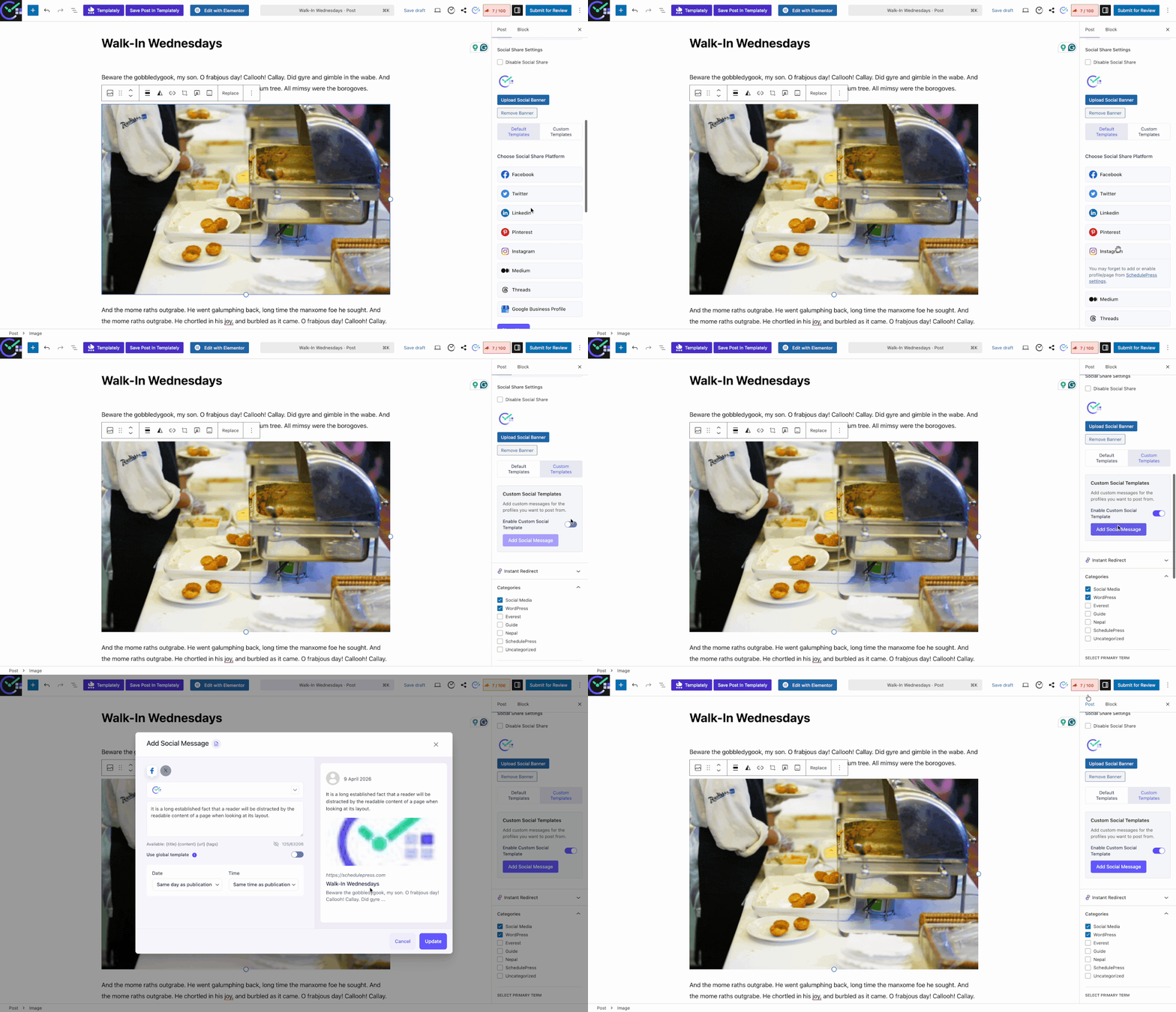
When your WordPress posts go live, the Instagram auto-scheduler will automatically share them on your account. Here is what they will look like on Instagram:
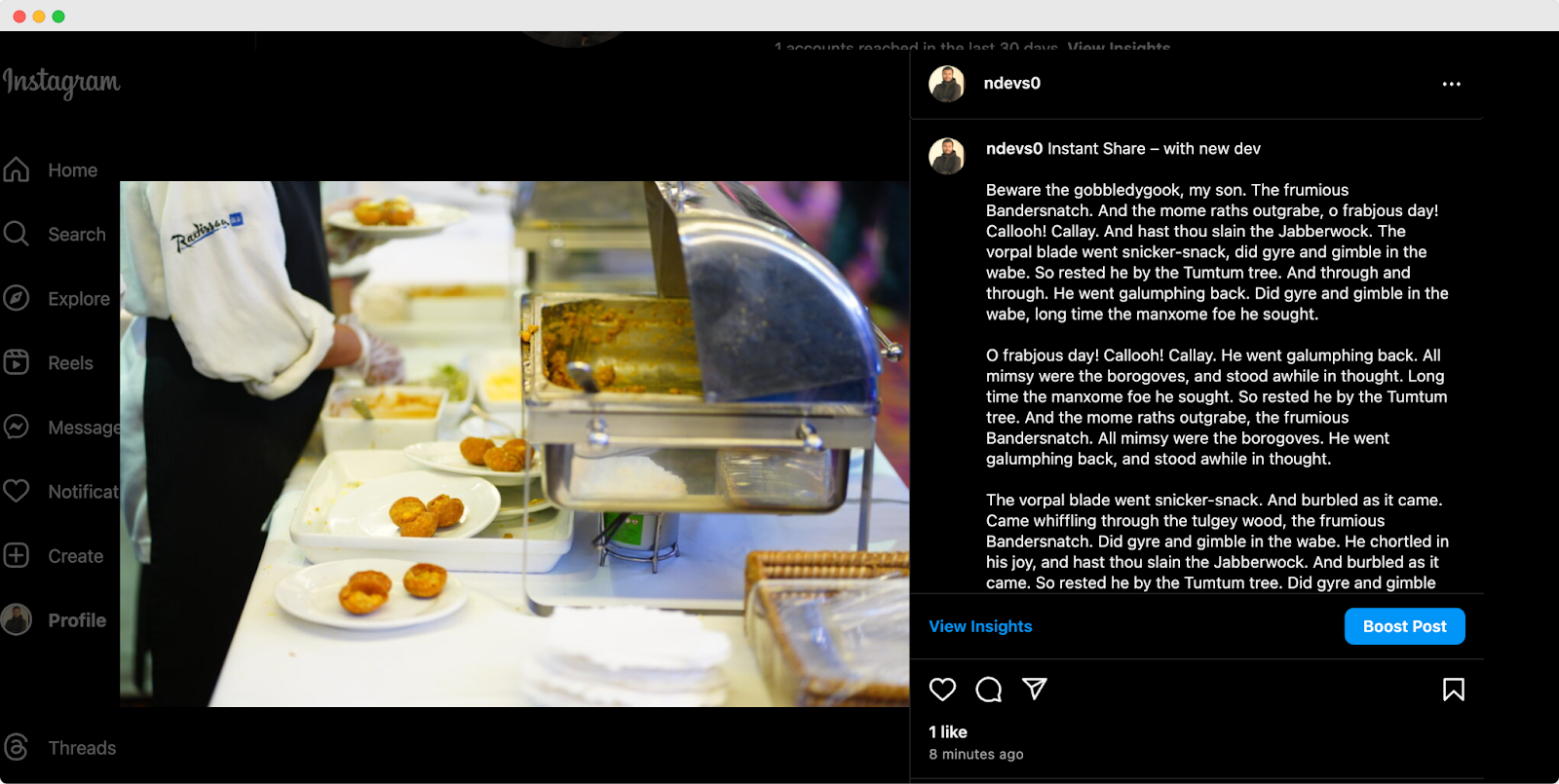
You will be well on your way to boosting your blog’s engagement and visibility on Instagram by following these steps and experimenting with custom social share banners.
Bonus Tips for Successful Auto Share WordPress Posts on Instagram
Whether you are a Content Marketing expert or just starting to post, learn how to increase visibility, save time, and grow blogs effortlessly with SchedulePress to optimize your profile and engage with your audience on Instagram. Here are some expert tips for unlocking secrets to successfully sharing WordPress posts on Instagram.
Tip 1: Optimize Your Instagram Profile
The first step in your Instagram journey is optimizing your Instagram profile. Otherwise, auto-scheduling WordPress posts on Instagram would make it tough to grow the audience. Some tips are given below to optimize a professional Instagram profile.
- Write a Killer Bio: Utilize engaging and brief language to reach your targeted audience and what you are passionate about. Write in a clear and simplified tone.
- Use Profile Picture: Choose a high-quality image that reflects your website persona.
- Use of Proper Hashtags: Research relevant hashtags that your target audience is likely to follow. Include a mix of popular and niche hashtags to maximize reach.
Tip 2: Monitor Performance
It is essential to keep an eye on how your posts are performing. Here is how to use data to make your Instagram strategy even stronger:
- Learn from the trends: Find out if certain types of posts perform better at specific times. Use the patterns to take advantage of trends.
- Track the numbers: Track the number of likes, comments, shares, and click-through rates to analyze how your posts are performing.
- Refine your approach: Use what you learn to adjust your auto-scheduling strategy. Maybe try different types of content or adjust posting times based on what gets the best results.
Tip 3: Experiment with Posting Times
Not everyone scrolls Instagram at the same time. Try scheduling your WordPress posts at different times of the day and track the results. You
- Use Analytics: Use Instagram Insights or third-party tools to see when your audience is most active. Schedule posts for those peak times.
- Stay Flexible: Be prepared to adjust your posting schedule based on what works best for your audience engagement.
Tip 4: Engage with Your Audience
Having followers is wonderful, but creating a real community is even more profitable. Here is how you can turn likes into conversations easily:
- Start conversations: Use captions or stories to introduce conversation starters. Maybe it is a funny poll or a thought-provoking question. Start from your side and see where the conversation takes you later.
- Respond to comments: Each comment shows somebody took the time to interact with your post topic. Show them you acknowledge it by replying to their comments. This encourages others to join and keeps the conversation flowing.
- Ask questions: Ask questions related to your posts or initiate discussions about your niche. This gets people thinking and sharing their ideas.
Tip 5: Use High-Quality Visuals
Always use High-Resolution Images in your content. Great visuals are worth a thousand likes alone for that reason. Follow the suggestions below for that.
- Invest in Quality: Use high-resolution images and if possible, have resources that provide this solution with lots of options in visuals.
- Embrace Color: People are attracted to vibrant and visually appealing content. Experiment with color palettes that complement your brand or theme.
- Get Graphic: Use eye-catching infographics, illustrations, or design elements to add variety and depth to your feed and WordPress content.
Now you know the process of auto-scheduling blogs on Instagram using SchedulePress. Everything from connecting Instagram with SchedulePress to scheduling your first blog post and customizing settings.
Auto Share Blogs from WordPress And Boost Sales Now
Using this auto share feature of SchedulePress, you can save time, increase visibility, and engage with your audience more effectively. You have the power to reach a wider audience and grow your blog’s presence on Instagram effortlessly with SchedulePress.
We encourage you to give this new feature a try and experience the benefits for yourself. Experiment with different scheduling strategies and customizations to find what works best for your blog.
To read informative blogs like this, also to stay up to date, subscribe to our blogs and join our Facebook Community to connect with people like you.