For any website or blog, the ability to schedule WordPress posts in advance is crucial for maintaining a consistent publishing cadence. Regularly timed content keeps your audience engaged and improves SEO by signaling that your site is active. By scheduling in advance, you can publish WordPress content at strategic times (such as when your audience is most active) without having to be present to click the Publish button. However, while WordPress does offer a basic scheduling feature, relying solely on the default scheduler can be limiting and sometimes unreliable. Many site owners have encountered the dreaded “missed schedule” issue where a planned post fails to publish at the set time, or struggled to coordinate a busy content calendar using nothing more than WordPress’s default post list and date picker.
This is where a dedicated WordPress scheduling plugin comes into play. Instead of manually publishing at odd hours, you can let a tool handle the timing of your posts. Among the available solutions, WPDeveloper’s SchedulePress stands out as an all-in-one plugin engineered to automate and optimize the entire scheduling process. It introduces features beyond the default scheduler – including a drag-and-drop WordPress content calendar, an auto post scheduler for queuing content, automatic social sharing and even a fail-safe for missed posts – all designed to help you effortlessly schedule WordPress posts and keep your publishing workflow on track. In fact, experts note that using a tool like SchedulePress allows you to plan ahead and ensure you are “publishing content evenly” across your schedule, saving you time and effort.
Why You Should Schedule WordPress Posts in Advance
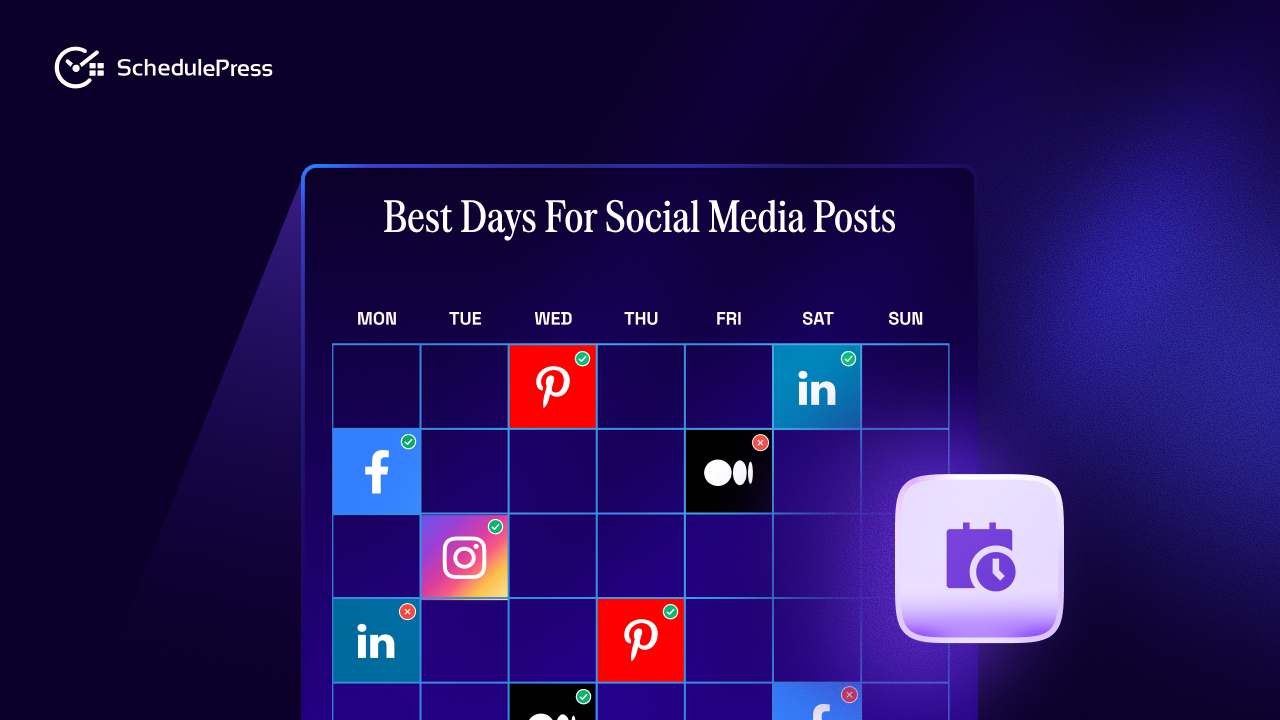
Planning your content ahead and scheduling posts offers several benefits. First, consistency is key: if readers know you post every Tuesday morning, for example, they are more likely to return at that time expecting new content. By using the scheduler, you ensure that you publish WordPress content at the optimal times for your audience (even if those times are outside your own working hours).
There is no need to stay up late or interrupt your day to hit ‘Publish’ — a scheduled post will go live automatically when the time comes. Secondly, scheduling helps in managing your workload. You can write posts in batches when you have time and line them up to go out over days or weeks.
This is invaluable if you plan to be away on vacation or offline – your website can remain active with fresh posts appearing regularly, even while you are away. In short, to schedule WordPress posts is to take control of your content calendar, ensuring a steady flow of articles without last-minute rush or forgetful gaps.
Limitations of the Default WordPress Scheduler
The built-in post scheduler in WordPress is simple by design. It allows you to set a future date and time for a post to go live, but offers no advanced management capabilities. For one, WordPress has no native WordPress content calendar view to see all your scheduled posts at a glance; you are limited to a list view in the Posts screen, which can become unwieldy if you schedule frequently.
Plus, you cannot easily rearrange scheduled posts without opening each one to change its date. There is also no concept of an auto post scheduler or queue in core WordPress – you must manually schedule each post one by one, as there is no way to automatically stagger content at regular intervals.
Another drawback is reliability. In some cases, WordPress might fail to publish a scheduled post due to missed cron tasks or other issues (resulting in the dreaded “Missed schedule” status). Without a plugin, you have to notice this and publish the post manually after the fact, which defeats the purpose of scheduling.
Additionally, the default scheduler does nothing beyond publishing the post on your site; it does not notify anyone or share the post on social media. For users managing a team of writers or a heavy publishing schedule, these limitations make the default tool inadequate. This is why many turn to a WordPress scheduling plugin like SchedulePress to fill in the gaps and provide a more robust scheduling system.
| Feature | Default WordPress Scheduling | SchedulePress Auto Scheduler |
|---|---|---|
| Process | Manually select date/time for each post | Set rules once, runs automatically |
| Consistency | Prone to human error and missed slots | Guarantees a consistent cadence |
| Efficiency | Time-consuming; requires daily/weekly checks | Frees you up to focus on content creation |
| Flexibility | Rigid; requires manual changes for every post | Set different schedules by category/author |
| Gap Filling | Manual effort to find and fill empty slots | Automatically finds drafts to fill gaps |
Drag-and-Drop WordPress Content Calendar for Easy Planning
One of the most visible advantages of SchedulePress is its calendar view for scheduled content. Instead of guessing what is lined up next, you get a clear visual WordPress content calendar right in your dashboard.
This editorial calendar provides a bird’s-eye view of all your scheduled and draft posts across the days and weeks. You can simply drag and drop posts to new dates if plans change, and the schedule will update accordingly.
If you spot an empty slot and want to fill it, you can create a new draft post right from the calendar interface without navigating WordPress. This intuitive scheduling calendar makes it effortless to organize your content pipeline, ensuring there are no overlaps or forgotten days.
Automated Scheduling with the Auto Post Scheduler
One standout capability of SchedulePress is the Auto Scheduler, which allows you to automate the timing of multiple posts without manually setting each publication date. With this feature, you can define rules or a time interval and the plugin will automatically pick up your unscheduled drafts and publish them according to that schedule.
For instance, you might configure the auto post scheduler to publish one post every weekday at 9 AM, or to release a certain number of posts per week at preset times. Once set up, SchedulePress will continuously follow these rules – taking new posts from your queue and scheduling them for you – saving you the effort of choosing dates for every single post.
This ensures a regular flow of content. If you prefer to plan specific times, a Manual Scheduler option is also available to enforce exact publication times you choose, but the auto scheduler is ideal for maintaining a steady cadence with minimal oversight.
Auto Social Sharing to Amplify Your Reach
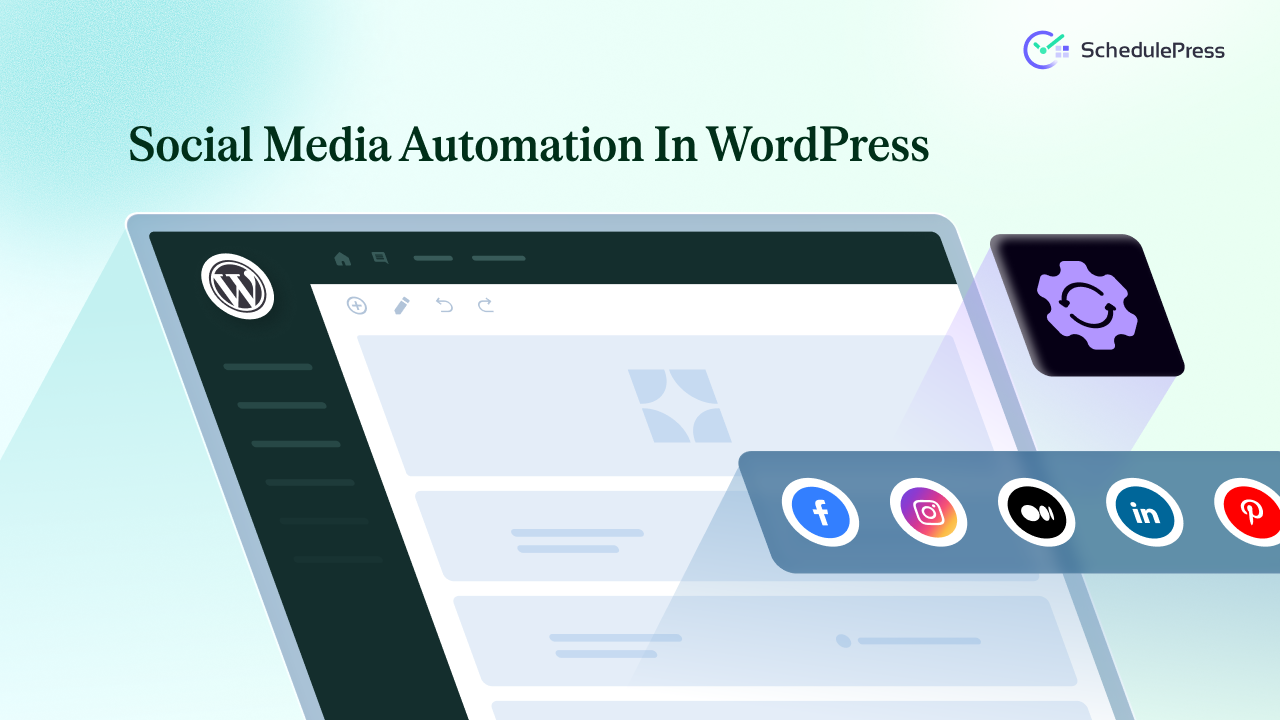
Beyond scheduling and publishing on your site, SchedulePress also helps you automatically promote and publish WordPress content across your social media channels. The plugin can auto-share your posts to popular platforms like Facebook, Twitter (X), LinkedIn, Pinterest, Instagram, Medium and even Google Business Profile, all as soon as or just after the post is published.
This built-in social sharing saves you the step of manually posting links to each network whenever you publish. You simply connect your social accounts to WordPress via SchedulePress and set up your share preferences. For each platform, you can customize the share message or template to tailor how your post appears on that network (for example, adding hashtags for Twitter or a featured image for Facebook).
Having automated post scheduling combined with auto social sharing means that when you schedule a WordPress post, you are not just scheduling the on-site content but also its announcement to your followers – greatly amplifying the reach of each article.
Advanced Scheduling: Update or Reschedule Existing Posts
SchedulePress goes beyond just scheduling new posts – it even lets you schedule changes to existing content. With the plugin’s Advanced Schedule functionality, you can set a specific time for an already-published post or page to be updated with new content, without needing to manually take it offline.
This is incredibly useful for scenarios like updating a piece of content (such as a product announcement or an event page) at a precise future time. Similarly, you can plan in advance to unpublish or republish content that is currently live on a set date.
For example, if you have a seasonal post or a limited-time offer, you could arrange for it to be automatically unpublished on a certain day. SchedulePress essentially gives you full control over the content lifecycle – you can schedule, update, unpublish or republish posts automatically as needed.
It even provides an option to publish a post immediately while displaying a future date on it (useful if you want a post to appear as if it were published later). Such advanced scheduling capabilities are typically beyond WordPress’s native features and can greatly enhance your content management strategy.
Multi-Author Support and Post Notifications
For teams managing a WordPress site, SchedulePress makes it easy for multiple authors to collaborate and schedule WordPress posts without confusion. All upcoming scheduled posts can be viewed in one place (via the calendar or a special dashboard widget), so editors and contributors alike have transparency into what is queued up.
The plugin also lets you specify which user roles are permitted to schedule and manage posts – for instance, you might allow Authors to schedule their own posts, but only Editors can reschedule others. This kind of granular control helps maintain order in a collaborative environment.
Moreover, SchedulePress can send email notifications to authors when their post is published, or even when it is scheduled or moved to the trash. These alerts keep everyone informed of the publishing progress without requiring constant check-ins.
As a result, all members of your team can effectively plan and publish WordPress content in tandem. It is no surprise that reviewers consider SchedulePress “specially useful for multi-author blogs” – it brings much-needed organization to group publishing workflows.
How to Get Started with SchedulePress
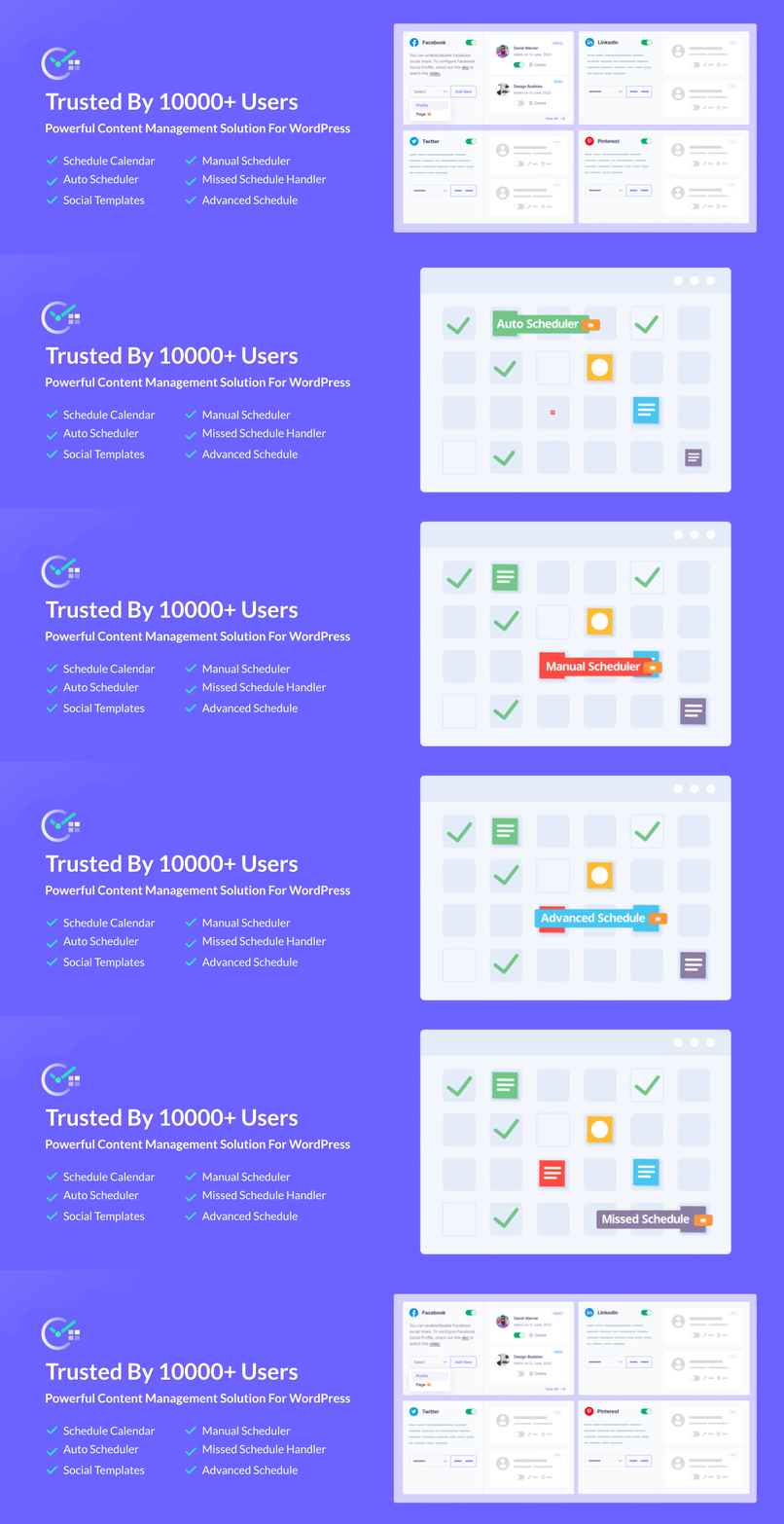
Implementing SchedulePress on your site is straightforward. Follow these steps to set up the plugin and start automating your publishing workflow:
- Install the SchedulePress Plugin – Download and install SchedulePress from the WordPress plugin repository (it is available for free). Activate the plugin on your WordPress site. This WordPress scheduling plugin is developed by WPDeveloper, so you can also find it by searching “SchedulePress” in your dashboard’s Add New Plugin section.
- Configure General Settings – In your WordPress dashboard, navigate to SchedulePress → Settings. Here you can configure basic options, such as selecting which post types you want to enable scheduling for (posts, pages, or custom post types) and which user roles are allowed to schedule posts. Adjust these preferences according to your needs to get full control over who can schedule WordPress posts on your site.
- Use the Content Calendar – Open the SchedulePress Calendar from your dashboard. This gives you a visual overview of the month’s publishing schedule. You can click on any date to quickly create a new scheduled post, or drag existing drafts onto the calendar to set their publish date. The intuitive calendar interface will help you plan all your content at a glance, functioning as your WordPress content calendar for easy editorial management.
- Enable Auto Scheduler (Optional) – If you want the plugin to automatically schedule posts for you, configure the Auto Scheduler feature. For example, you might set it to automatically publish one post per day at a specific time. In SchedulePress settings, define your desired frequency and time slots for auto-scheduling. Once enabled, this auto post scheduler will queue and publish your content following the rules you defined, without you having to pick each date manually.
- Set Up Social Sharing – To leverage the social media integration, go to SchedulePress → Social Share. Connect your social media accounts (Facebook, Twitter, LinkedIn, etc.) by authenticating them. You can then customize the auto-share template for each platform (for example, include hashtags or @mentions in your Twitter template). This ensures that whenever you publish WordPress content via SchedulePress, the plugin will also share it to your chosen networks automatically.
- Schedule Your Posts – With everything configured, you can now start scheduling content. Add new blog posts and assign future publish dates using either the standard WordPress editor (SchedulePress adds enhanced scheduling options there) or the calendar interface. Once scheduled, you can relax knowing that SchedulePress will publish your WordPress content according to plan – and if you have set up social sharing, it will also promote each post on social media at the same time. Your content strategy can essentially run on autopilot.
By following the above steps, you will have SchedulePress configured and ready to schedule WordPress posts with ease.
Utilize SchedulePress Today to Stay Ahead of Time
Being able to reliably schedule WordPress posts is no longer just a convenience now – it is a necessity. A robust tool like SchedulePress brings order and efficiency to your publishing workflow. Instead of juggling spreadsheets or hoping WordPress will not miss a scheduled post, you can entrust your schedule to this purpose-built WordPress scheduling plugin. By leveraging features like the editorial calendar, auto post scheduler, social media integrations and more, you ensure that your content goes out consistently and reaches your audience across multiple channels.
In summary, SchedulePress empowers you to publish WordPress content on your own terms. It takes the guesswork and manual labor out of scheduling, freeing you to focus on crafting quality content rather than on the mechanics of publishing. If you are looking to streamline your blog’s operations and never worry about missing a post or sharing it late, then let us adopt SchedulePress into your toolkit. With this one plugin, you can transform the way you plan content, schedule WordPress posts and publish articles – leading to a more professional and effective content strategy.
If you want more tips and tutorials like this, be sure to subscribe to our blog and join our friendly Facebook Community to stay updated with the latest WordPress trends and social media marketing insights.