Are you struggling to get more eyes on your blog content? Imagine if you could automatically reshare WordPress posts on Instagram, one of the most popular social media platforms, and instantly reach a whole new audience. It is a game-changer for busy bloggers and marketers. In this guide, we will explore exactly how to do that – from free handy tools to a step-by-step method – so you can keep your Instagram buzzing without breaking a sweat.

💡 Why Reshare WordPress Posts on Instagram?
After creating a great blog post, if it just sits on your site, you are missing out on the traffic it could get from social media users. Instagram is one of the world’s largest social platforms, and re-sharing your content there can amplify your reach dramatically. By resharing WordPress posts on Instagram, you are reaching a visual-centric audience and driving traffic back to your site. Here are a few reasons this strategy is so powerful:
Expand Your Audience
Every time you publish a blog post, letting your Instagram followers know can attract more visitors to your site. Even though Instagram captions do not allow clickable links, you can always direct people to your bio link or a link aggregator to guide them to your blog.
Boost Engagement & SEO
Resharing WordPress posts on Instagram keeps your feed active and your followers engaged with fresh items. When you share WordPress posts on Instagram, you are not just reaching more people – you are inviting likes, comments, and shares on another platform. Plus, by driving more traffic to your website, you might even see an indirect boost to your SEO over time.
Save Time Through Automation
Maintaining a consistent posting schedule on both your blog and social media can be challenging. That is why many bloggers are now turning to tools that sync WordPress with Instagram so they do not have to do it all manually. Automating the process means you can focus on creating content, while the tech handles the sharing.
In short, figuring out how to reshare WordPress posts on Instagram addresses a real pain point. It helps you get more mileage out of each blog post without doubling your workload.
📋 How to Reshare WordPress Posts on Instagram?
It is worth noting that there are several ways to reshare your posts on Instagram from the WordPress dashboard. From manual copy-paste approaches to slick automation tools, you have options. No matter your budget, you will find a solution to help auto share your posts to Instagram. Let us discuss 2 methods of resharing WordPress posts on your social media platform.
Method 1: Manual Sharing (The Old-Fashioned Way)
This usually means creating an Instagram post by taking a snippet or image from your blog. Then, you could write a caption and add “Link in bio” for people to find the full post. While this gives you full control over each post, you have to do it for every article. For one or two posts, it is fine; but it does not scale well if you are publishing regularly.
Method 2: Using Tools for Auto Social Share
Thankfully, there are solutions that let you automatically share WordPress posts on Instagram. Here is a quick look at what most tools in the market usually offer:
- Some tools offer basic auto-sharing, allowing you to push blog posts to multiple social platforms, including Instagram.
- Few tools work through automation processes, where publishing a WordPress post triggers an Instagram upload through a connected business account.
- A few tools focus on re-sharing older content, letting you keep your Instagram active by recycling existing posts
Now, if you want to avoid juggling multiple tools or managing complex workflows, there is an all-in-one solution that lets you automate everything from one place.
Meet SchedulePress: A Better Way to Reshare WordPress Posts on Instagram
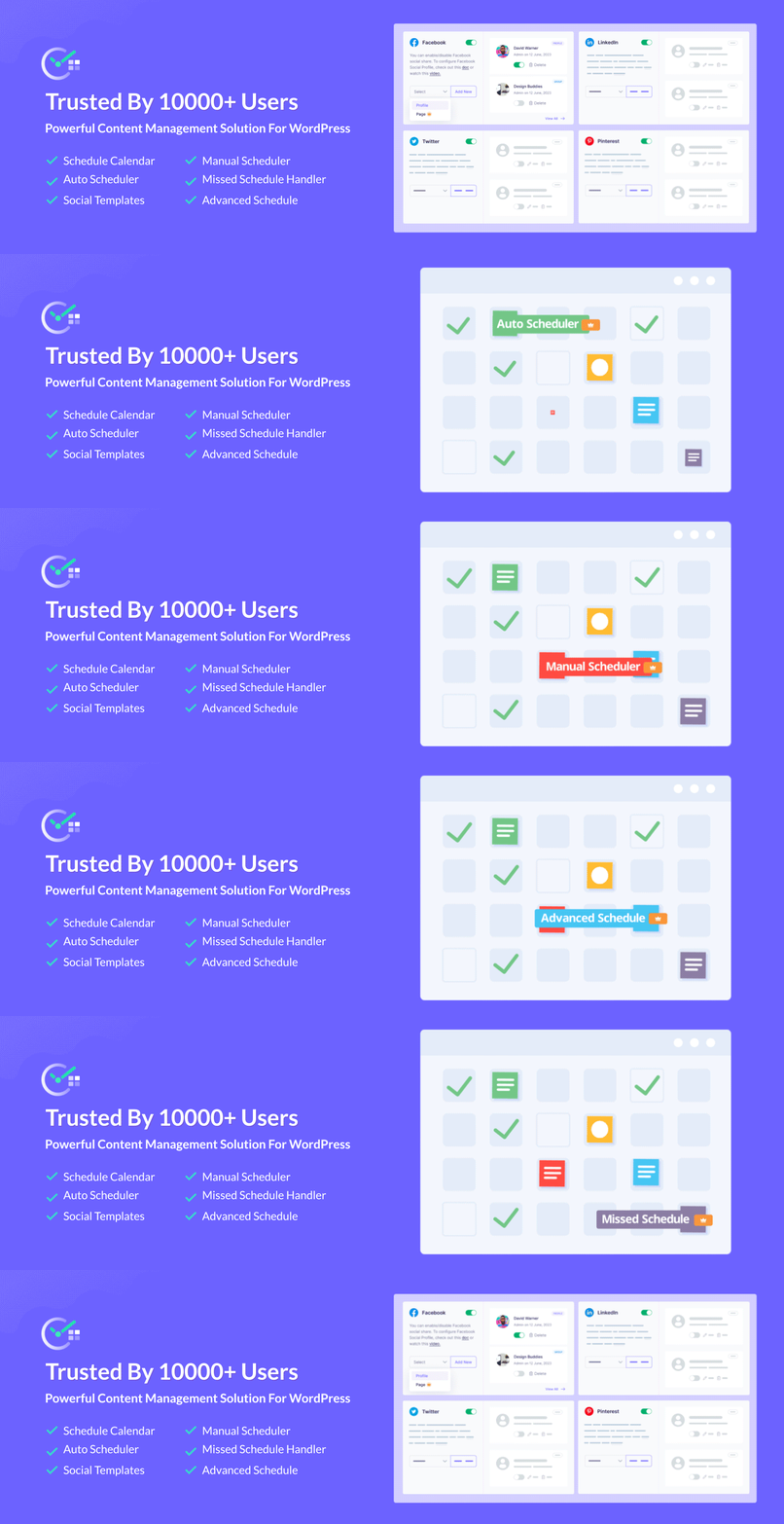
While most of the tools cover the basics, SchedulePress goes beyond simple Instagram posting. It is an all-in-one content scheduling tool for WordPress that not only lets you plan your blog posts, but also automatically shares them on social media once they are published. This includes Facebook, Twitter, LinkedIn, Pinterest, and yes – Instagram.
The magic of the SchedulePress plugin is that everything happens right from your WordPress dashboard. No need to log in to multiple accounts or use third-party dashboards; you set it up once and it will handle the rest every time you schedule a post.
⏱️ How to Reshare WordPress Posts on Instagram with SchedulePress (Step-by-Step)
Before we begin, make sure you have an Instagram Business or Creator account (linked to a Facebook Page). This is a requirement imposed by Instagram’s API – any app or plugin (including SchedulePress) can only post to Instagram on behalf of Business/Creator accounts, not personal ones.
Step 1: Install SchedulePress & Enable Instagram Sharing
Install the SchedulePress plugin on your WordPress site and activate it. Once activated, navigate to SchedulePress → Settings, and look for the Social Profile section. Make sure Instagram sharing is enabled.
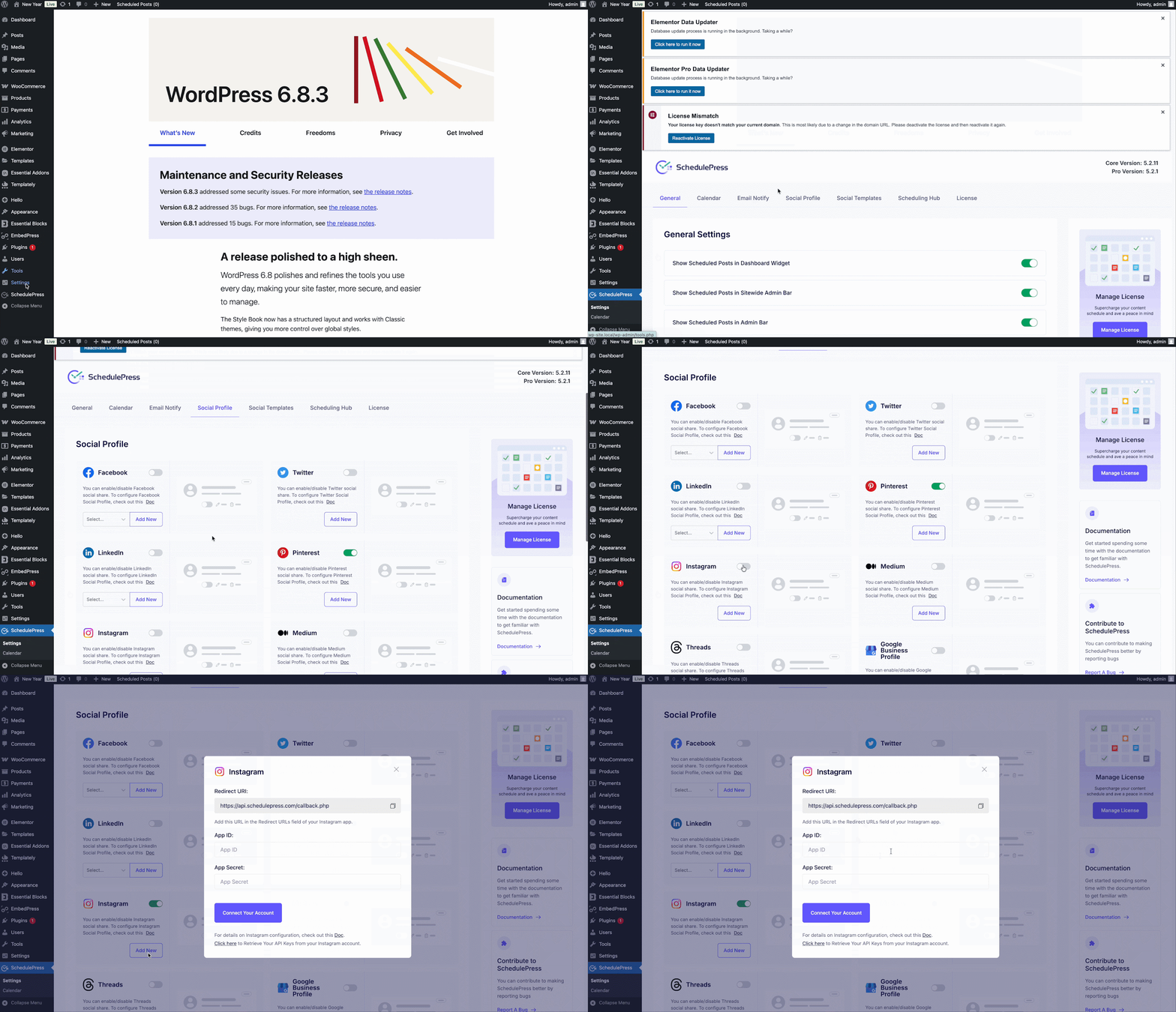
Now, click the “Add New” button under Instagram. SchedulePress will prompt you for an Instagram App ID and App Secret.
Step 2: Create a Facebook Developer App for Instagram Integration
This part might sound a bit technical, but take a breath – we will walk through it. Just follow along. Go to the Meta for Developers site and log in with your Facebook account. Once logged in, click on “My Apps” and then “Create App”.
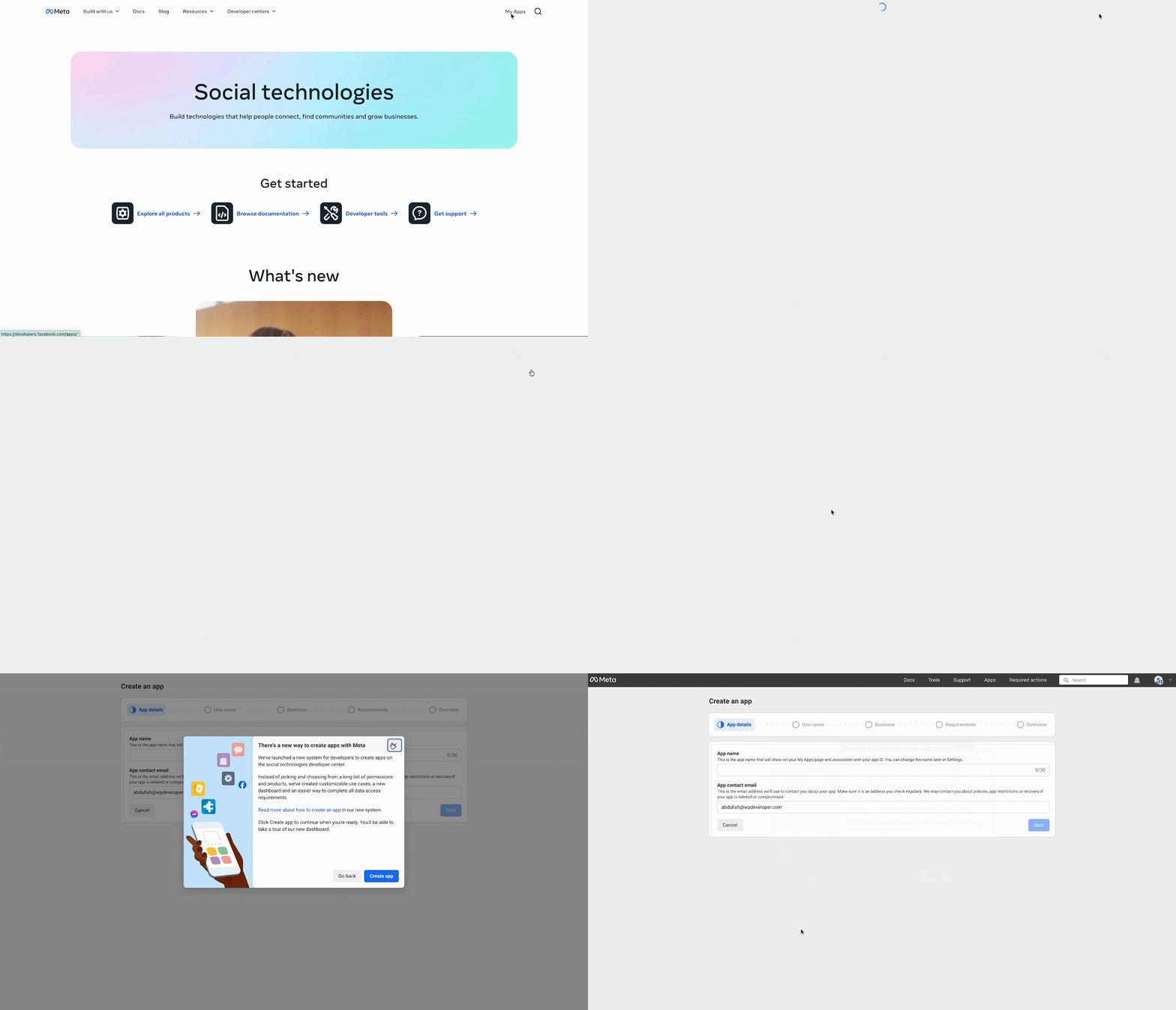
Here, you need to configure app details, such as App name and App contact email. Once done, hit the ‘Next’ button. Now, you need to select the use cases of your app. You can filter and choose one from the list of use cases. Here, we have chosen ‘Other’ available under All options.
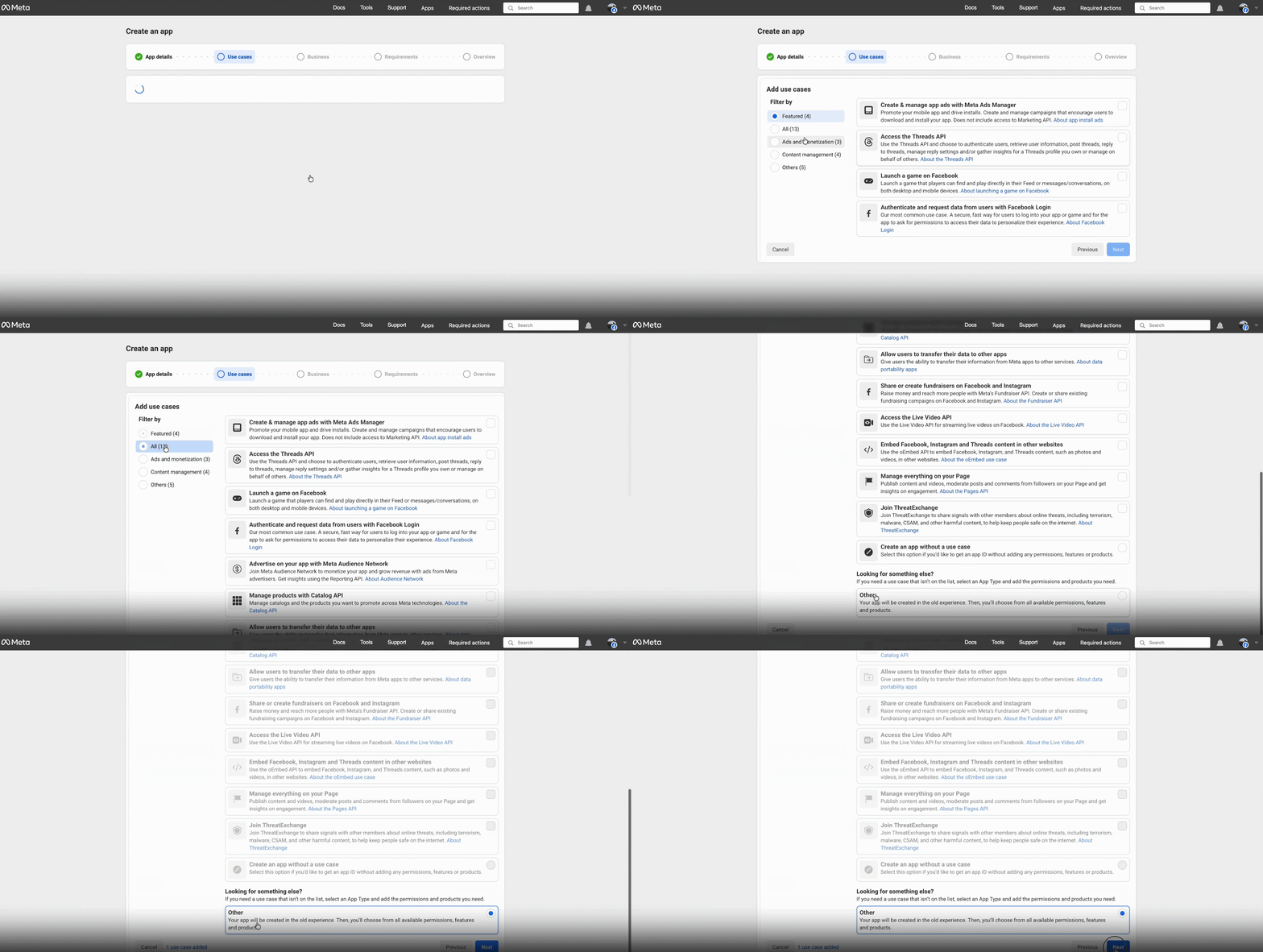
On the next page, select an app type (Business) and confirm the app details. Once done, hit the ‘Create App’ button to create your app.

Next, go to the Instagram Graph API settings in the developer console. You will likely see an option to add an Instagram Tester. Add your own Instagram account (the username) as a tester for the app.

On your Instagram (mobile app or web), you should get a notification under Settings → Apps and Websites or Tester Invites, where you need to accept the Tester Invitation.
After accepting the invite, back in the developer console, you might need to get “advanced access” for certain permissions. Just follow the prompts to enable them in development mode. Since this is your app for your own use, you don’t have to fully submit for review; you just need them active in Development Mode. Finally, copy the App ID and App Secret from the app’s Basic Settings.
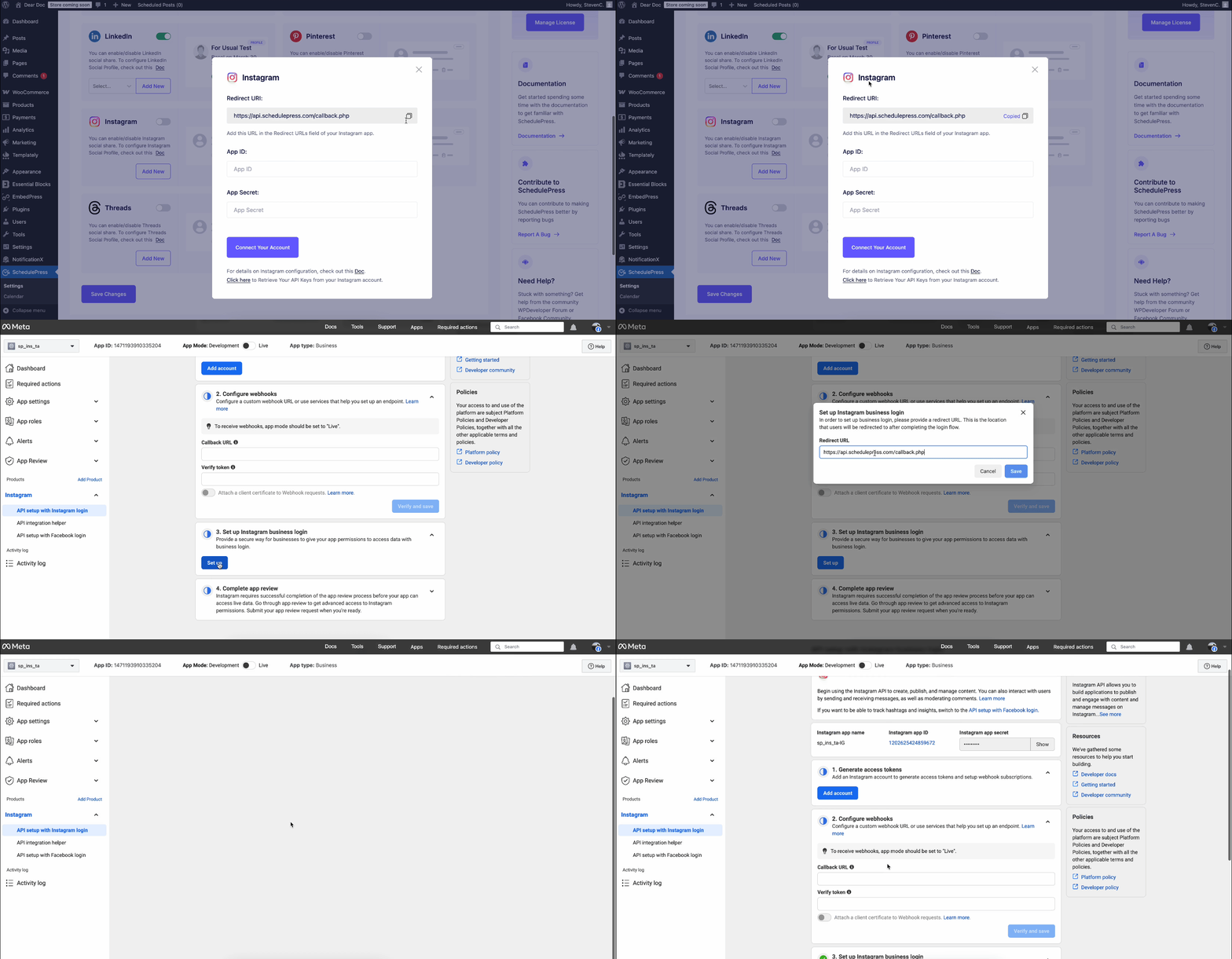
Step 3: Connect SchedulePress to Your Instagram Account
Switch back to your WordPress dashboard, to the SchedulePress Instagram profile settings, where it asks for App ID and App Secret. Paste those keys, hit Connect and you will be prompted to log into Facebook/Instagram to authorize the connection.
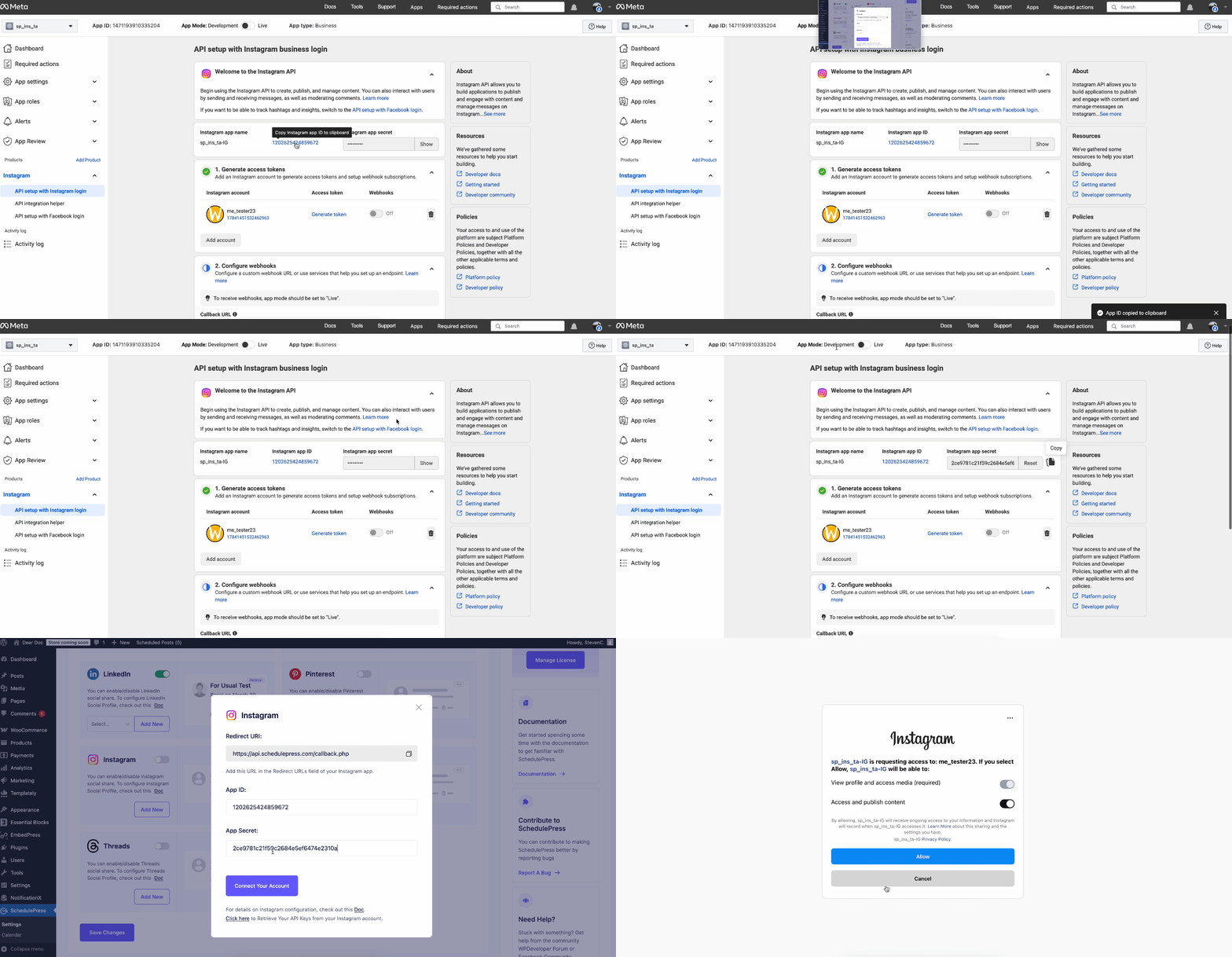
SchedulePress will then fetch a token and user data. Within seconds, you should see your Instagram profile listed as connected in the SchedulePress settings. Check the box next to your profile and save.
If you have SchedulePress Pro, you could repeat the “Add New Profile” to connect multiple Instagram accounts.
Step 4: Reshare Your Post with SchedulePress
Now, open a published blog post on your WordPress site, which you want to reshare. In the post editor, you will notice a Social Share metabox or settings area under SchedulePress options, where you can toggle which platforms to share. Make sure Instagram is selected either for default templates or custom social templates.

You can even upload a custom image (different from your featured image) to use as the Instagram post image if you want via the Social Share Banner option.
If it is a published post and you want to share on Instagram again, tap the “Share Now” button for Instagram in that metabox, which will instantly push the post to Instagram. However, if the post is scheduled for a future time, SchedulePress will automatically share it to Instagram at the scheduled publish time.
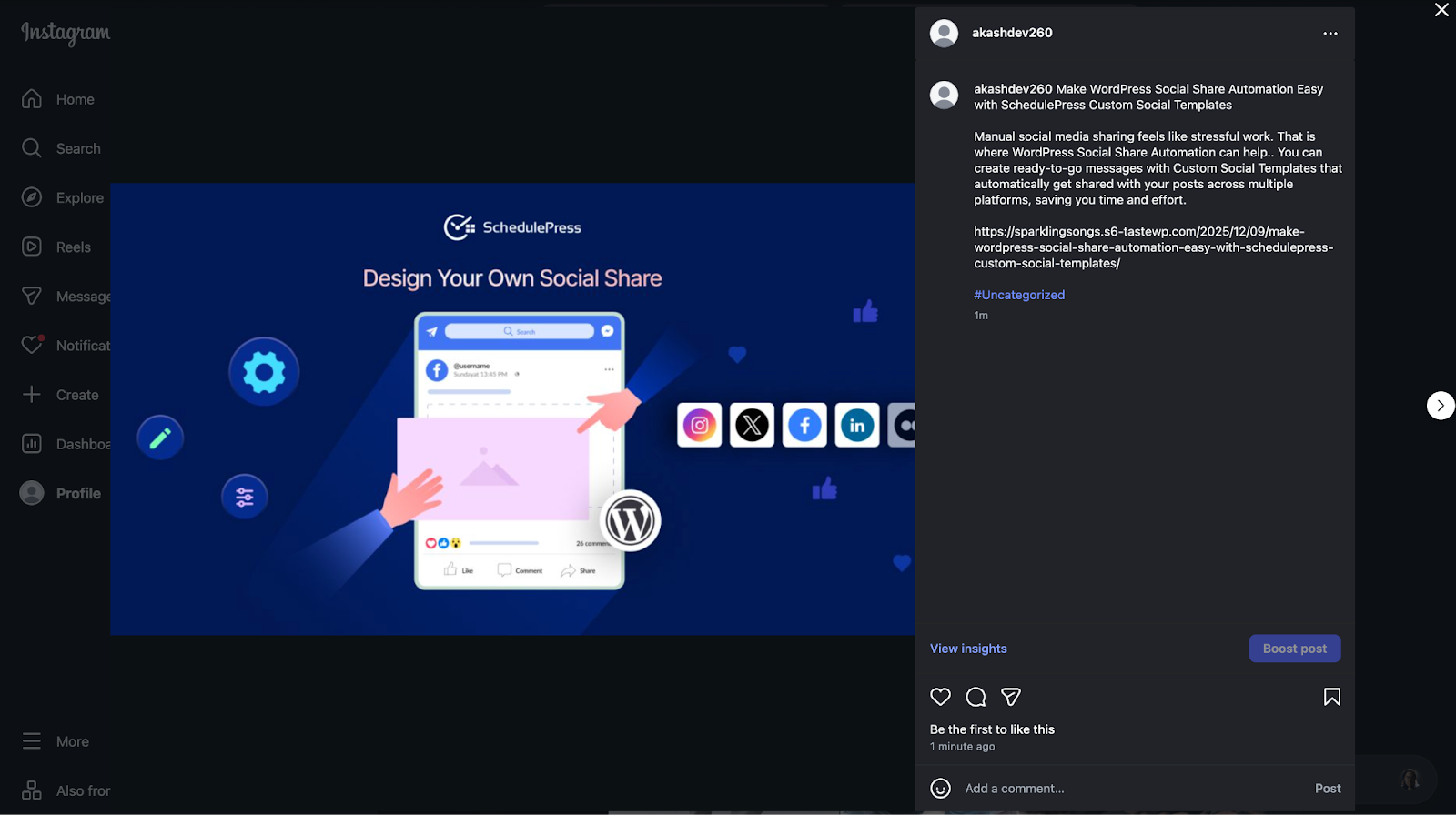
And that is it – you have set up a continuous pipeline. Going forward, every time you publish or schedule a blog post, you can confidently check Instagram knowing your content will appear there too.
🚀 Maximize Your Web Post Reach through Instagram
By now, you have both the knowledge and the tools to effortlessly reshare WordPress posts on Instagram. Cross-promoting your content on Instagram can result in huge rewards in traffic and engagement, all for minimal extra work on your part.
So go ahead – give it a try with your next blog post. The time you save will make you wonder how you ever lived without sharing your posts on Instagram automatically. If you have found this blog helpful, share your opinion with our Facebook community. You can subscribe to our blogs for valuable tutorials, guides, knowledge, tips, and the latest WordPress updates.