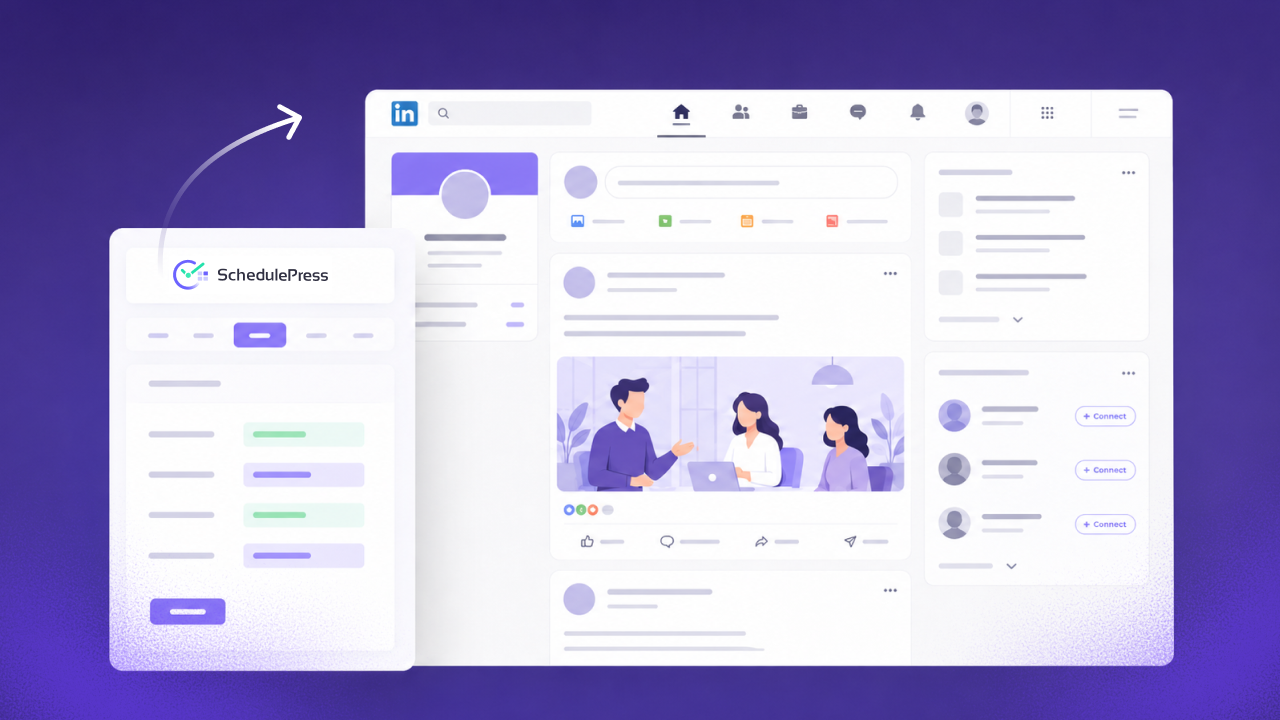
LinkedIn is a great platform to share insightful content to reach professionals. Be it blogs or case studies, you can count on LinkedIn to reach the right audience and gain engagement. Using SchedulePress (previously known as WP Scheduled Posts), you can automatically publish a WordPress post to LinkedIn accounts.
LinkedIn users are professionals; they are always on the lookout for new big ideas and insightful content. So make sure your content offers something new or something of real value; otherwise, you might end up creating a negative image among the global professionals.
However, LinkedIn is quite different from the other social networking platforms as it focuses on professionals only. Way back in 2011, there were around 640 million professionals worldwide, and at that time, LinkedIn had over 135 million users.
To date, LinkedIn has over 1.2 billion registered members worldwide. And, over 310 million users actively use LinkedIn every month, as of now.
Despite focusing on professionals, it offers features that are common in other Social Media platforms. You can post updates, comment on content, react to posts and send connection requests to other people, as you would on Facebook. Your profile on LinkedIn works as a digital resume for you. It displays your work experience, education, achievements, accomplishments and recommendations.
Professionals know what to look for in a product; they do not keep irrational expectations, and most importantly, they are willing to spend money. LinkedIn users are more likely to be on the lookout for new breakthroughs, new productivity hacks and new big ideas. If you do marketing the right way, you can reach and even create a completely new user base.
Business Growth with LinkedIn
LinkedIn is a great place to attract other businesses, as we already mentioned. You can initiate B2B links by sharing what your company is doing and what your plans are, and in that process, create links for collaboration. LinkedIn is known as the most popular social networking site for professionals. 97% of B2B marketers use LinkedIn for content marketing. If you are thinking about whether or not you should start sharing content on LinkedIn, know that 89% of B2B marketers say LinkedIn generates high-quality leads.. Additionally, exploring the benefits of using LinkedIn Sales Navigator can further enhance your B2B networking efforts.
Should I Share a WordPress Post to LinkedIn?
Now there are multiple benefits of sharing your WordPress post to LinkedIn. The first benefit is that readers can easily land on your WordPress website using the link that comes with the shared post. Every post you share on your LinkedIn profile will give your users a link to land on the posting page on your WordPress website. Once they are there, they can easily navigate back and forth between your other website pages.
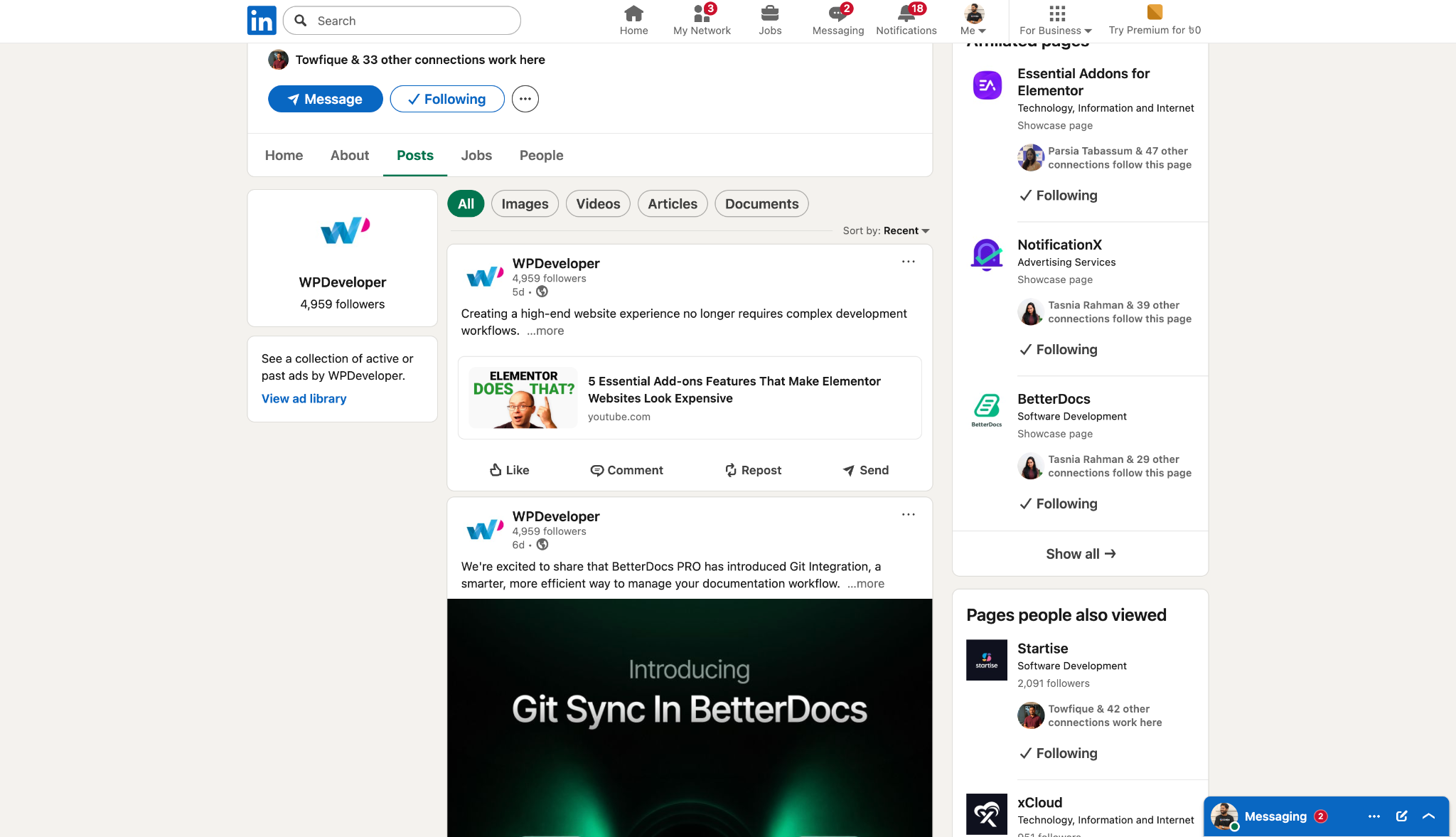
The second benefit of sharing your WordPress post to LinkedIn is that your users can react to your post. However, the reaction to emojis on LinkedIn is different from Facebook’s. It offers five reaction options- Like, Celebrate, Funny, Love, Insightful and Curious. Moreover, LinkedIn users can also share their shared posts with other LinkedIn users without having to leave the platform. Most importantly, it also gives the option of following interactions on a LinkedIn post. Once your users follow a post, they will receive a notification every time anyone leaves a reaction or comment.
How to Automatically Publish WordPress Post to LinkedIn
After you have installed and activated SchedulePress on your WordPress website, you will have to connect your LinkedIn account with SchedulePress. To do this, you need to collect your LinkedIn API keys, which you can do by following our step-by-step guide here.
Step 1: Retrieve LinkedIn API Keys
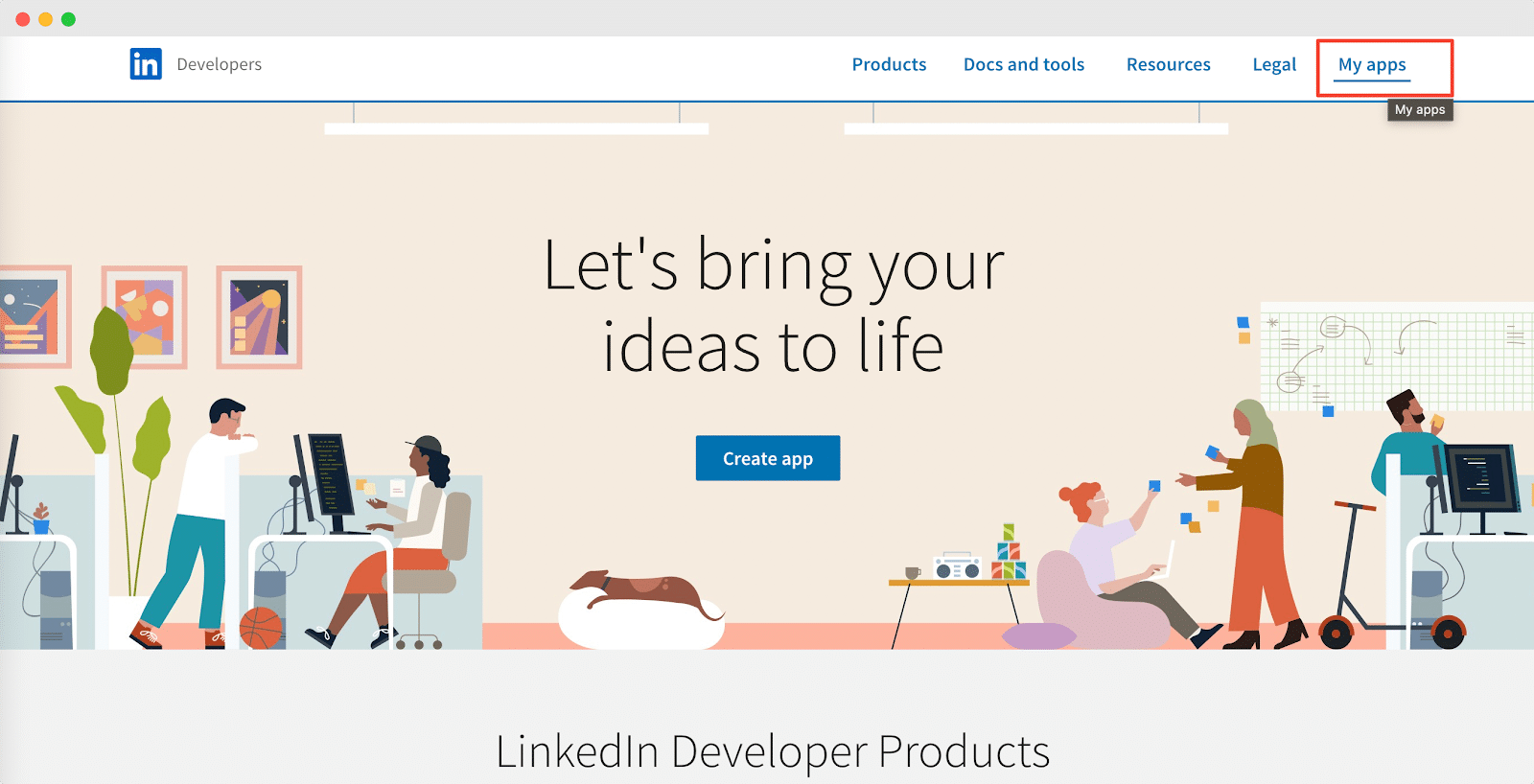
Make sure to retrieve your API Keys from your LinkedIn Developer Account first. Beforehand, you need to make sure that you have already created an App on LinkedIn. You will have to provide the necessary information: App Name, App Logo, Privacy Policy URL and others. Make sure to connect your Company page with the App as well. If you don’t have a Company page, you can create one by following this link.
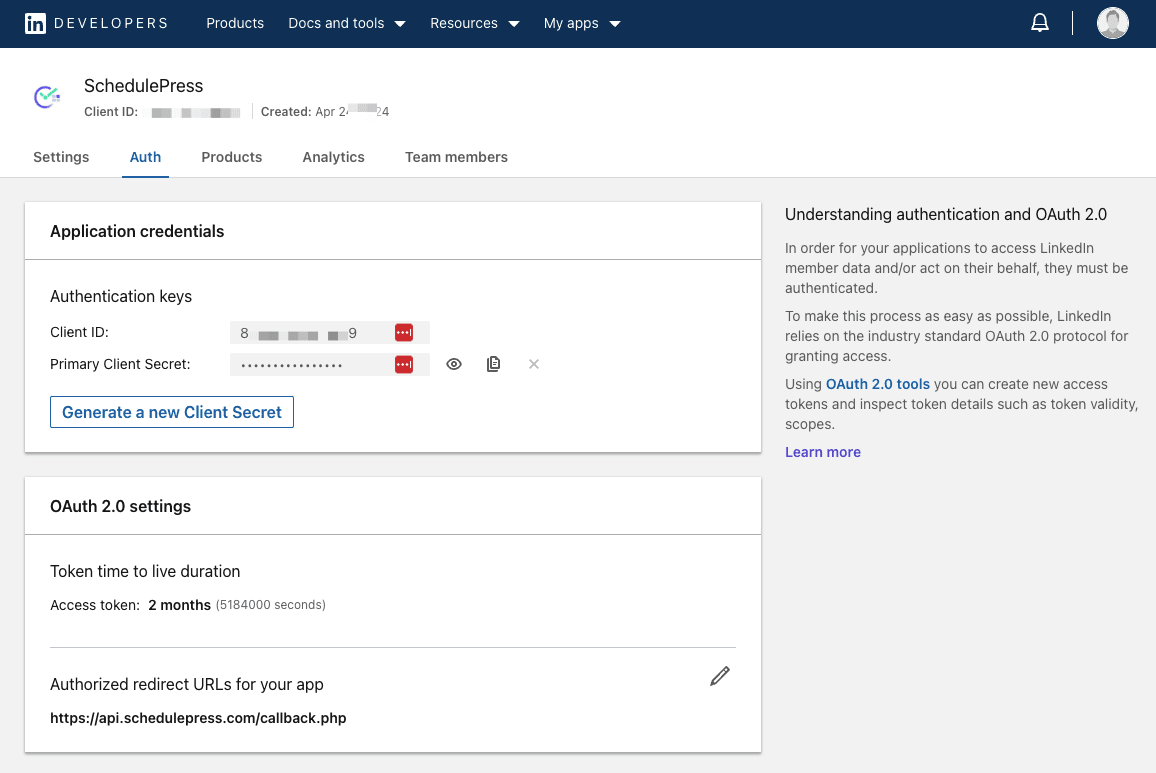
Let’s go to your App page and open the ‘Auth’ page. From here, you will find the ‘Client ID’ and ‘Client Secret’ API Keys. You can copy them from here.
Make sure to copy the following URL: “https://api.schedulepress.com/callback.php“ and paste it inside the ‘Redirect URLs’ option under ‘OAuth 2.0 Settings’.
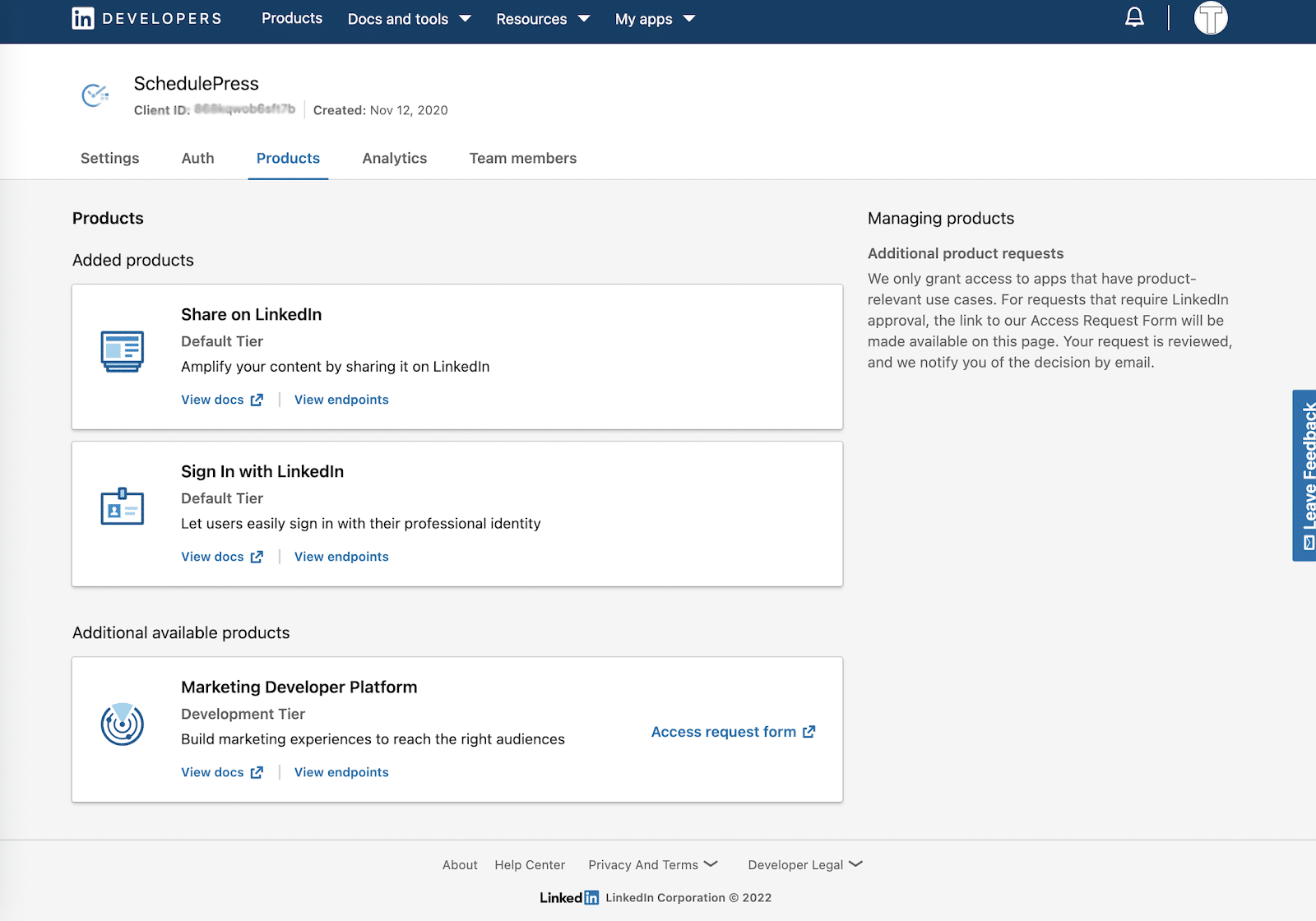
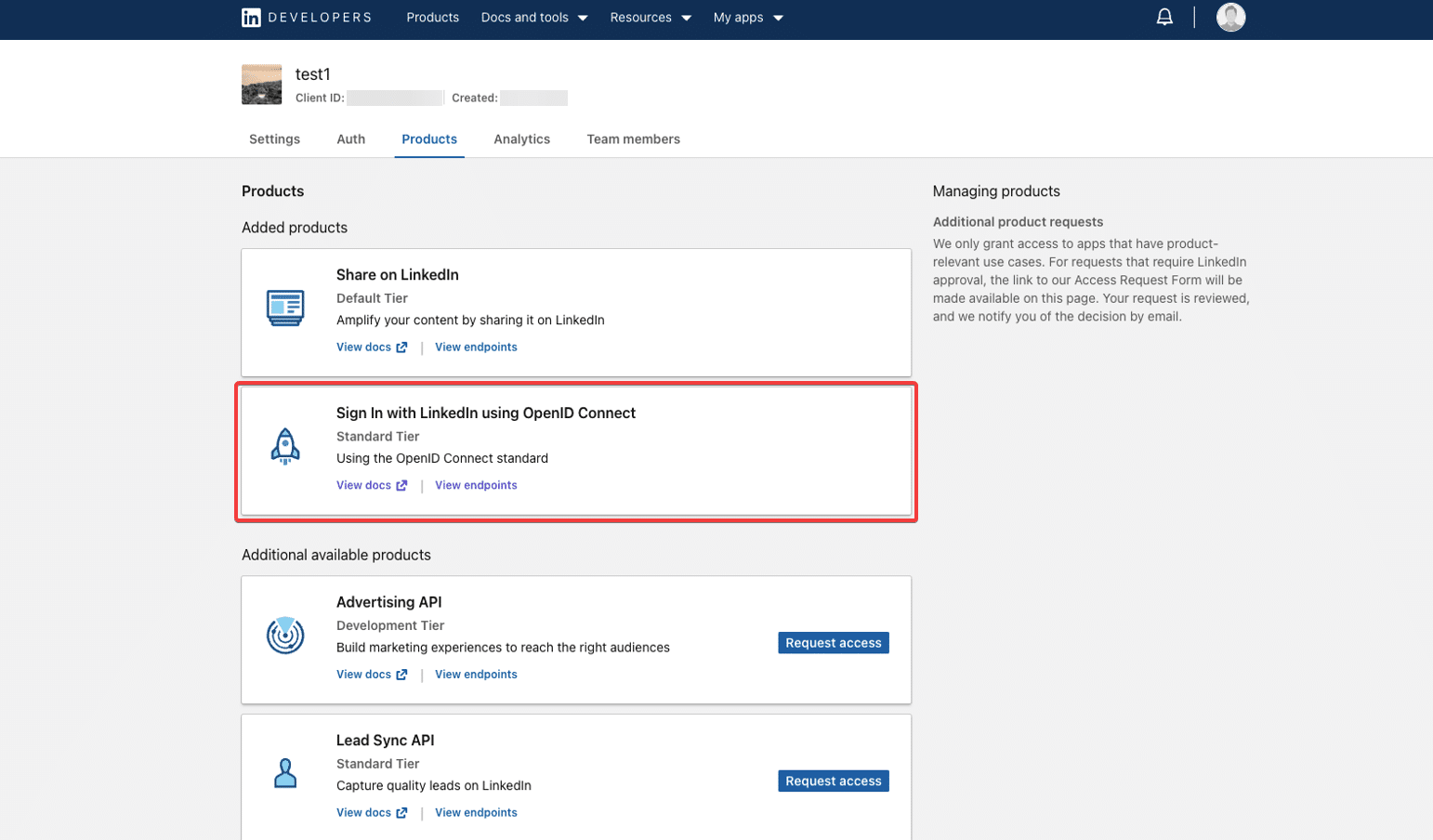
Make sure you have enabled the ‘Share On LinkedIn‘ and ‘Sign in with LinkedIn‘ options by navigating to the ‘Products‘ tab from the LinkedIn app.
However, if you are a new user, you will find the option ‘Sign In With LinkedIn using OpenID Connect’.
Step 2: Connect LinkedIn with SchedulePress
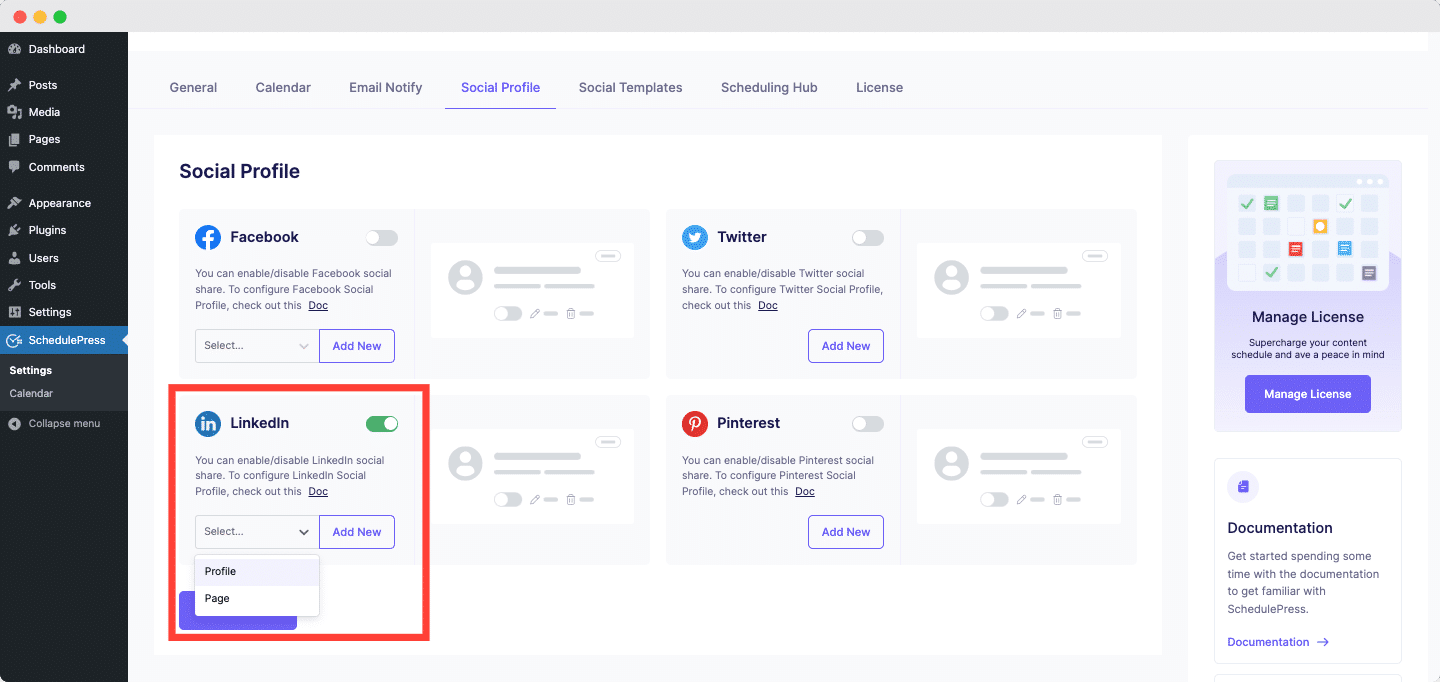
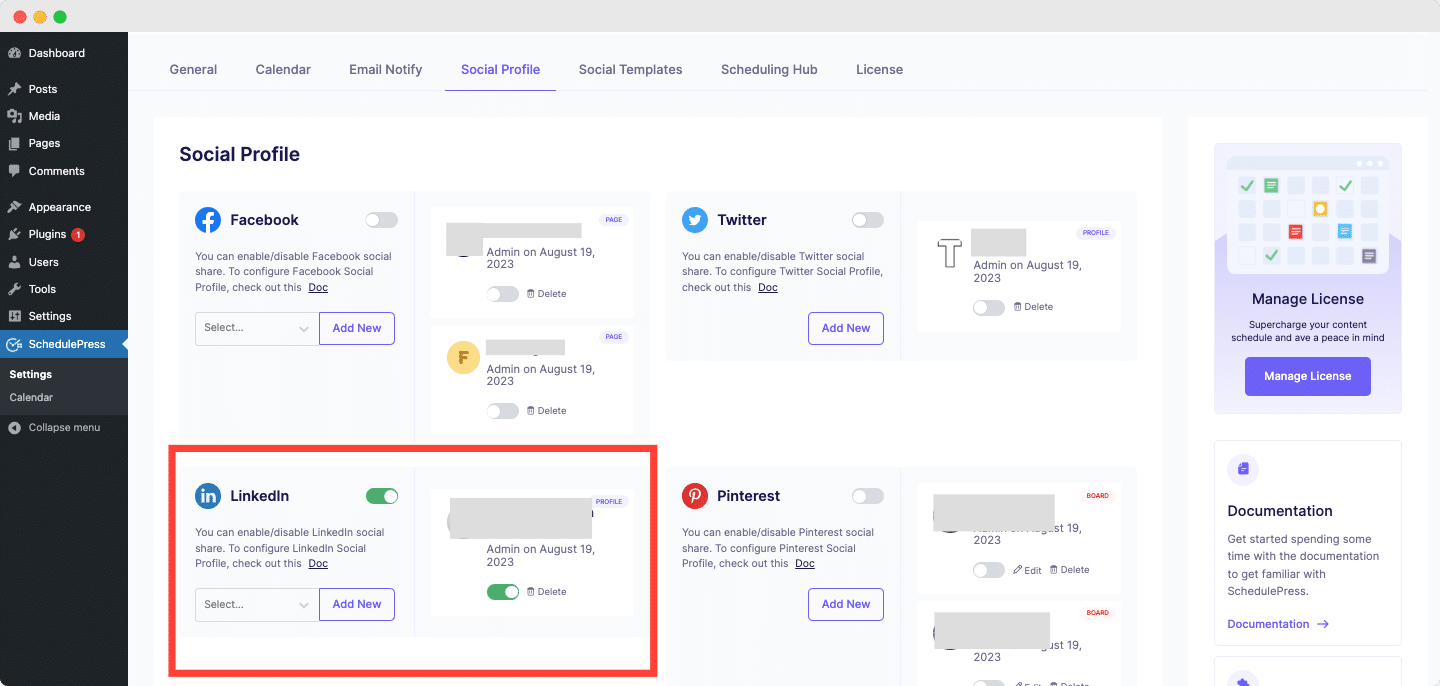
After retrieving API Keys from your LinkedIn account, go to your WordPress Dashboard and navigate to wp-admin → SchedulePress → Settings. Then, simply open up the ‘Social Profile’ tab. Toggle on the ‘LinkedIn’ option to enable it. Afterward, select Profile or Page from the drop-down and simply click on ‘Add New’ to connect your LinkedIn profile or Page with SchedulePress.
After hitting the ‘Add New’ button, you will get a pop-up. Here, toggle on the ‘Connect with App credentials,’ and you’ll get two more fields to provide ‘App ID’ and ‘App Secret’. Now, provide your collected ‘Client ID’ and ‘Client Secret’ of your LinkedIn account and click on the ‘Connect Your Account’ button.
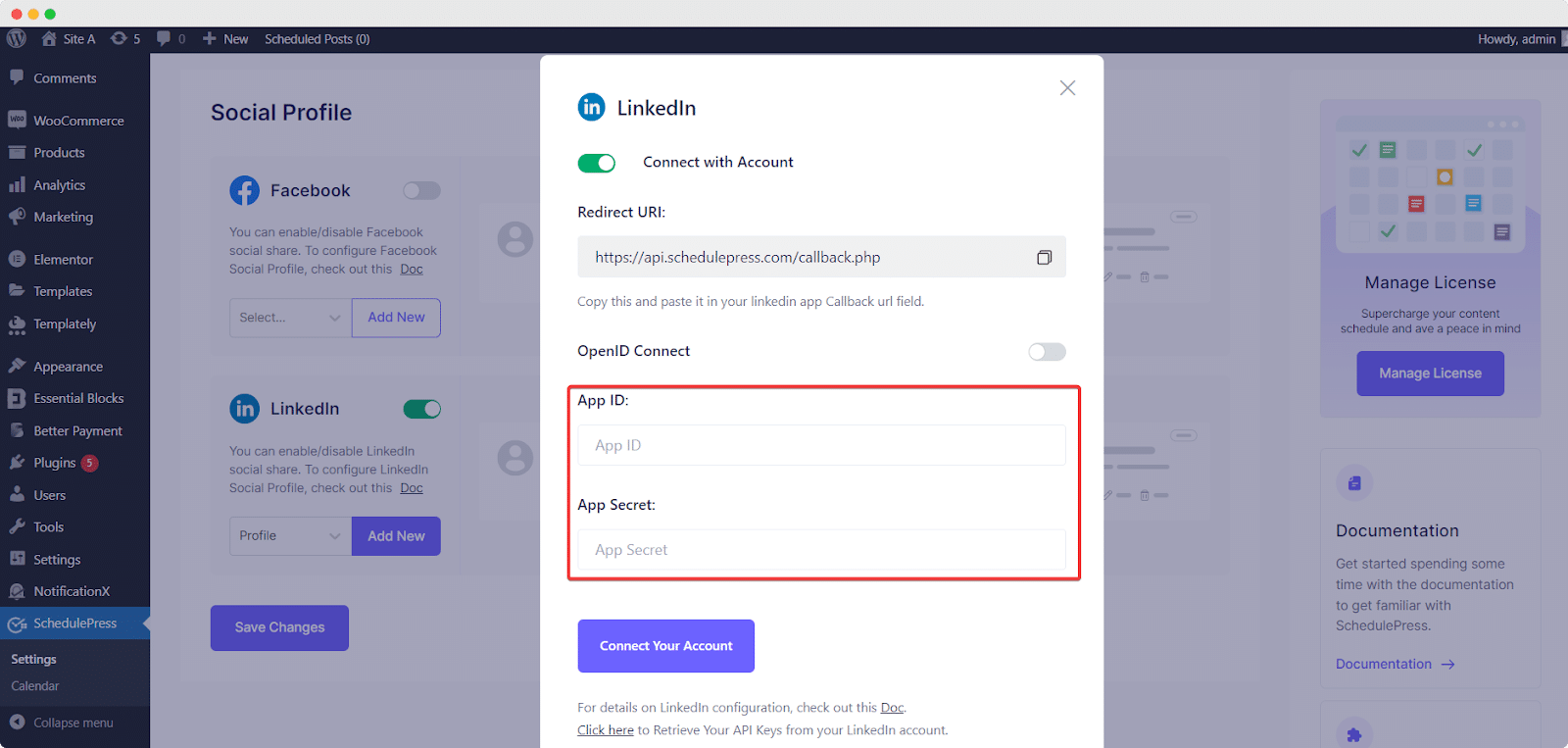
If you are a new user, you need to toggle the ‘OpenID Connect’ button and then provide ‘App ID’ and ‘App Secret’. Now, provide your collected ‘Client ID’ and ‘Client Secret’ of your LinkedIn account and click on the ‘Connect Your Account’ button.
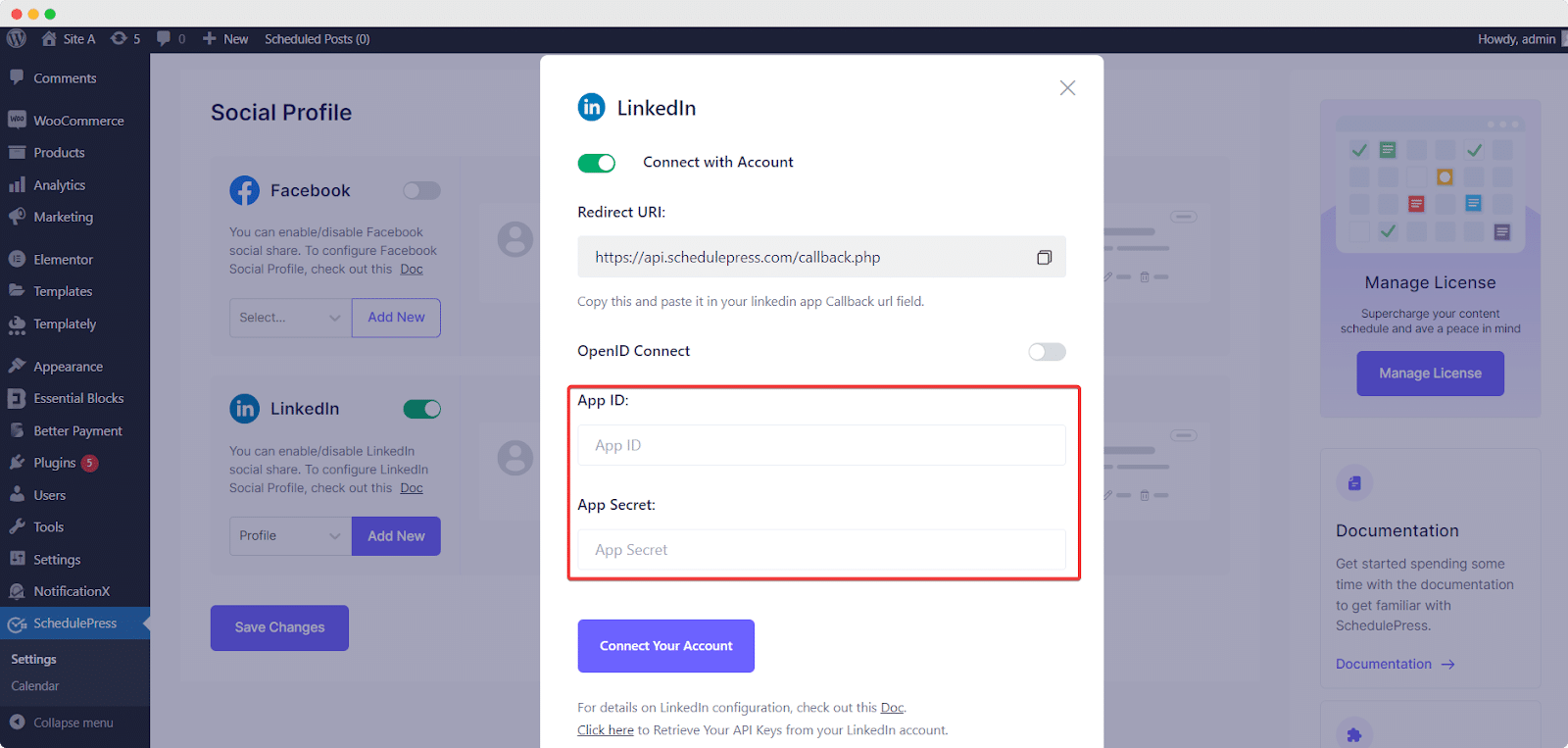
After allowing permission to the App, the Access token will be successfully generated and SchedulePress will be connected with your LinkedIn profile.
By simply following the previous steps, you can add a new profile or page and connect multiple LinkedIn accounts with SchedulePress Pro as well.
Step 3: Configure Social Templates
Switch to the ‘Social Templates’ tab to make changes to your social share Template. You can configure the LinkedIn Template Settings and place around content parameters the way you want the shared post to appear. You can show your tags and categories as ‘Hashtags’ from here. You can even enable the ‘Content Source’ type as Excerpt or Content to showcase it as your LinkedIn template content. You can set your LinkedIn ‘Status Limit’ as per your preference.
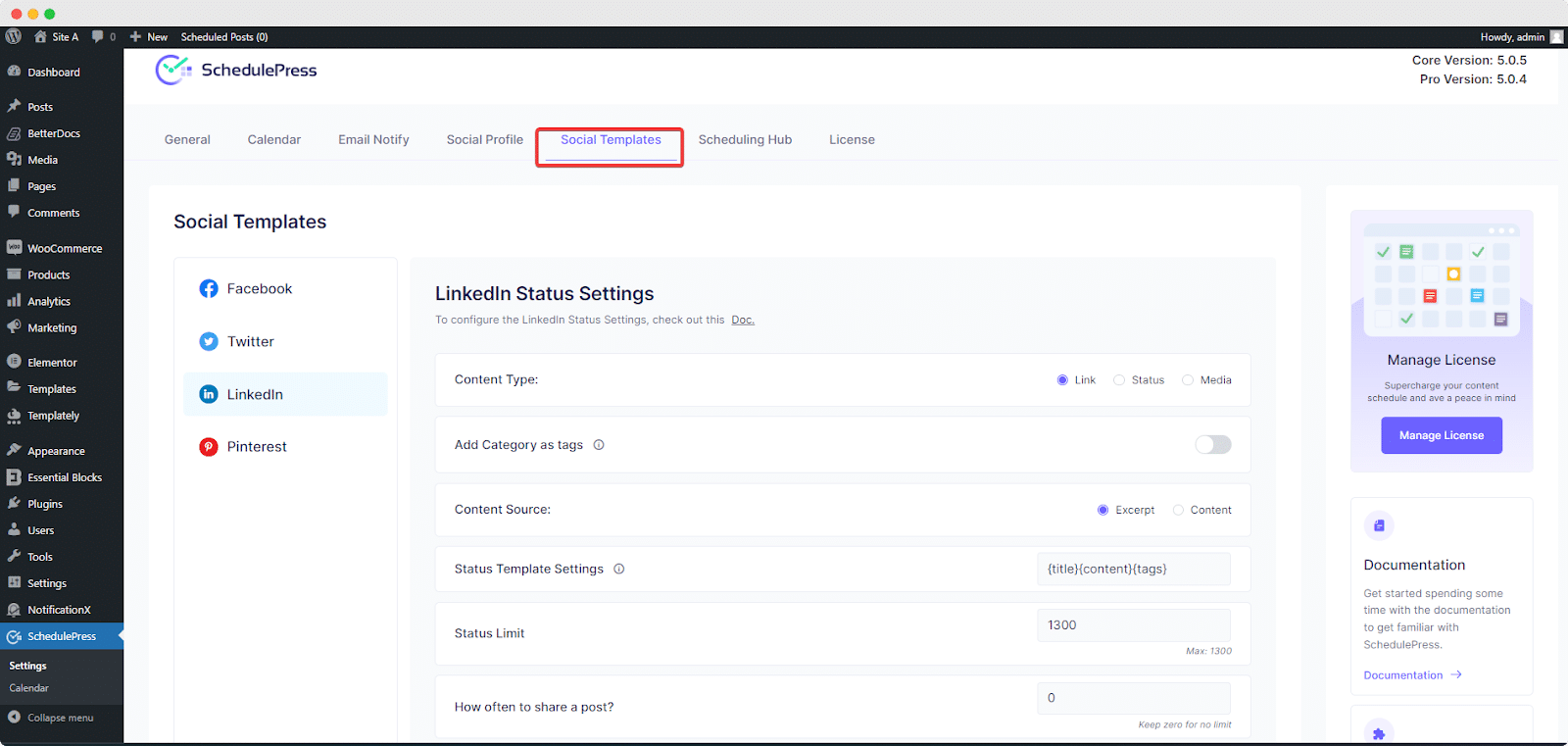
Additionally, you can set a limit to how often you can share a post on LinkedIn. By default, the limit is set to zero, which means you can share a post as many times as you want. But you can change the value to any number and restrict it for sharing that number of times.
Step 4: Schedule Your WordPress Post & Automatically Share It on LinkedIn Right Away
If you schedule your WordPress post, it will automatically be shared on your LinkedIn account. Besides, if you want, you can even instantly share your live post on LinkedIn as well. To do that, go to your post and navigate to the ‘Schedule And Share’ option by Schedulepress and open it.
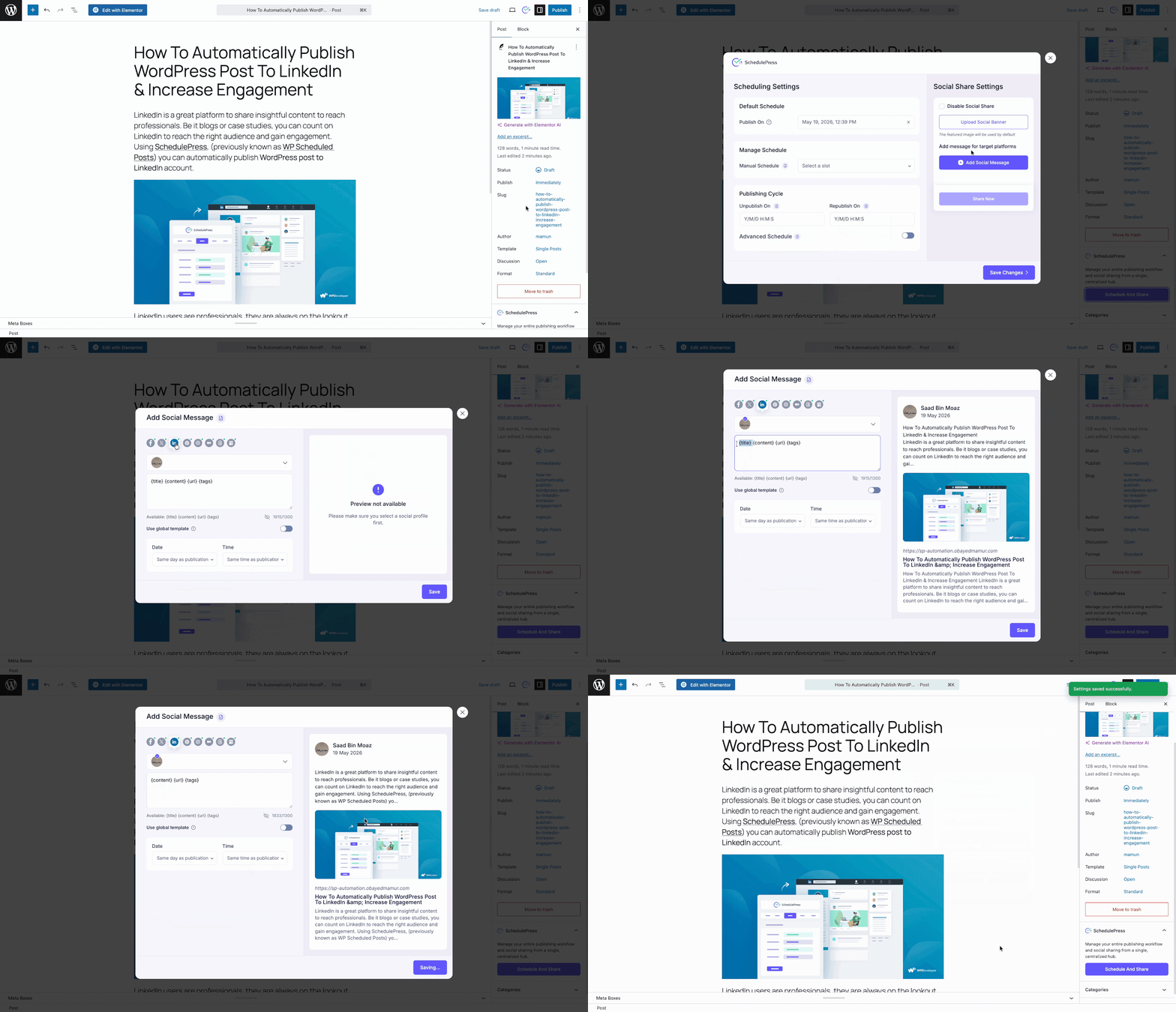
Now, from the social share settings, tap the ‘Add Social Message’ button and from the list of your available social platforms, select LinkedIn and profile. Then, add your social message as necessary. Once done, save the changes.
Now, you can either share this instantly or when the post is published, depending on your needs.
Final Outcome
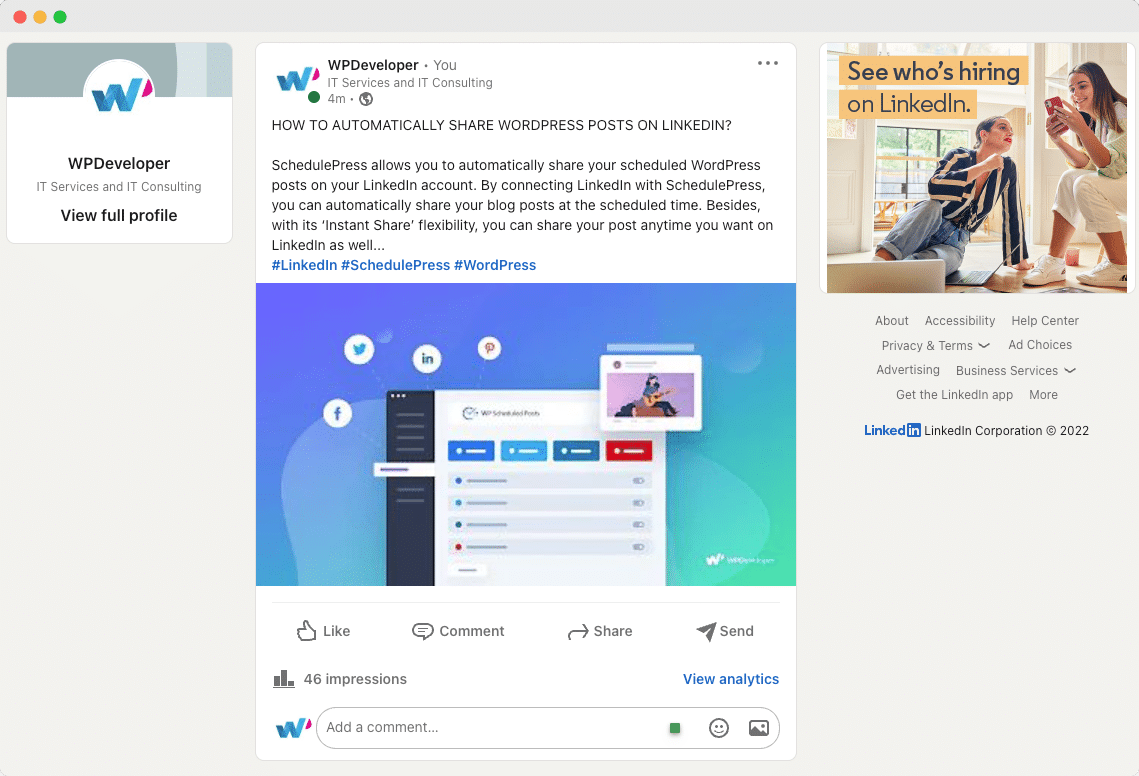
After all of these previous steps are finished, it will automatically share WordPress posts on the LinkedIn profile when they go live. This is how it will appear on your LinkedIn account:
Final Words
Now that you know how important it is to share your WordPress post to LinkedIn and its benefits, you need a tool that will help you do that. But before that, you should know when you should schedule your LinkedIn posts, by which we mean at what point in your editorial task you should schedule your posts for LinkedIn. The standard practice is scheduling for social share at the time of setting a publishing time for your WordPress post. And like we said in the introduction, if you are using SchedulePress, you can schedule social shares for LinkedIn as well as 7+ other social media platforms, i.e., Facebook, Twitter and Pinterest.