
Publishing consistently is hard when life and deadlines get messy. You might write three articles in one weekend, then go quiet for two weeks because client work shows up. The fastest way to fix that pattern is to schedule posts in WordPress so your site keeps moving even when you are not at your desk. SchedulePress turns scheduling from a basic date picker into a full workflow with planning, automation and promotion built in.
What “Schedule Posts in WordPress” Really Means
When people say they want to plan content ahead, they usually want more than “set a date and forget it.” To schedule posts in WordPress well, you need visibility into what is coming next, an easy way to move items around and a reliable system that publishes on time. You also need a repeatable rhythm so content goes out regularly instead of in random bursts.
That is why an editorial workflow matters. If you treat your publishing calendar like a production line, each post moves from idea to draft to scheduled to published with fewer surprises. SchedulePress is built for that kind of planning because it combines an editorial calendar, automated scheduling tools and sharing features in one place.
Why Native WordPress Scheduling Feels Limiting
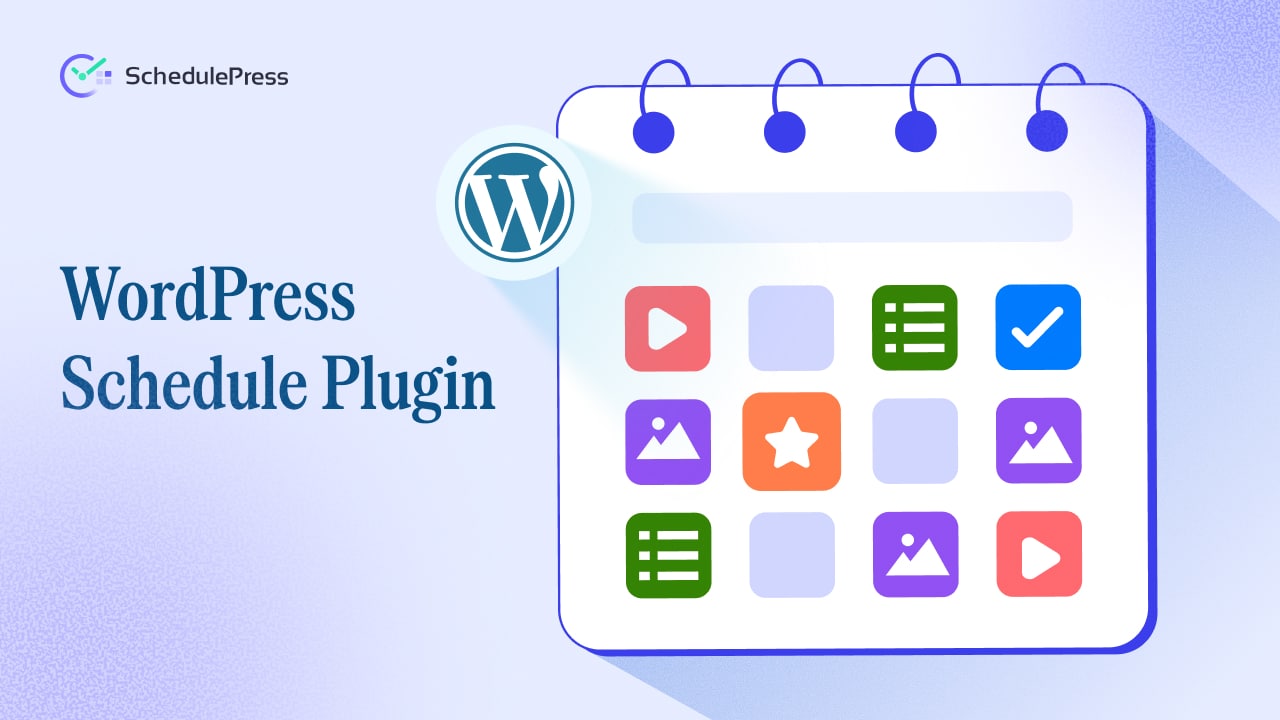
WordPress can schedule a post for a future date, but the experience is narrow. You can set a publish time, yet you do not get a real editorial overview, you do not get an automated queue and you do not get built-in promotion. If your site publishes often, you can end up opening many drafts just to change dates, which is slow and easy to mess up.
Reliability is the bigger issue. WordPress scheduling depends on WP-Cron, which triggers when someone visits your site. If traffic is low at the exact minute a post should publish, the schedule can be missed. That is the moment many site owners decide to schedule posts in WordPress with a dedicated tool rather than rely on the default system alone.
The SchedulePress Approach: Planning Plus Automation
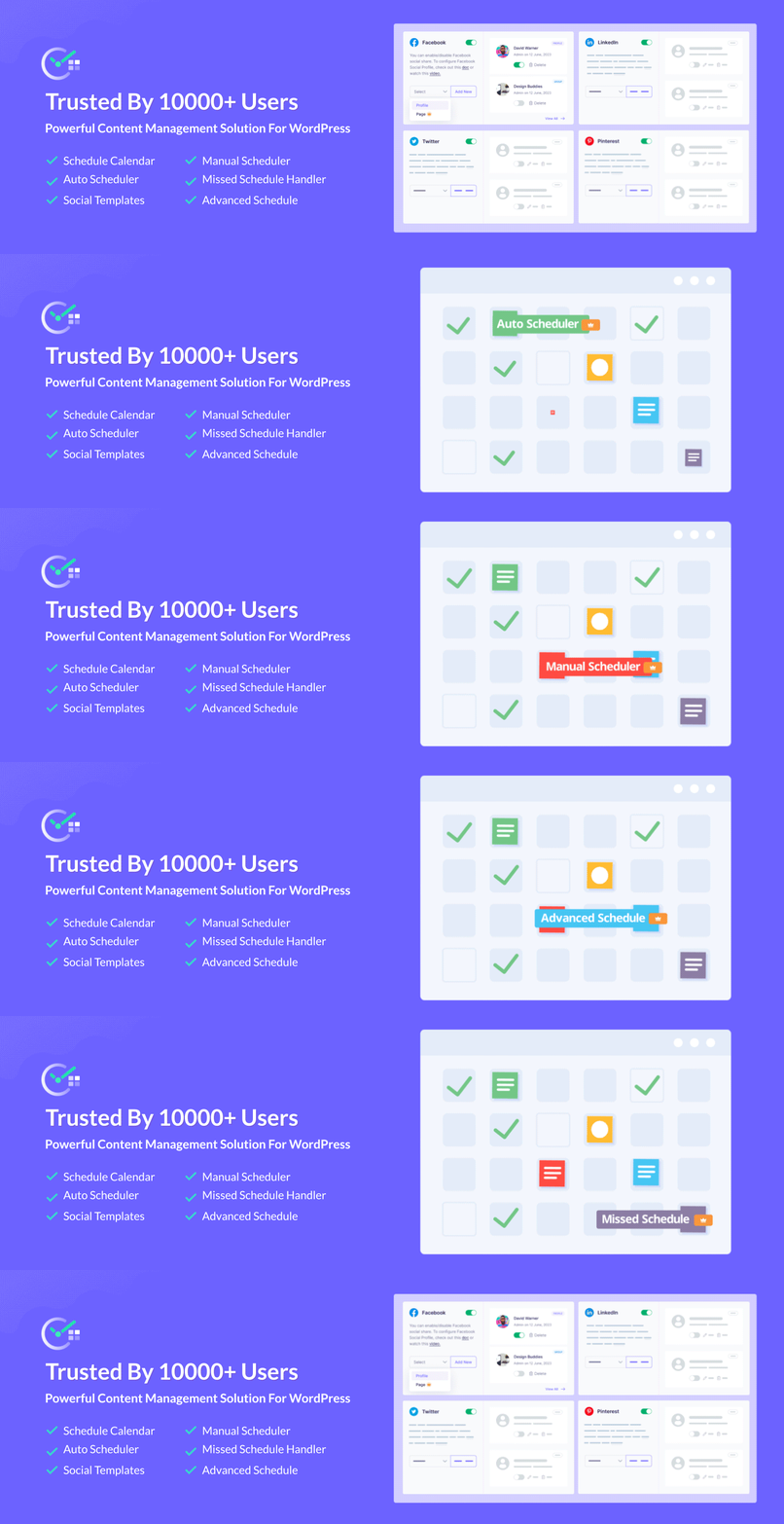
SchedulePress is a WordPress scheduling plugin designed to manage scheduled content with a visual calendar, automated scheduling options and a safety net for missed publishes. It also includes auto social sharing so your posts can be shared on major platforms without extra manual steps. In other words, it not only publishes your content, but it also helps you run a consistent content operation.
The rest of this guide is a practical workflow. You can follow it as a checklist, adopt the steps you need and refine the rest later. The goal is to help you schedule posts in WordPress in a way that stays reliable week after week.
Step 1: Map Your Month Using an Editorial Calendar
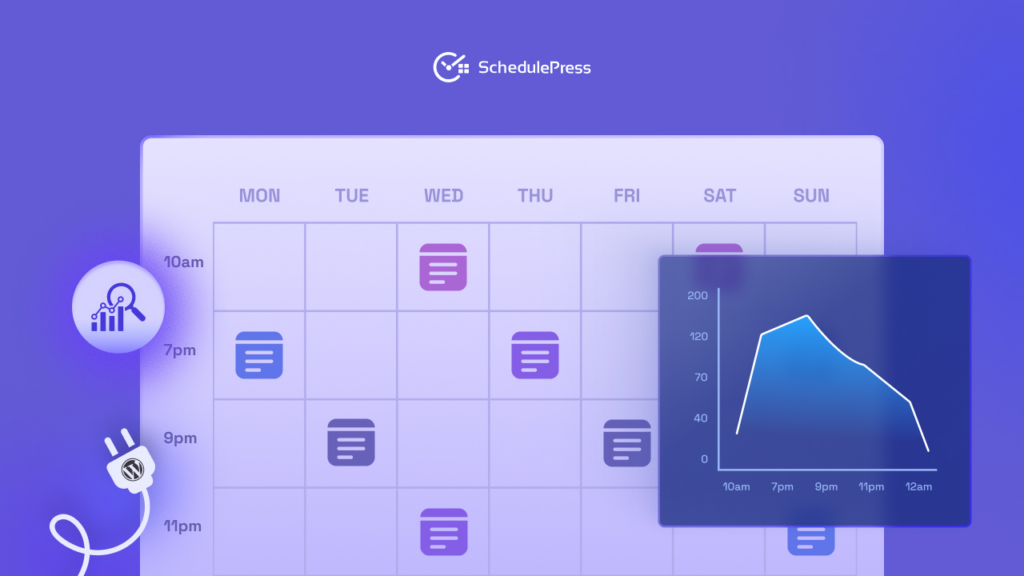
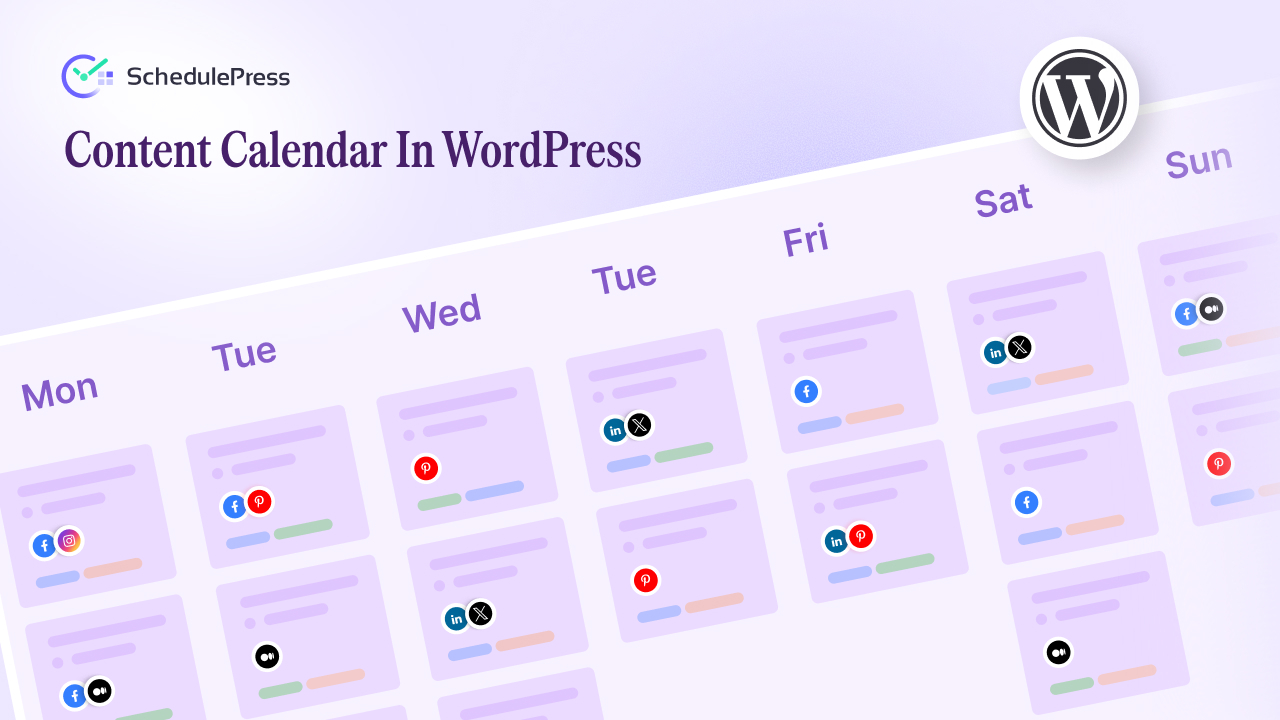
A list of scheduled posts is not the same as a plan. An editorial calendar gives you a bird’s-eye view of your content so you can spot gaps, avoid publishing too many similar topics in the same week and keep campaigns aligned with launches. SchedulePress includes a drag-and-drop schedule calendar so you can view content by date and move posts by dragging them to a new day.
Start by setting a simple target. For example, aim for two posts each week for the next month. Then open the calendar and place your drafts into the weeks you want. If a post needs more time, drag it forward and if you want to publish a timely update sooner, drag it backward. This calendar-first approach makes it much easier to schedule posts in WordPress without getting lost in individual editor screens.
Calendar Tips that Reduce Chaos
Use your calendar for more than dates. Add lightweight labels in your titles like “Guide” “Case Study” or “Update” so the month looks balanced. Review your editorial calendar every Monday, so you adjust early rather than scramble on publishing day.
Step 2: Choose Your Publishing Rhythm with an Auto Post Scheduler
Once you can see your pipeline, the next question is cadence. Many teams publish better when the schedule is predictable: every weekday at a set time, or three times a week on fixed days. SchedulePress includes Auto Scheduler and Manual Scheduler options, letting you define how posts should be queued and published.
An auto post scheduler is ideal when you have a backlog of drafts and want to spread them out evenly. Instead of opening each draft to pick a date, you can configure the rules and let the system queue posts automatically based on your plan. When you need a precise time for a time-sensitive post, use the manual option for that item and keep the rest on autopilot.
A Simple Cadence that Works for Most Blogs
If you are unsure where to start, choose two fixed days each week and one optional slot. For example, publish on Tuesday and Thursday at 10:00 and keep Saturday as a bonus slot for lighter content. This approach keeps output consistent while leaving room for experiments.
How to Queue Drafts without Overthinking Dates
Create drafts as usual and keep them in a ready-to-schedule state. Then let the automatic post scheduler assign publish times based on the cadence you set. You will still have full control because you can move any item in the editorial calendar when priorities change. The big win is speed: you can schedule posts in WordPress faster while keeping a steady rhythm.
Step 3: Add a Safety Net with the Missed Schedule Handler
Even a perfect plan fails if a post does not publish. SchedulePress includes a missed schedule handler that checks for missed publishes and pushes them live automatically. The handler can check at intervals (for example, every 15 minutes) to detect missed schedules and publish them so you do not lose consistency.
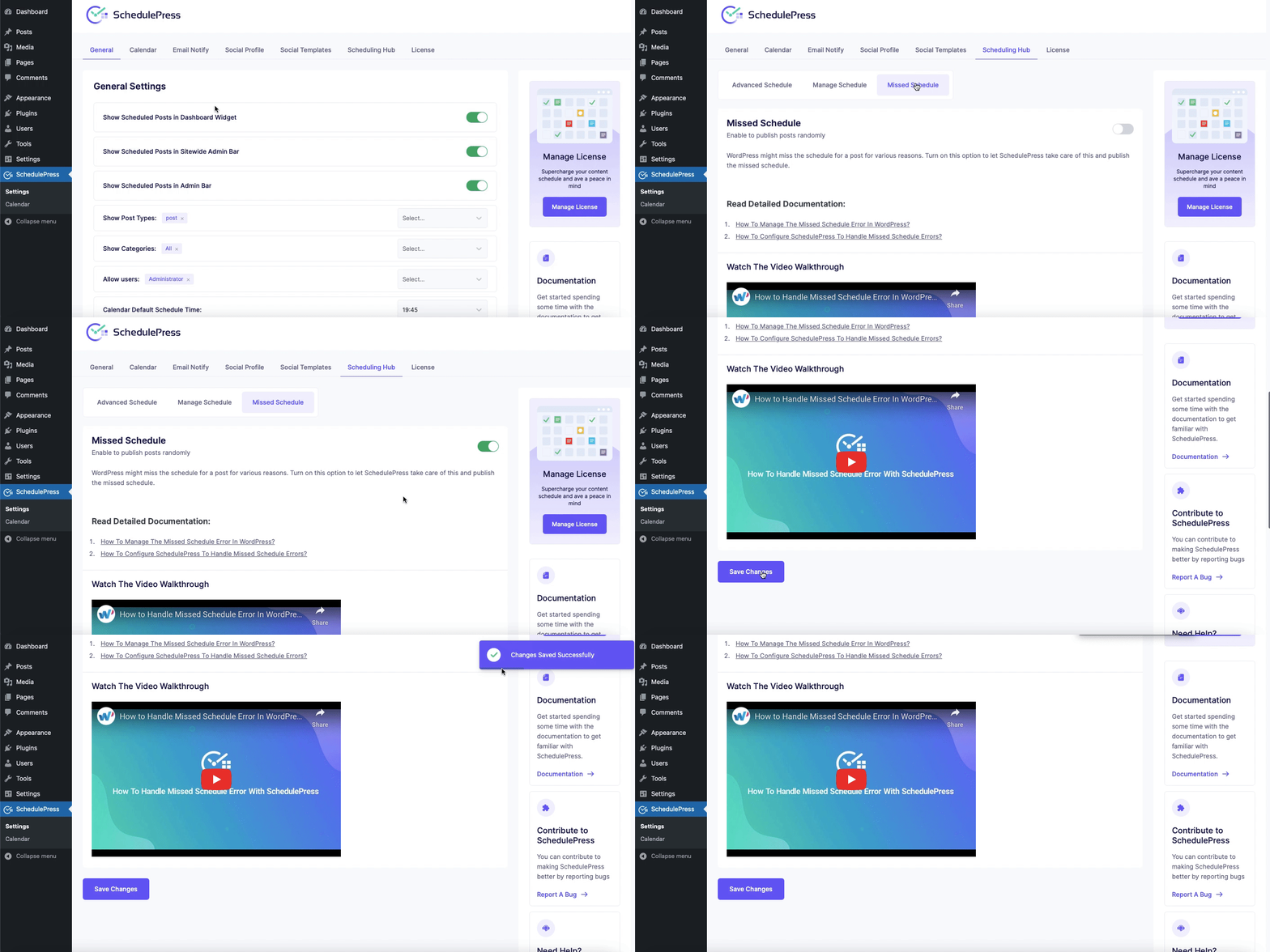
This feature matters most for sites with low traffic, sites hosted on environments where WP-Cron behaves inconsistently and teams that publish at night or in different time zones. If your brand promise is “new content every weekday,” you need more than hope. With a missed schedule handler in place, you can schedule posts in WordPress with far less anxiety.
Step 4: Publish Once and Promote Everywhere with Auto Social Sharing
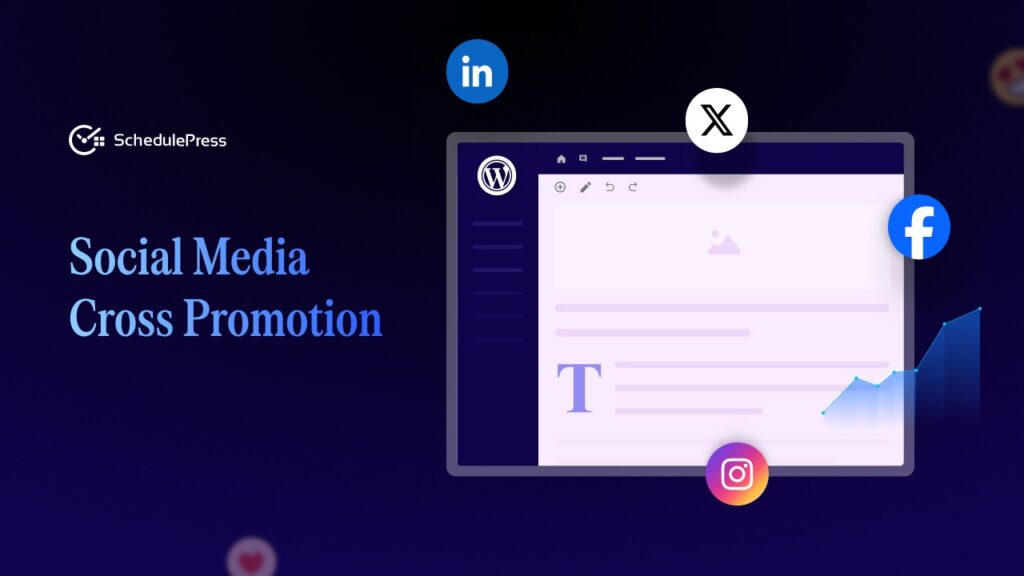
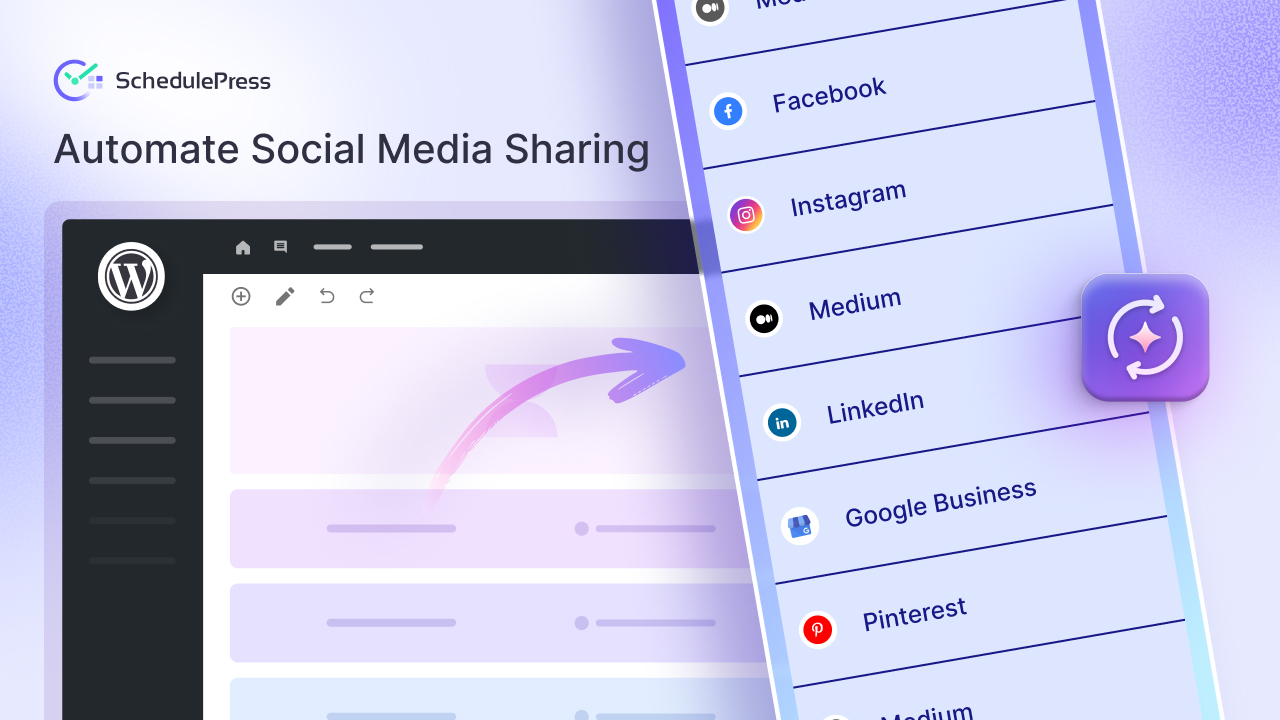
Publishing is only half the job. If you are trying to grow traffic, you also need distribution. SchedulePress supports auto social sharing to platforms such as Facebook, X (Twitter), LinkedIn, Instagram, Medium, Pinterest, Threads and Google Business Profile.
This changes your workflow. Instead of publishing, copying a link, opening social apps and repeating the same steps, you connect your profiles once, then let the plugin share for you. You can also use social templates to shape the message so each platform gets a format that fits, such as hashtags on X or a more descriptive excerpt on LinkedIn.
A Practical Social Template Setup
Create one template that uses your post title plus a short value statement. Create another template that adds a question to invite comments. Then assign templates by category so your “Tutorial” posts follow one style and your “News” posts follow another. When you schedule posts in WordPress with SchedulePress, the promotion layer becomes consistent, too.
Keep Evergreen Content Moving with Republish and Cleanup
Scheduling is not only for brand-new posts. Many sites grow faster by refreshing older content and reintroducing it to new readers. SchedulePress advanced scheduling lets you republish or unpublish content at a time you choose, which helps you bring older posts back or retire time-sensitive pages cleanly.
Use this for seasonal guides, product announcements and campaigns with a clear end date. Pair it with your editorial calendar so you always have a mix of new posts and refreshed posts in the pipeline.
Team Workflows: Approvals, Roles and Visibility
If more than one person touches content, scheduling becomes coordination. A shared editorial calendar is the simplest way to keep writers, editors and marketers aligned. SchedulePress lets you manage content from a central view and send email alerts, so everyone knows what is scheduled and what needs work.
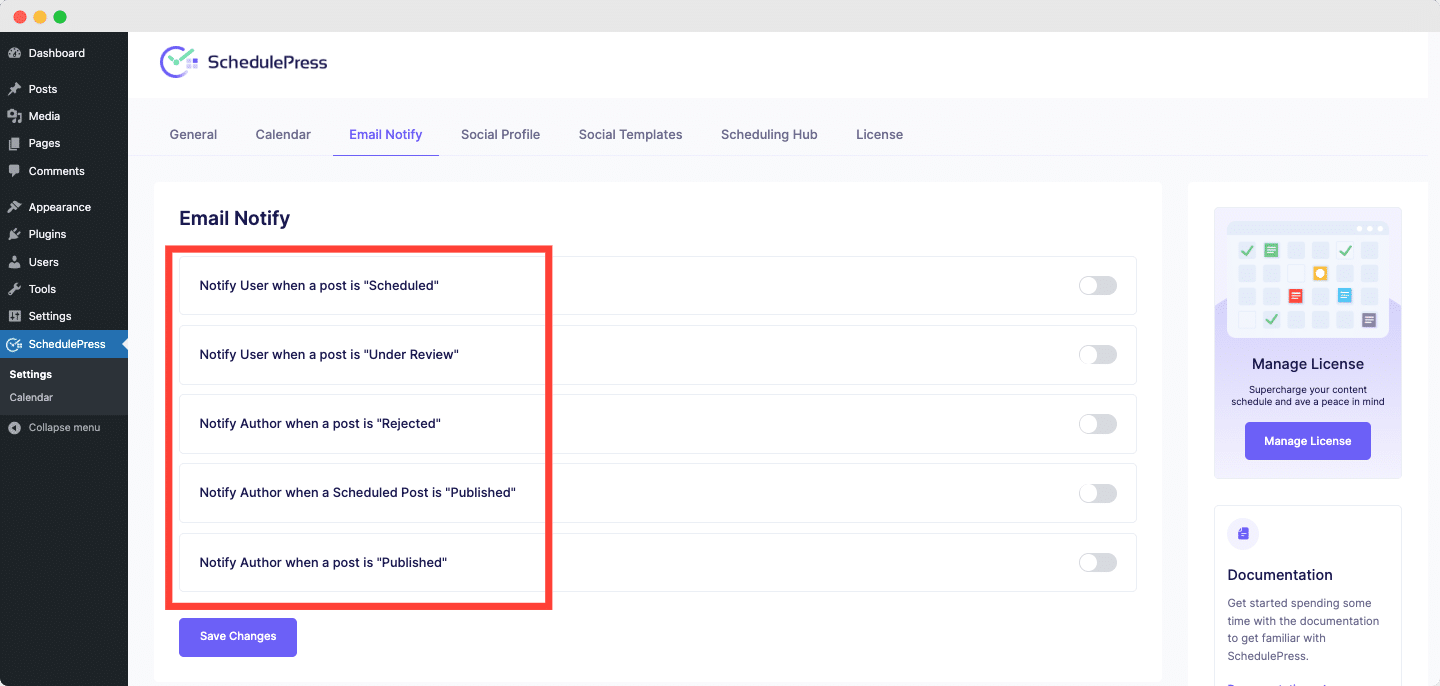
Set clear rules for who can schedule and who can reschedule. For example, contributors can draft, editors can schedule and managers can adjust the cadence. You can also use notifications so authors know when their post goes live. The result is fewer follow-ups, fewer surprises and a smoother publishing process.
Real-World Workflows You Can Copy
A WordPress scheduling plugin is only useful if it matches your day-to-day needs. Below are three patterns that work for common WordPress sites. Pick the one that matches your situation then adapt it.
Solo Blogger with Limited Time
Batch writing is your superpower. Write two to four posts in a single focused session, add them to the queue and use the auto post scheduler to publish twice a week. Review your editorial calendar once a week and move any drafts that need extra polish. This keeps you consistent without needing a rigid daily routine.
The Marketing Team Running Campaigns
Plan around milestones. Put pillar content first, then schedule supporting posts around it. Use auto social sharing to distribute new posts immediately and keep templates consistent across campaigns. If a launch date changes, drag content to the new dates and the plan stays intact.
Business Site that Needs Reliable Announcements
Announcements are often time-sensitive, so use manual scheduling for those posts. Keep the missed schedule handler enabled so a key update never gets stuck unpublished. Then use the calendar view to ensure announcements do not collide with major product pages or newsletters.
Best Practices for Scheduling that Actually Hold Up
Tools help, but habits make the system stable. These practices will help you avoid common mistakes and keep your schedule realistic.
- Set times that match your audience and your team
- Keep one buffer post ready
- Use the calendar as the source of truth
Common Questions about Scheduling in WordPress
You might still wonder whether a plugin is worth it for your site. Here are quick answers based on the most common situations.
Can I schedule content for pages and custom post types?
Yes, SchedulePress documentation covers scheduling for pages and custom post types, which is useful if you publish landing pages, portfolio items or other content formats.
Should I use auto-scheduling for everything?
No. Use the automatic post scheduler for steady publishing and use manual scheduling for content tied to a specific announcement time. A hybrid approach usually works best because it balances automation with control.
Will social sharing work if I reschedule a post?
Your sharing depends on how you configure your social rules, but the goal of auto social sharing is to reduce manual steps around publish time. When you move a post to a new date, review whether your social queue matches that change.
A Weekly Routine that Keeps Everything Running
Here is a simple routine you can repeat without becoming a full-time project manager. On Monday, review your editorial calendar and confirm what will publish this week. On Tuesday, finish one draft and place it into the queue. On Thursday, check analytics and update one evergreen post for republishing next month.
This routine works because it combines planning, execution and improvement. With SchedulePress handling the mechanical steps, you will find it easier to schedule posts in WordPress consistently without feeling like your content calendar owns you.
Build a Scheduling System You Can Trust
Scheduling is not only about convenience. It is about building a system that protects your consistency, frees your attention and supports growth. When you schedule posts in WordPress with SchedulePress, you get an editorial calendar for visibility, an automatic post scheduler for cadence, a missed schedule handler for reliability and auto social sharing for distribution.
If you have been relying on WordPress alone and you have felt the friction, the solution is to upgrade your workflow rather than push harder. Use the calendar to plan, automate what is repeatable and keep control where timing matters. That is how you build a publishing rhythm you can maintain.
If you have found this blog helpful, share your opinion with our Facebook community. You can subscribe to our blogs for valuable tutorials, guides, knowledge, tips, and the latest WordPress updates.