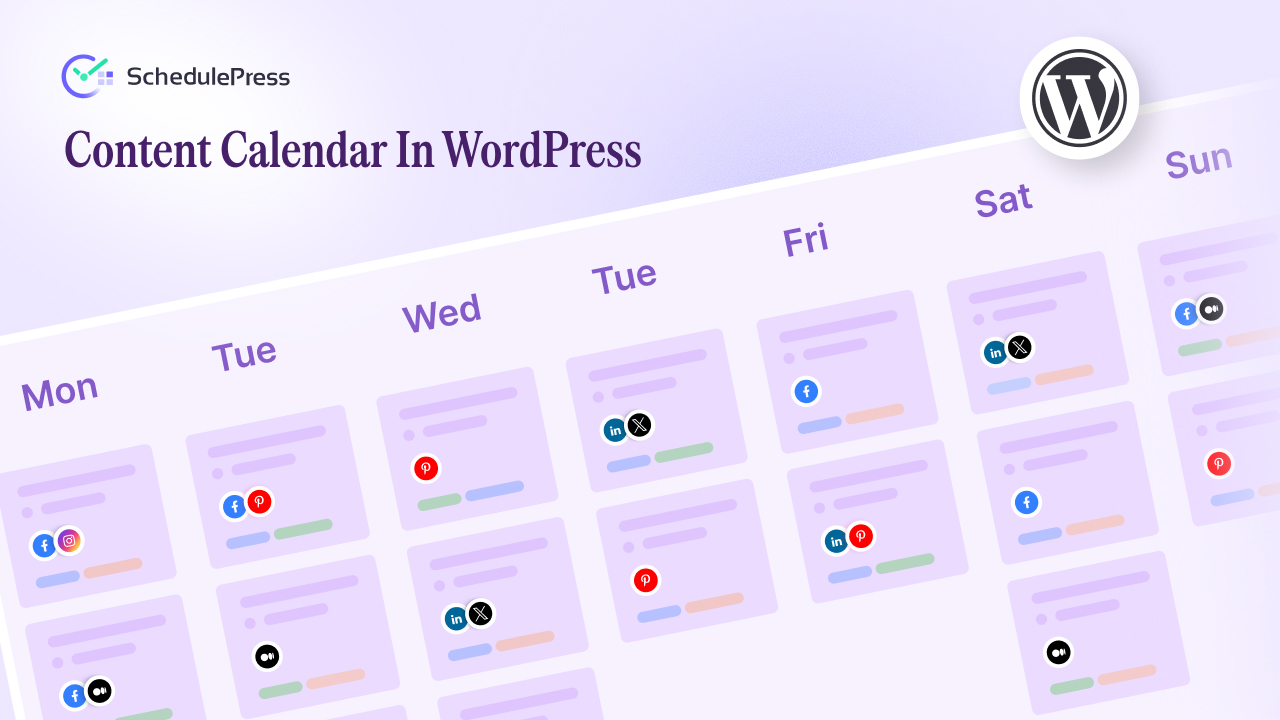
A strong publishing workflow does not happen by accident. It grows from structure, clarity and consistency. Understanding how to create a content calendar gives you the backbone you need to publish without chaos, avoid missed deadlines and reduce last-minute scrambling. Whether you run a blog, manage a marketing team or plan social distribution, a calendar helps you bring order to creativity. With SchedulePress, that content workflow becomes even more streamlined because everything happens right inside WordPress.
A content calendar is more than a spreadsheet. It is a visual calendar of what you will publish, when it will go live and where it will be shared. When you learn how to create a content calendar strategically, you start planning with intention rather than reacting day by day. You see gaps early, evaluate workload and maintain consistency across your website and all connected platforms.
But the real transformation begins when you connect your calendar to automation. SchedulePress helps you schedule posts, automate social sharing and manage your entire content pipeline without switching tools. Let us walk through how to create a content calendar that saves time and brings structure to your editorial process.
What a Content Calendar Should Look Like
A content calendar does not need to be complicated. It needs to be clear, flexible and practical. Before mapping out tasks, decide what information your calendar should hold. Understanding how to create a content calendar starts with building the right foundation.
Most teams include these essentials:
- Post title and content idea
- Assigned author
- Draft and publish dates
- Target keywords
- Social distribution plan
- Status updates
These elements give you visibility, ensure accountability and make planning much easier. Once you have these basics, you can tailor your calendar to your team size, posting frequency and content workflow.
Get Clear on Your Content Goals and Themes
Before you create any calendar, you need to understand why you are publishing. Knowing how to create a content calendar requires clarity on goals and audience patterns. Goals determine post frequency, content pillars and deadlines.
Consider questions like:
- What business objectives does your content support
- Who are you trying to reach and what motivates them
- Which topics build authority and align with your expertise
When you take time to define these elements, your calendar becomes a strategy rather than a schedule. You stop guessing what to write next and start planning content with purpose.
Structure the Calendar Around Your Content Workflow
A powerful calendar reflects how you and your team actually work. Understanding how to create a content calendar means identifying the steps required to bring any idea to publication.
Most workflows follow a sequence like:
- Idea generation
- Draft creation
- Editing and feedback
- Final approval
- Scheduling
- Publishing
- Social sharing
Mapping these stages inside your calendar prevents bottlenecks and reveals where deadlines should fall. It also helps you visualize workload balancing across weeks and months.
Build Your Content Calendar Inside WordPress: A Guide with SchedulePress
This is where SchedulePress transforms everything. Instead of juggling spreadsheets and dashboard tabs, you can manage your entire editorial pipeline directly inside WordPress. If you want the smoothest experience while learning how to create a content calendar, SchedulePress gives you structure without complexity.
With SchedulePress, you can:
- Drag and drop posts on the visual calendar
- Assign authors and track progress
- Schedule posts weeks or months in advance
- Automate social sharing for each published post
This reduces clutter and lets you plan and execute simultaneously inside a single interface. Now, let us see how to schedule posts from the SchedulePress editorial calendar.
How To Schedule Posts With Schedule Calendar?
You can schedule your content instantly with the drag-and-drop interface of the Schedule Calendar from SchedulePress. First, navigate to ‘SchedulePress → Calendar‘ from your WordPress dashboard. You will be able to see the full calendar with all of your scheduled posts.
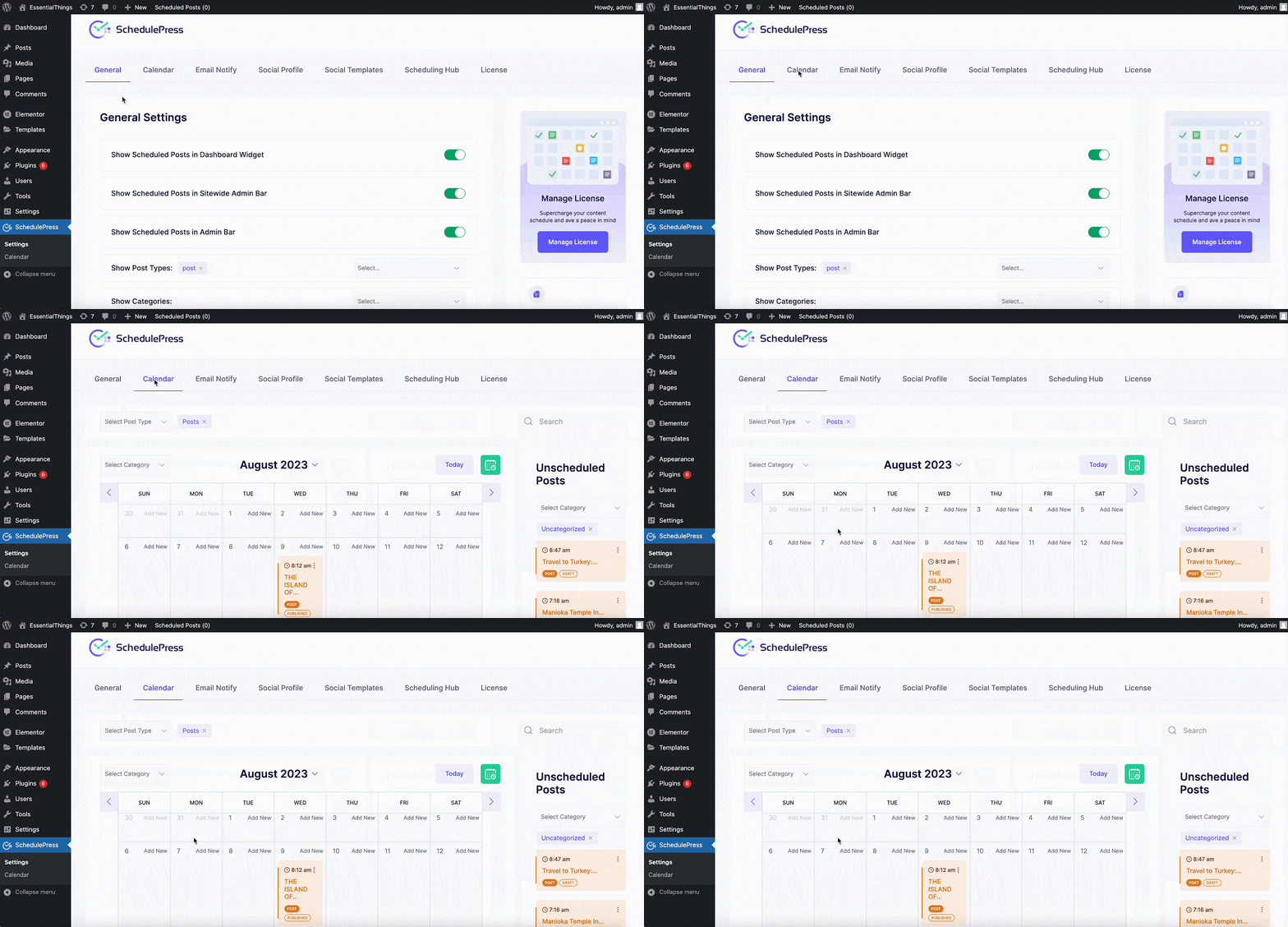
Drag and drop any scheduled post on any date within the calendar to change its scheduled date. You can even change the timing for your scheduled posts by hovering with your mouse and then clicking on the ‘Edit’ option.
You can hover over your posts and make small changes to your posts in the Schedule Calendar by clicking on the ‘Dots’ icon appearing beside the post. You have the freedom to make quick changes to your Title, Content, or even Schedule time as well. Besides, you can do the following: ‘View’, ‘Edit’, ‘Quick Edit’, and ‘Delete’.
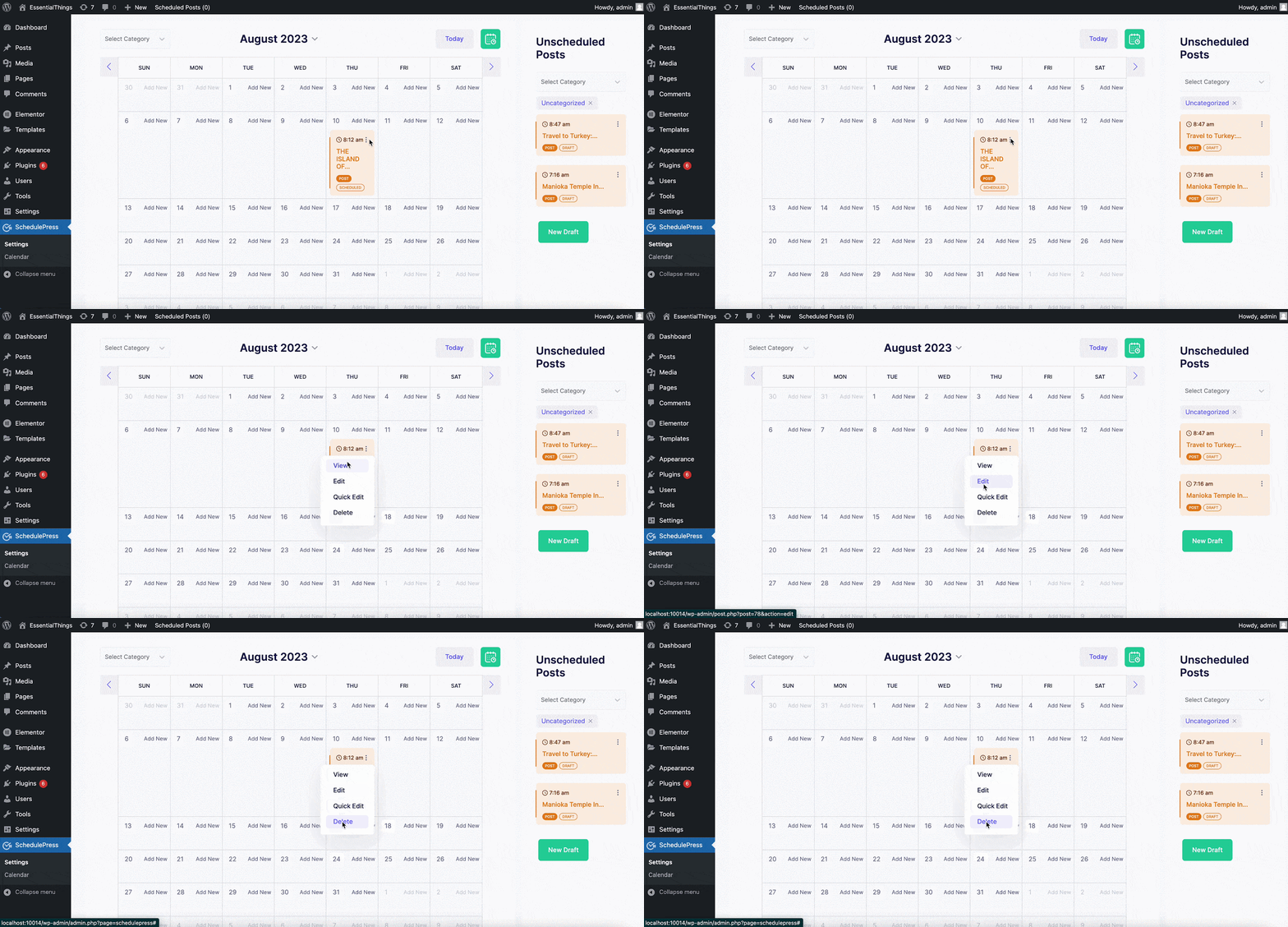
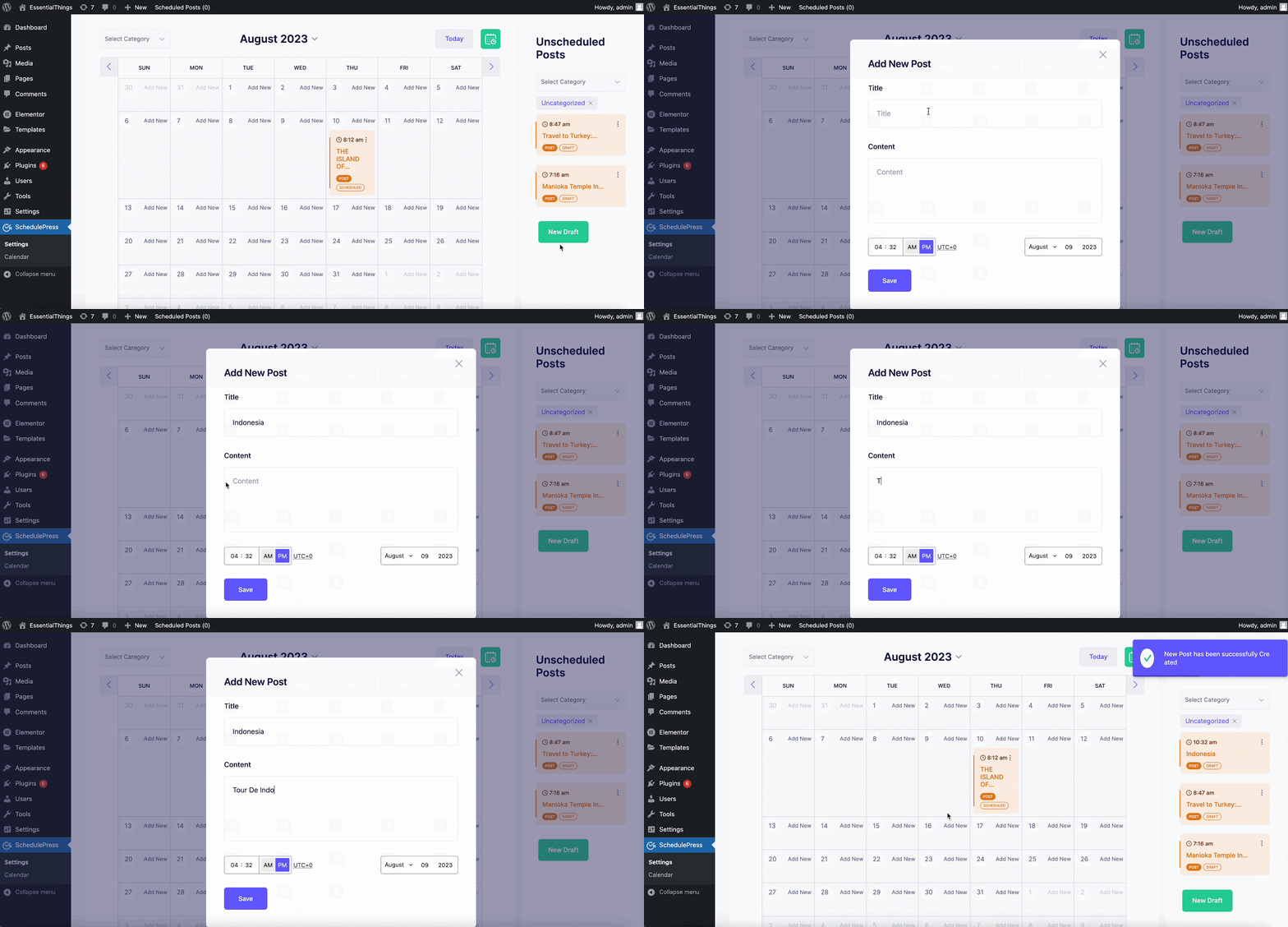
Schedule Calendar also lets you easily create new draft posts within the calendar. Just click on the ‘New Draft’ button as shown below. You can then add a title, and content and set the scheduled time for your new post all from inside this editorial calendar.
Tips to Create & Manage Content Calendar in WordPress
Below are some tips and tricks you can check to create and manage a content calendar in WordPress, so you do not mess up at all.
Assign Responsibilities Clearly
If you work with multiple writers, designers and editors, clarity is essential. A content calendar becomes a hub that shows who handles what and when. When learning how to create a content calendar for teams, you must ensure that assignments are visible and deadlines are clear.
SchedulePress supports team collaboration by making responsibilities easy to track and send emails. Editors can see drafts, authors can view expectations and the whole team is informed and stays aligned.
Keep Your Calendar Flexible
A content calendar should guide you, not restrict you. Trends shift, news breaks and campaigns evolve. Knowing how to create a content calendar means understanding how to build a system that adapts.
Flexibility might mean:
- Moving posts around when priorities shift
- Swapping outdated topics with fresh opportunities
- Refreshing old posts that suddenly become relevant again
SchedulePress makes this simple with drag and drop controls and an intuitive schedule interface.
Refresh Old Content with a Calendar System
Content refreshes are a powerful part of ongoing SEO and audience engagement. When you know how to create a content calendar that supports updates, your existing content gains new life instead of being forgotten.
Your refresh tasks may include:
- Updating examples
- Adding new visuals
- Improving internal linking
- Refining keywords
SchedulePress helps you manage these refresh cycles by letting you create drafts, schedule update deadlines and track progress right inside WordPress.
Manage Your Backlog and Stay Agile
A great content calendar is not only about planned posts. It is also about giving yourself flexibility for spontaneous opportunities. When you know how to create a content calendar that handles both, you never miss strategic moments.
With SchedulePress, you can maintain a backlog of drafts ready to deploy. When a sudden opportunity arrives, drag a post into your timeline and your entire schedule adjusts without disruption.
Frequently Asked Questions
Can I use SchedulePress to manage a team of writers
Yes. SchedulePress supports multi-author workflows, making it easy to assign posts, track workloads and manage production efficiently.
What is the difference between a content calendar and an editorial calendar
A content calendar maps what you publish and when. An editorial calendar manages production details like drafting, editing and approvals. SchedulePress handles both inside WordPress.
What happens if WordPress misses a scheduled post
SchedulePress includes a Missed Schedule Handler that ensures posts still publish even if cron jobs fail.
Can I import my old spreadsheet calendar
Yes. You can recreate all your planned items as drafts inside SchedulePress and manage everything visually.
Create & Manage Content Calendar Effortlessly with SchedulePress
Understanding how to create a content calendar is the foundation of consistent, high-impact publishing. When you pair strategy with SchedulePress automation, you eliminate confusion and create a seamless workflow from planning to publishing to social distribution.
If you are ready to build a smarter, more efficient content engine, SchedulePress is your best solution for centralizing planning and scheduling directly inside WordPress. If you want more tips and tutorials like this, be sure to subscribe to our blog and join our friendly Facebook Community to stay updated with the latest WordPress trends and social media marketing insights.