Social media should bring more reach to your WordPress content, not eat your productive hours. But if you are switching between three platforms, five profiles and “just one more channel,” it stops being marketing and starts being a time-killing machine. Social media management in WordPress is the fix: plan your publishing and your promotion in one place so you can stay consistent, avoid wrong‑account posting and ship content on time.
In this guide, you will learn how to build a WordPress-native workflow for scheduling, account mapping, automation, collaboration, analytics and troubleshooting using SchedulePress as the core command center.
Why Managing Multiple Accounts Gets Messy Fast?
Publishing a blog post should be simple. But with multiple accounts, it quickly turns into switching logins, copying links and second-guessing everything. You jump between accounts, copy the same link again and again and try to remember which profile you are using. Sooner or later, someone posts from the wrong account.
That is why many teams want one place to manage everything. When you keep your process in one system, you make fewer mistakes and waste less time. Your captions stay consistent, your posting times do not slip and it is clear who is responsible for what.
A WordPress-first workflow makes this easier. You prepare the main content in WordPress first, then use that same structure to schedule social media posts. Instead of creating posts separately for each platform, you plan once, then publish across channels in a more organized way.
How to Manage Social Media in WordPress with SchedulePress?
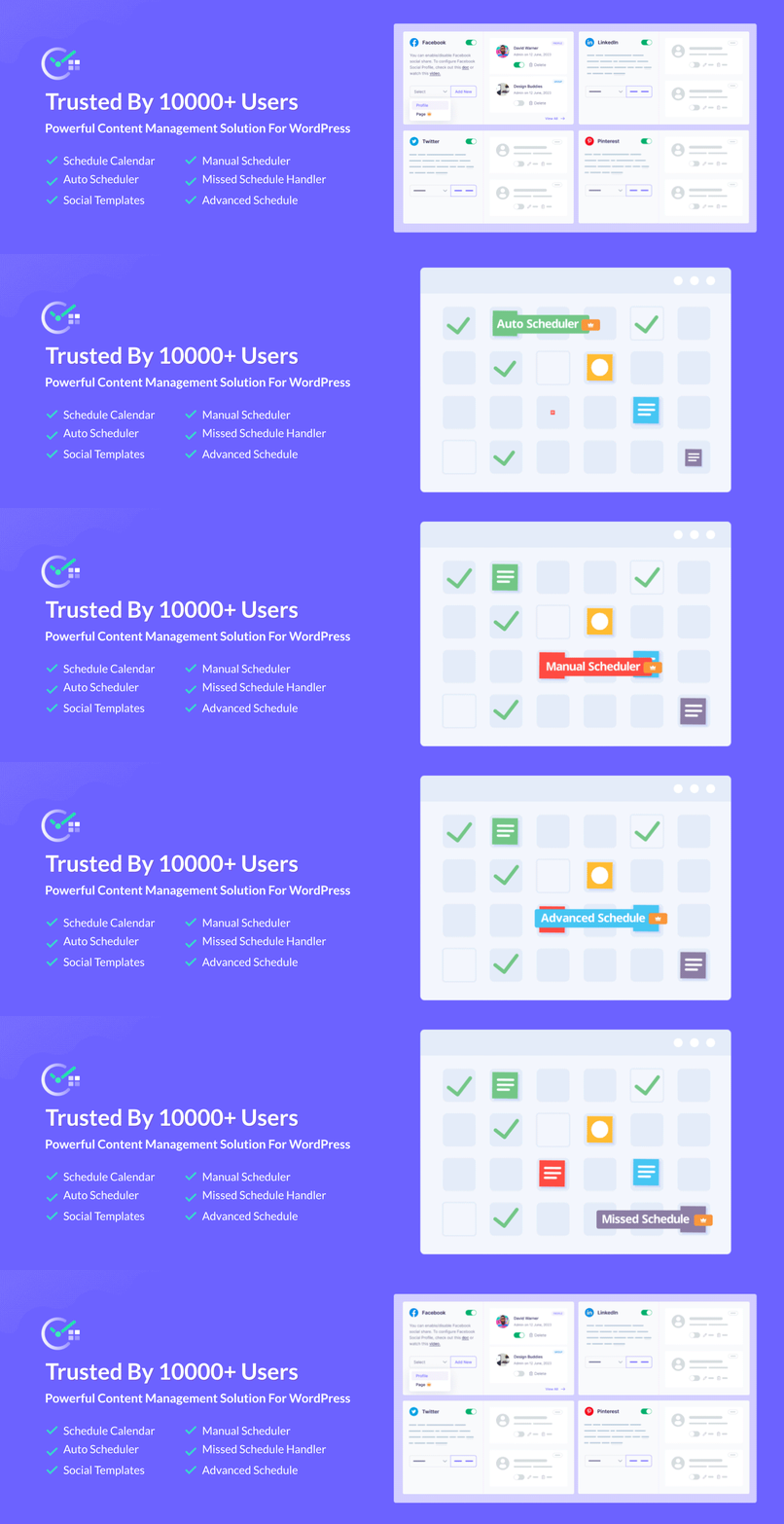
The easiest way to reduce the chaos is to use one clear workflow where planning, scheduling and sharing all happen inside WordPress. SchedulePress is built for that, working as a social media plugin. It gives you a calendar, scheduling and automation so you can manage everything from one place.
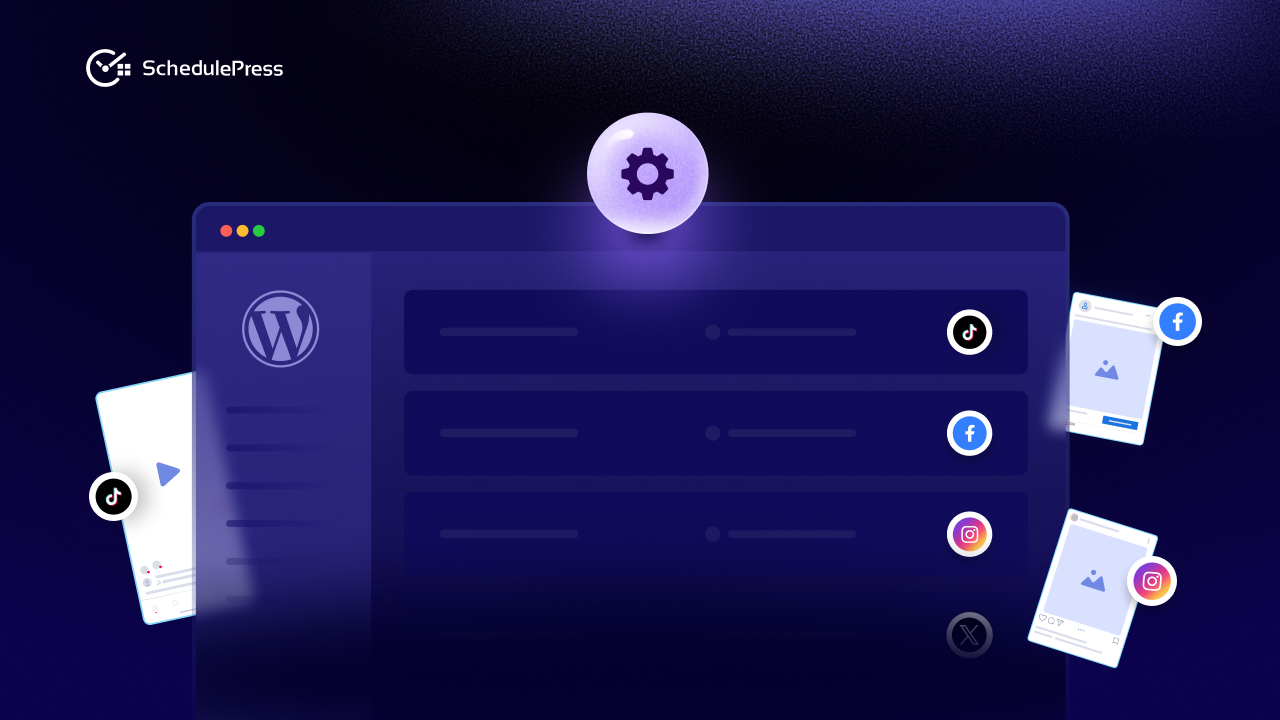
SchedulePress can also automatically post from WordPress to social media platforms like Facebook, X, LinkedIn, Pinterest, Instagram, Medium, Threads and Google Business Profile. It also lets you customize and preview your social text using templates, so posts look right before they go live.
Start with a True Content Calendar Inside WordPress
When you can see your upcoming posts and scheduled shares on a calendar, you stop guessing. You know what is going live, what is already scheduled and what still needs a final review. Drafts turn into real plans, not “maybe later.”
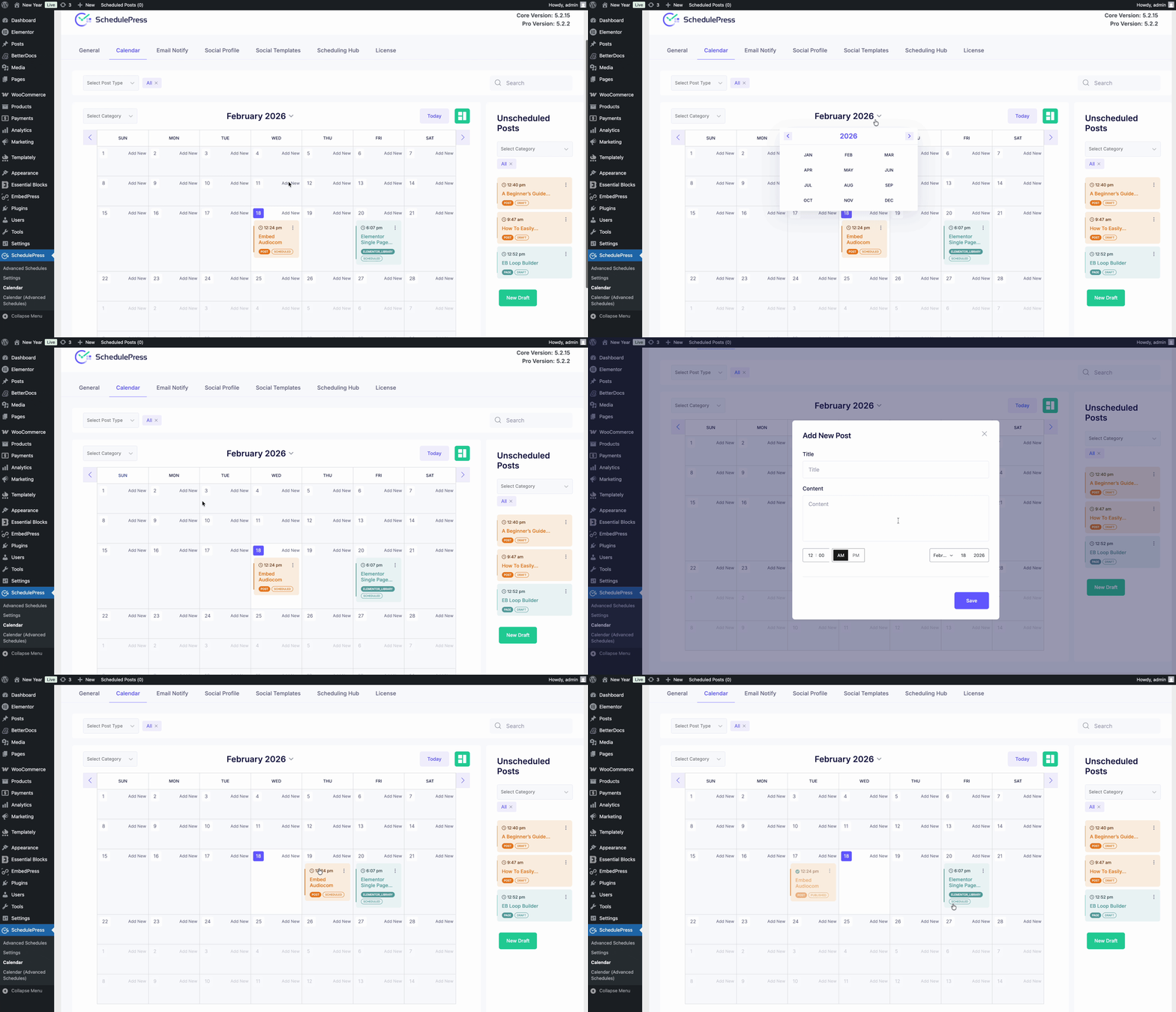
Use SchedulePress’s calendar view as your social media content calendar that your team can actually rely on. You can drag posts to a date, move them to another day and even create new posts right from the calendar.
Practical setup tips:
- Choose how often you want to publish (for example, three blog posts per week).
- Use the same plan for social media scheduling (share when the post goes live, then share again later in the week).
- Block out “campaign time” in the calendar (launch week, webinar week, seasonal promotion).
This is still social media management in WordPress. But now it feels like proper planning, not last-minute rushing.
Connect, Group And Map Accounts the Smart Way
When people treat every account the same, they usually share the same post to every profile with one click, using the same caption and timing. They do not adjust the message based on the audience – brand pages, founder profiles and community groups all get the same update. That is how a product announcement ends up in a community group where people expected tips and discussions.
A simple fix is to make an “account map.” It means you decide which type of content should go to which profile before you start scheduling.
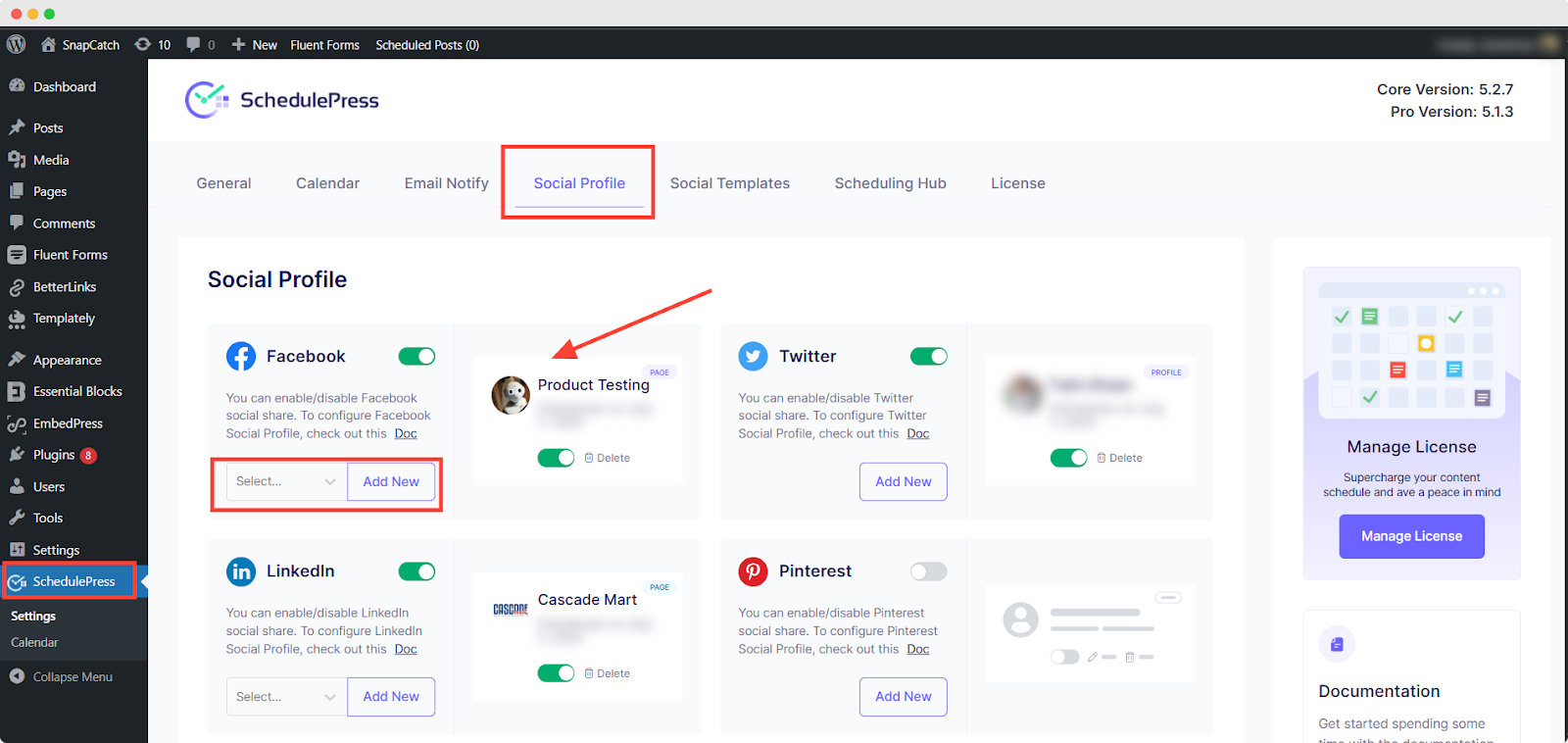
Quick connect steps (one time):
- Go to SchedulePress → Settings → Social Profile. Turn on the networks you want and then click “Add New Profile.”
- Connect each account and rename the profiles clearly (for example: Brand, Community, Founder).
- Publish one test scheduled post to make sure everything works.
Example mapping that you can implement on your social profiles:
- Tutorials → LinkedIn Company Page + Facebook Page
- Case studies → LinkedIn Company Page + founder LinkedIn profile
- Product updates → X + Threads + Facebook Page
- Local offers → Google Business Profile + Facebook Page
SchedulePress lets you connect and share to multiple profiles. It works well as a social media plugin for multi-brand websites – one site, many audiences. And your social media workflow stays clear.
Create Templates, So Automation Does Not Sound Robotic
Automation becomes less effective when your posts feel robotic. People can tell right away. The fix is simple: use templates that sound like you, because you wrote them yourself – just once. And then, reuse them whenever you schedule posts.
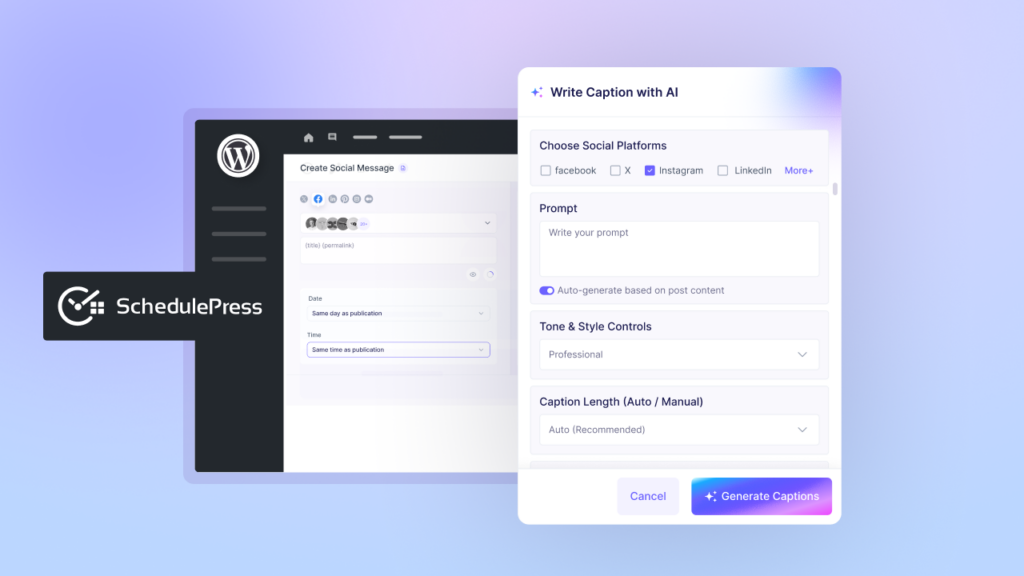
Start with one main template that works for most posts. Then create a few platform-specific templates for places where the style needs to change. SchedulePress lets you create custom templates, use placeholders and preview or edit the message right inside the post editor.
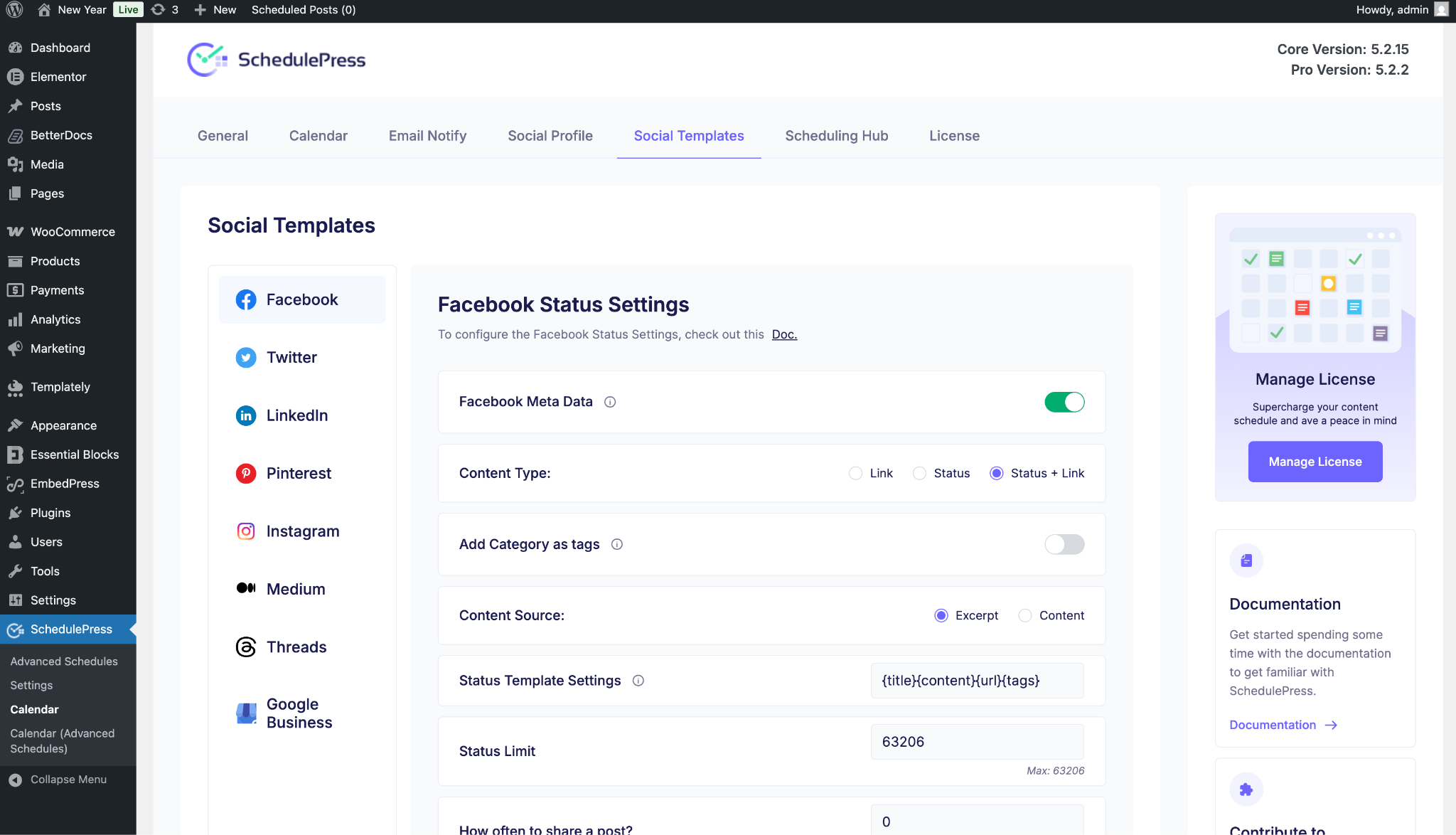
Quick template starter (tweak per brand):
- LinkedIn: {title} — {benefit}. {url}
- X/Threads: {one_liner} {url} #{tag}
This is where social media scheduling becomes “set it up once, use it again and again.” And it is also where social media management in WordPress helps you keep your message consistent, even when you are posting at scale.
Workflows that Scale without Turning Your Team into Robots
A good system does not depend on memory. It depends on the steps you can follow, even in a messy, busy week. Treat social media management in WordPress like a simple editorial process: one place for the plan, clear goals and fewer last-minute decisions. When you manage several social accounts, that consistency is what keeps your week from blowing up.
A Lightweight Social Media Workflow for Teams
A lightweight workflow should feel simple, not heavy. The goal is to remove last-minute scrambling and make posting predictable. Try this weekly loop: plan in the calendar, write captions using templates, schedule the post and social shares together, then review what worked and adjust.
If you need approvals, add one quick “green light” step before scheduling. That is a social media workflow that stays inside WordPress and helps you avoid posting the same thing twice.
Roles, Permissions And Shared Connections for Safety
When more than one person can publish, you need safeguards. Not to be corporate, just to prevent mistakes. WordPress schedules posts using your site’s timezone settings, so do a quick timezone and publish-time check before you debug anything else.
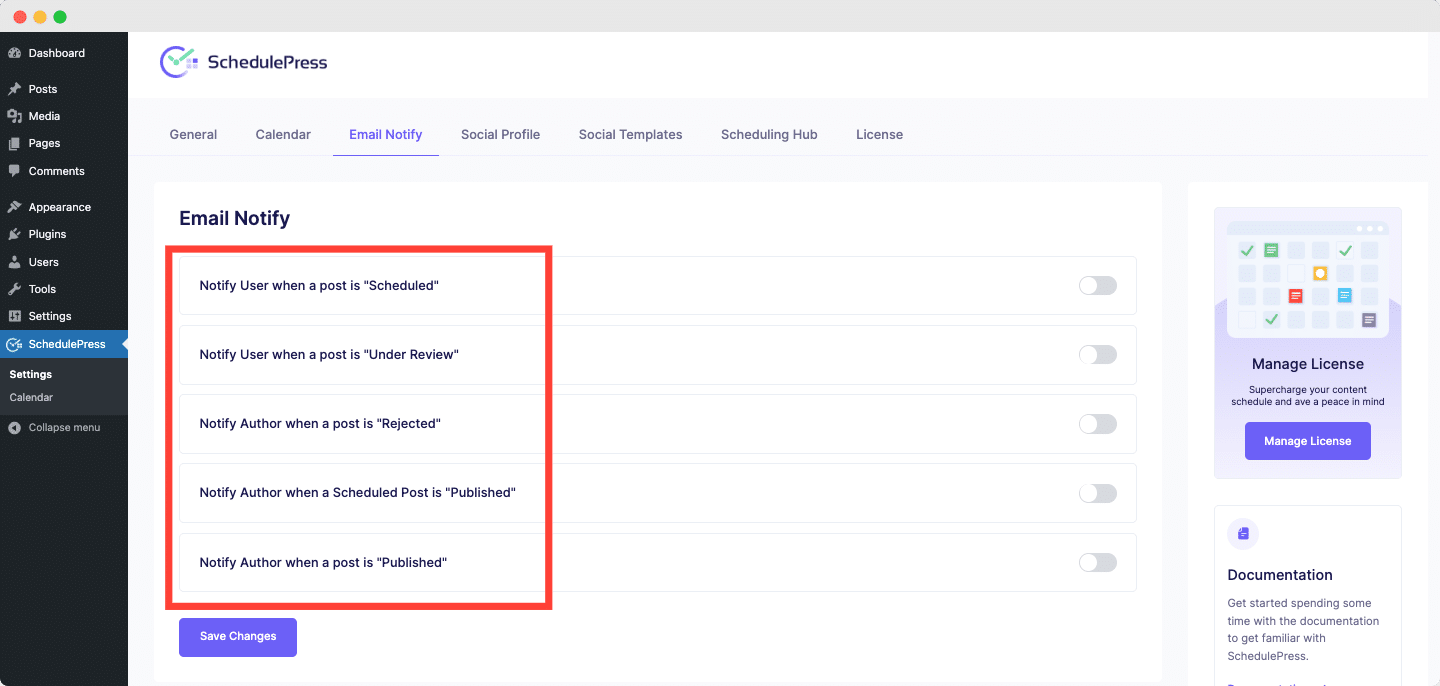
For social connections, it is usually safer if admins manage the main connections, share access with other publishing users when needed and limit who can add or remove accounts. SchedulePress gives you the opportunity to send email notifications to WordPress users when a post is published, trashed or scheduled. As a result, your users will be aware of the status of each piece of content on your website.
Analytics, Troubleshooting And Security Best Practices
This is the “it worked fine… until it didn’t” part. The goal is to keep your workflow easy to measure, stable and safe. Good social media management in WordPress is not only about posting faster. It is also about tracking results and protecting your accounts.
Track What Matters with UTMs And Clear Naming
Clicks are nice. Knowing where they came from is even better. Use GA4 campaign tools and UTM tags so you can track traffic when you auto-post from WordPress to social media across different profiles. These UTM tags are added to your links and you can see the results inside Google Analytics.
Simple UTM pattern (example):
- utm_source = linkedin, facebook, threads
- utm_medium = social
- utm_campaign = {campaign_name}
- utm_content = {account_or_variant}
If you are doing social media management in WordPress for multiple brands, UTMs stop your reporting from turning into guessing. BetterLinks has a social share feature for the UTM builder. It automatically creates UTM code for your URL and lets you share your URL the way you want it.
Fix Missed Schedules And Timing Issues
WordPress scheduling is powerful, but it depends on how scheduled tasks run. Sometimes schedules fail, especially on low-traffic sites or when caching is heavy.
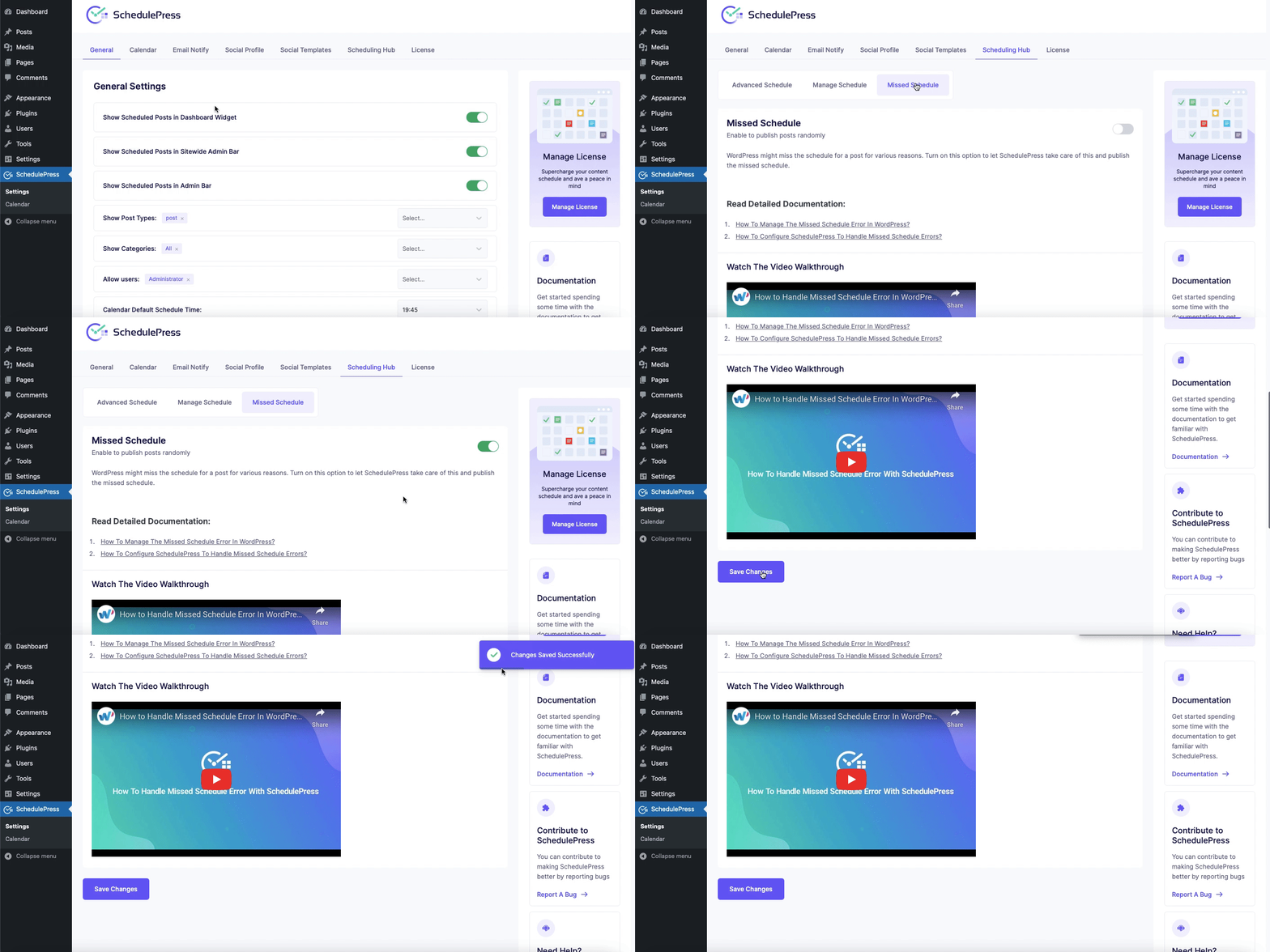
SchedulePress includes a missed schedule handler and also points you toward simple checks like confirming your site’s timezone and clearing caches.
Also, do not ignore the “posted one hour late” problem. WordPress uses your site’s timezone settings for publish times, so checking the timezone is usually the fastest fix.
Make Automation Safer than Manual Posting
Manual posting feels “safe” because you are doing it yourself. But that is also when mistakes happen most: wrong account, wrong link, rushed text.
Security checklist for multi-account publishing from WordPress:
- Use strong passwords and consider a two-factor authentication plugin.
- Limit who can publish and who can manage social connections.
- Keep WordPress core, themes and plugins updated.
- Write down your account map and template rules so new team members follow the same system.
If you do these, social media management in WordPress becomes not just efficient, but reliable.
Make Social Media Management in WordPress Easy & Efficient
When you stop treating “publishing” and “promotion” as two separate jobs, everything feels easier. You plan once and share with less effort. And you still leave room for real, timely posts when something important happens.
Over time, your system becomes repeatable: a calendar you can see, templates you can trust and a workflow your team can follow. That is social media management in WordPress done in a simple, calm way.
If you want more tips and tutorials like this, be sure to subscribe to our blog and join our friendly Facebook Community to stay updated with the latest WordPress trends and social media marketing insights.